AI usage
See how many AI tokens your organization used, per feature, for a month or a date range you choose.
Before you begin
- You need the Admin role. Integrators, team leads and Members don't see the Usage page. See Roles at a glance.
The page shows totals for the whole organization. It doesn't break usage down by person, and it doesn't show cost.
Open the Usage page
-
Open the user menu at the bottom of the sidebar and select Organization settings.
Organization settings open, with their own sidebar.
-
Under Billing, select Usage.
The Usage page opens and shows the current calendar month.
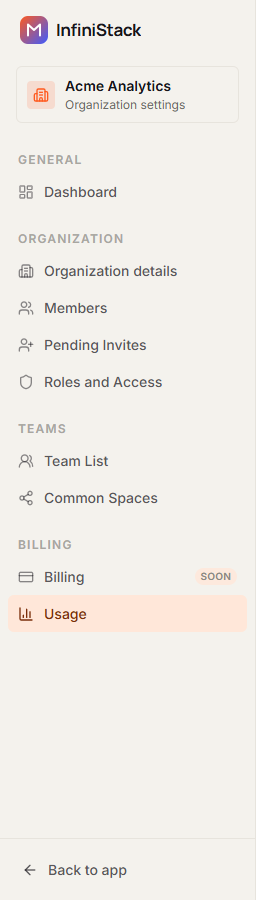
Billing isn't available yet. In the user menu it only shows Billing is coming soon, and in the organization settings sidebar it carries a Soon badge. Token usage is under Usage.
To go back to your work, select Back to app at the bottom of the organization settings sidebar.
Usage by feature
The Bucket usage card lists the tokens used in the selected period. The dates under the title show the period, for example 2026-10-01 → 2026-10-31. Both dates are included.
Each row is one AI feature. It shows a name, such as Chat, Metrics, Workflows or Insights, with the feature's internal name in smaller text underneath.
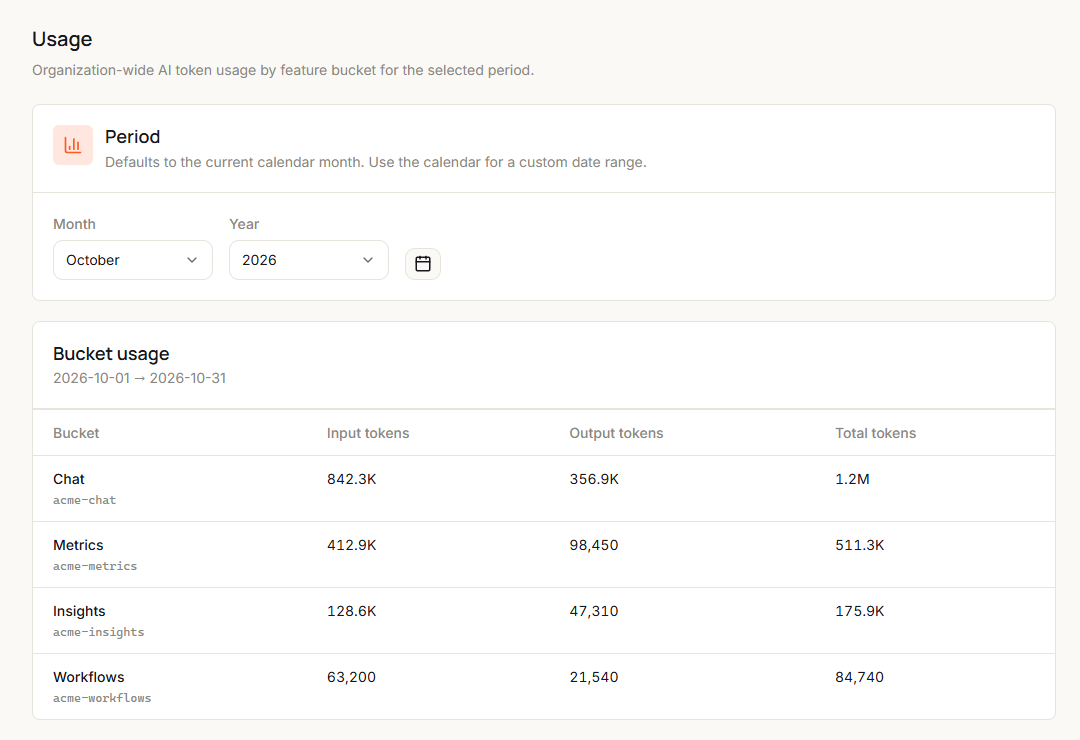
| Column | What it shows |
|---|---|
| Input tokens | Tokens sent to the AI. |
| Output tokens | Tokens the AI sent back in its answers. |
| Total tokens | All tokens the feature used in the period. |
Counts below 100,000 show in full. Larger counts are shortened, for example 1.2M. Point to a count to see the exact number.
If no AI feature was used in the period, the card shows No bucket usage for this period.
If the card shows Could not load usage, see Troubleshooting.
Choose a period
The Period card sets which dates the table covers. It starts on the current calendar month.
See a whole month
-
Select a Month.
-
Select a Year.
The table updates as soon as you change either one. It covers the whole month, from the 1st to the last day.
See a custom date range
-
Select the calendar button next to Year.
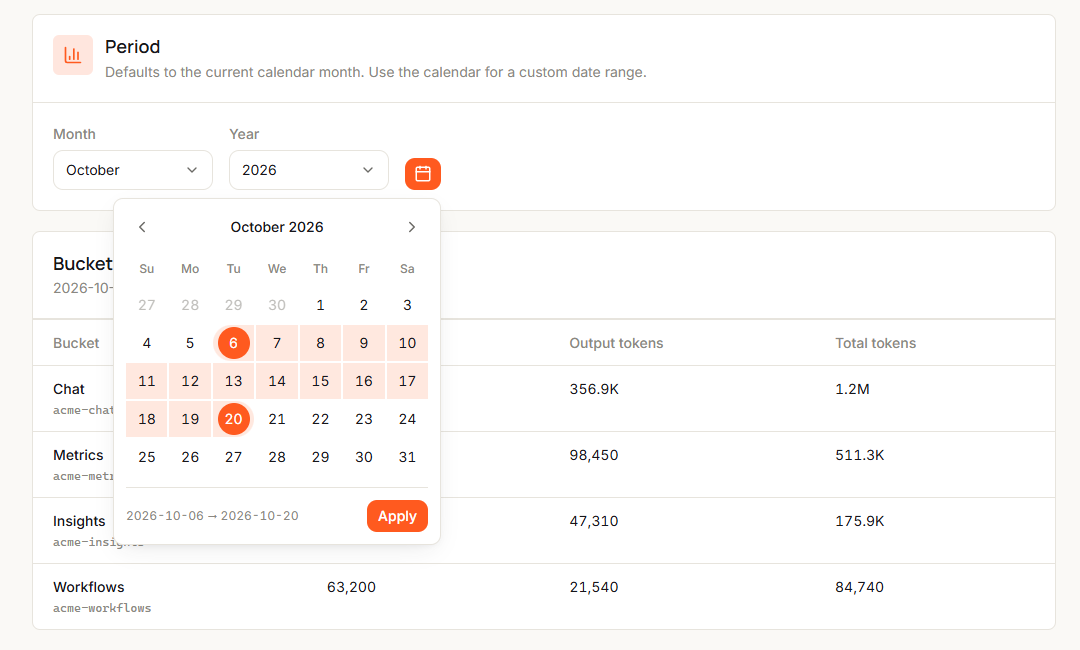
A calendar opens, showing the current period. When you select a start date, the period resets and waits for an end date.
-
Use the arrows to go to the month you want.
-
Select the start date.
-
Select the end date.
The range can span months, and can be a single day. If you select an end date before the start date, the two swap.
-
Select Apply.
The calendar closes, and the dates under Bucket usage show your range.
To close the calendar without changing the period, select outside it or press Esc.
Changing Month or Year after you apply a custom range replaces it with that whole month.