Members & invitations
Invite people to your organization, approve the invites your team asks for, and change or remove members.
Before you begin
- You need the Admin role. See Roles at a glance.
- To invite someone as a Member, at least one team must exist. Members must belong to a team. See Teams & Common Spaces.
You manage people from two pages under Organization in organization settings:
- Members lists everyone in the organization, plus open invitations. The cards at the top count Total Users, Active, Org Admins, Integrators, Team Leads and Pending Invites.
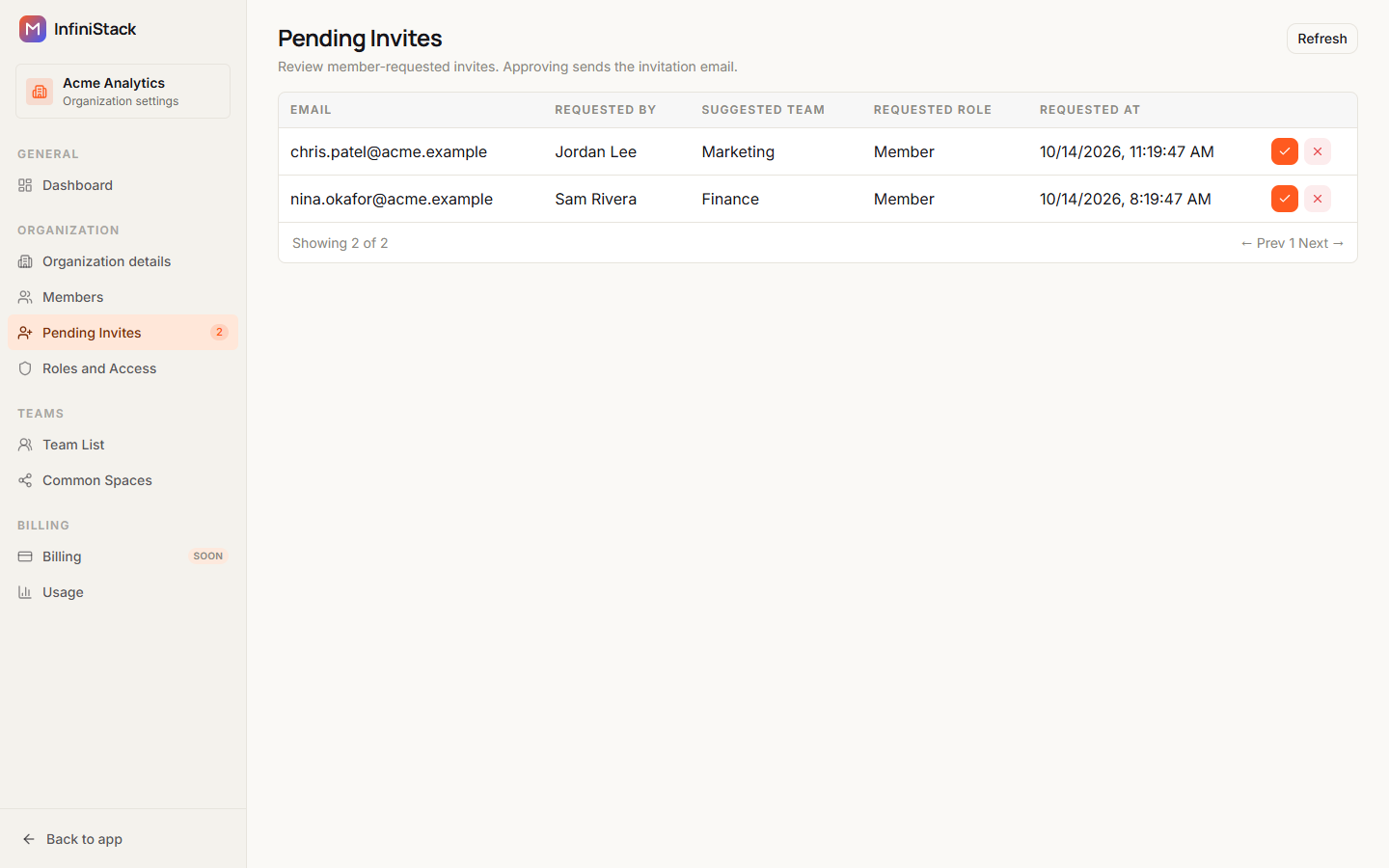
- Pending Invites lists invites that Integrators and Members asked for and that wait for your approval.
To find someone on Members, type in Search by name or email.... The list shows 10 rows per page and loads up to 100 people.
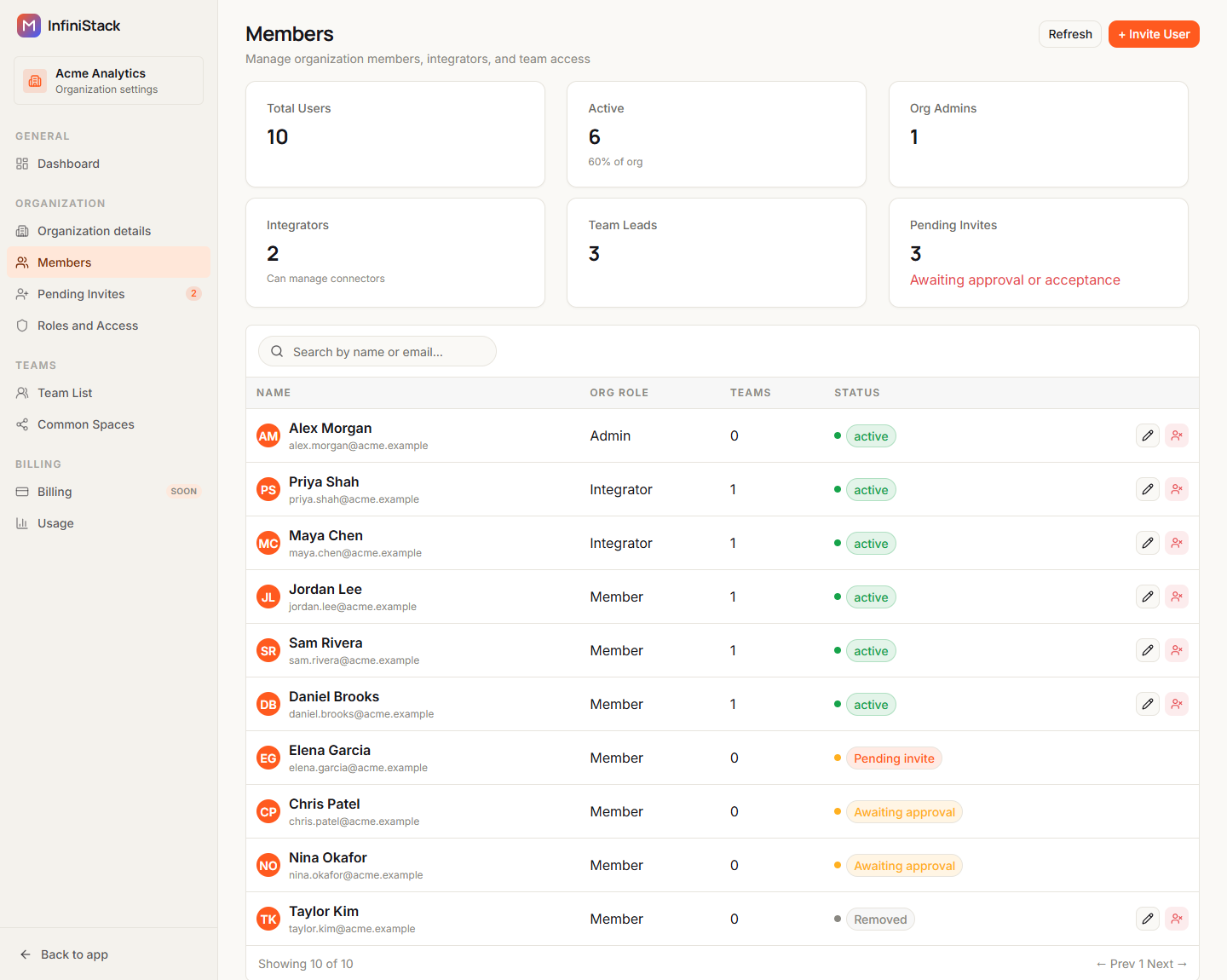
Each row shows a Status:
| Status | What it means |
|---|---|
| active | The person has joined and can use the organization. |
| Pending invite | The invitation email was sent, and the person hasn't accepted it yet. It also shows for a member who hasn't verified their email address yet. |
| Awaiting approval | An Integrator or Member asked for this invite. An Admin must approve it on Pending Invites. |
| Removed | An Admin removed the person from the organization. |
Expired invitations don't appear in the list.
Invite people
-
Open Members and select + Invite User.
You can also select Invite User in the top bar, on any page.
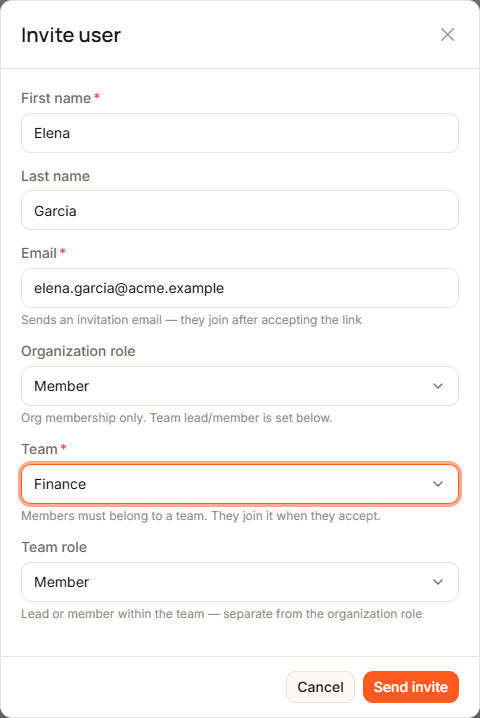
The Invite user dialog opens.
-
Enter First name and Email. Last name is optional.
-
Select the Organization role: Admin, Integrator or Member. The default is Member.
-
Select a Team.
For Member, a team is required. For Admin and Integrator, it's optional, and you can leave No team. The person joins the team when they accept.
-
If you chose a team, select the Team role: Member or Lead.
The team role is separate from the organization role. See Teams and team leads.
-
Select Send invite.
You see Invitation email sent to and the email address. The person appears on Members with the status Pending invite.
The invitation link is valid for 7 days. The person opens it, sees Organization invitation, and selects Accept invitation or Decline.
Your organization can have a limit on how many Integrators and Members it has. The limit is checked when you send an invite from Members. Admins don't count towards a limit.
Send an invitation again
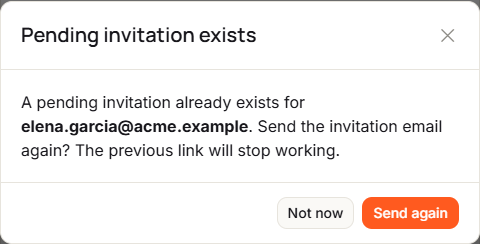
If you invite an email that already has an open invitation, Pending invitation exists asks whether to send it again.
-
Select Send again.
You see Invitation resent to and the email address. The new link is valid for 7 days, and the previous link stops working.
Select Not now to keep the existing invitation.
When an Integrator or Member invites someone
Integrators and Members can also select Invite User in the top bar. Their dialog has no role or team fields, and the button reads Request invite. Their request asks for the Member role, and the person isn't emailed until an Admin approves it. It waits on Pending Invites until an Admin approves it. See Approve invite requests.
If an invite fails, see Troubleshooting → Members and invitations.
Approve invite requests
When an Integrator or Member asks for an invite, your organization's Admin gets an email with the subject Invitation approval requested for and your organization's name. It links to Pending Invites.
-
Open Pending Invites.
Each request shows the Email, who it was Requested by, the Suggested team, the Requested role and when it was Requested at. If there are none, you see No invite requests waiting for approval.
-
Select Approve (the check mark) on the request.
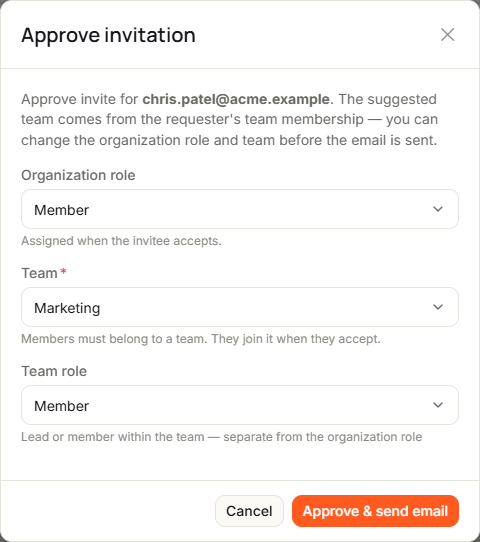
The Approve invitation dialog opens. The suggested team is the team of the person who asked.
-
Check the Organization role, Team and Team role, and change them if you need to.
The same team rule applies as for an invite: a Member needs a team.
-
Select Approve & send email.
You see Invitation email sent to and the email address. The request leaves Pending Invites, and the person gets an invitation link that's valid for 7 days.
Deny a request
-
Select Deny (the ×) on the request.
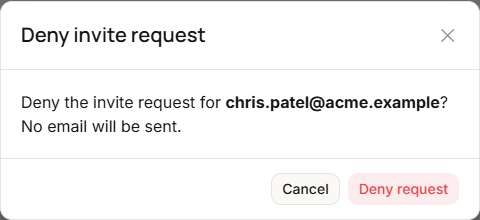
Deny invite request asks you to confirm. No email is sent to the person.
-
Select Deny request.
You see Invite request for the email address denied. The person who asked is told that the request was denied.
Change a member’s role
-
Open Members and select Edit (the pencil) on the person's row.
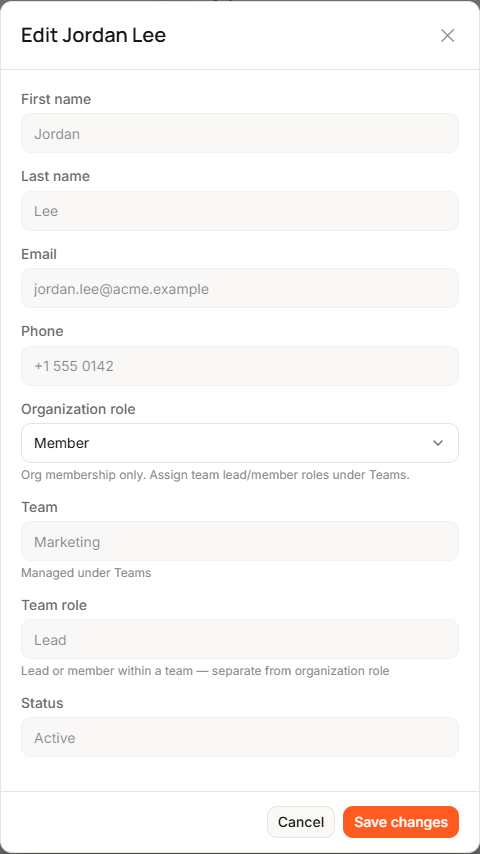
The Edit dialog opens with the person's name in the title. Their name, email, phone and status are read-only.
-
Select the new Organization role: Admin, Integrator or Member.
-
Select Save changes.
You see Updated organization role for and the person's email.
You change team roles under Teams, not here. See Teams & Common Spaces.
When you use Edit to make someone Admin and your organization already has an Admin, the two swap roles: the current Admin takes the role the other person had, Integrator or Member.
You can't change your own organization role: when you open Edit on your own row, Organization role is read-only and there's no Save changes button. You also can't change the role of the last Admin. Invitations have no Edit button; you set their role when you invite.
Remove a member
-
Open Members and select Remove on the person's row.
The person is removed right away. There's no confirmation step.
You see Removed and the person's email. They stay in the list with the status Removed.
Removing someone takes them out of your organization and frees their seat. It doesn't delete their InfiniStack account. You can't remove the last Admin.