Teams & Common Spaces
Group the people in your organization into teams, choose who leads each team, and link teams together in Common Spaces so you can share a report with several teams at once.
Before you begin
- To create or edit teams, you need the Admin role. See Roles at a glance.
- To delete a team, you need the Admin role, or you must be the Lead of that team with the organization role Member.
- To add and remove team members, you need the Admin role, or you must be the Lead of that team with the organization role Member. See Teams and team leads.
- To create Common Spaces and attach teams to them, you need the Admin or Integrator role.
You find both pages under Teams in organization settings:
- Team List opens Teams, which lists the organization's teams.
- Common Spaces lists the spaces that group teams.
Everyone in the organization can open these pages. Admins see every team. Everyone else sees public teams and the private teams they belong to.
Why teams matter
Teams decide what a Member can see:
- A Member must be in a team. A Member with no team sees You are not assigned to a team and can only sign out until an Admin adds them to one.
- Reports reach Members through teams. A Member sees a report only when it's published and shared with their team, or with a Common Space their team is attached to. Admins and Integrators see every report.
- Report notifications follow the same path. They go to the members of the teams a report is shared with, directly or through a Common Space.
- Chat with AI can be limited per team. Each team's page has a Chat guard section that Admins use to block words and tables for that team. See Team chat guard.
A Member who belongs to more than one team works in one active team at a time. They switch it with Team in the sidebar, which opens a list of the teams they belong to. What they see follows the active team only, not all their teams. If their active team is no longer valid, the app picks their first team in alphabetical order.
Create a team
-
In organization settings, select Team List.
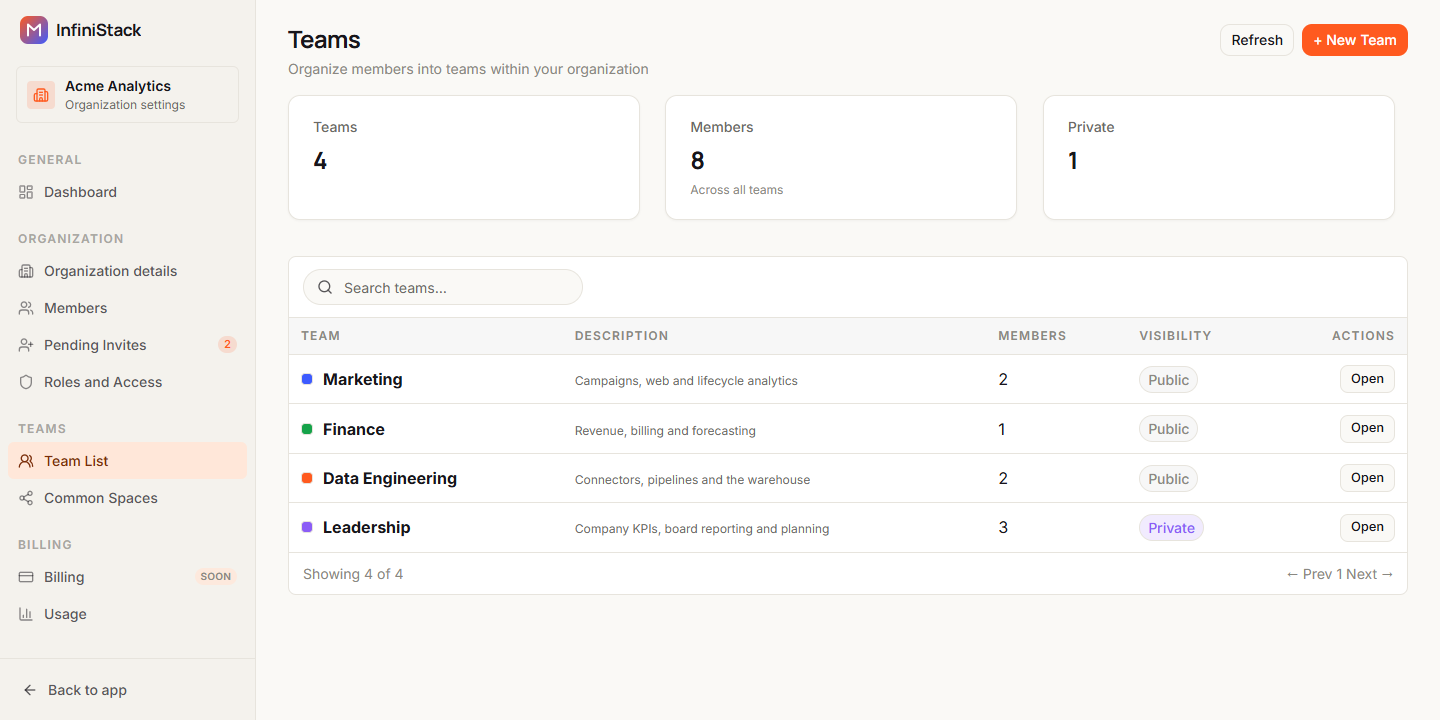
The Teams page opens. The cards at the top count Teams, Members (Across all teams) and Private teams. If there are no teams yet, you see No teams yet. Create your first team to get started.
-
Select + New Team.
The Create team dialog opens.
-
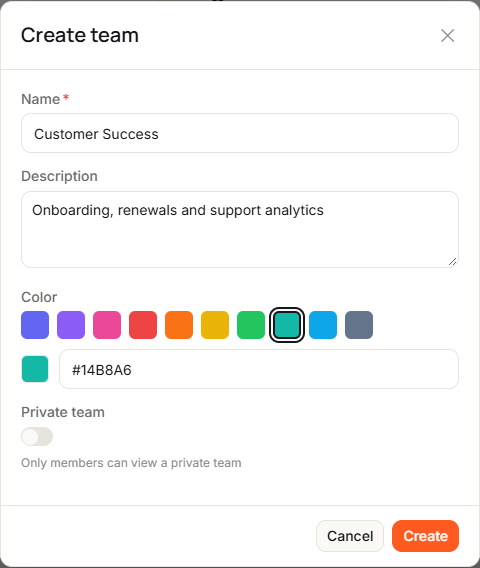
Enter a Name, such as Data Engineering. It's required and can be up to 255 characters.
-
Optionally, enter a Description of what the team works on, up to 2,000 characters.
-
Pick a Color from the swatches, or type a hex value such as #6366F1 (
#RGBor#RRGGBB).The color marks the team in lists. If the value isn't a valid hex color, the default color is used.
-
Turn on Private team if only the team's members should see it. It's off by default, so the team is public.
-
Select Create.
You see Created team and the team's name, and the team's page opens.
To find a team, type in Search teams.... It matches the team's name, slug or description. The list shows 10 rows per page, and Visibility shows Private or Public. Select Open to go to a team's page.
Edit a team
-
On the team's page, select Edit team.
The Edit team dialog opens with the same fields.
-
Change what you need and select Save changes.
You see Team updated.
Delete a team
-
On the team's page, select Delete team.
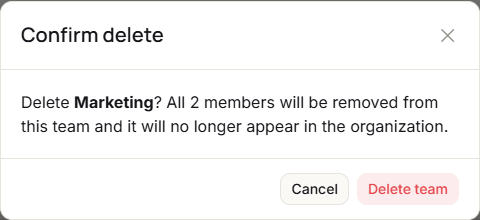
Confirm delete tells you how many members will be removed from the team.
-
Select Delete team.
You see Team deleted and return to Teams. Everyone who was in the team is removed from it and gets an email that the team was deleted.
A Member whose only team you delete has no team left and can't use the organization until you add them to another team.
Only Admins can edit a team. A Lead whose organization role is Member can also delete their own team, unless other teams are set up under it. Only an Admin can delete a team like that. See Troubleshooting → "Team has sub-teams".
If something goes wrong, see Troubleshooting → Teams and Common Spaces.
Add members and team leads
Team LeadEach person in a team has a Team role: Member or Lead. The team role is separate from the organization role. A Lead whose organization role is Member can add people to their team, make them Lead, and remove Members from it.
Add someone who's already in the organization
-
In organization settings, select Team List, then select Open on the team.
The team's page opens. The Members section shows the number of members, and how many are invited.
-
Select + Add member.
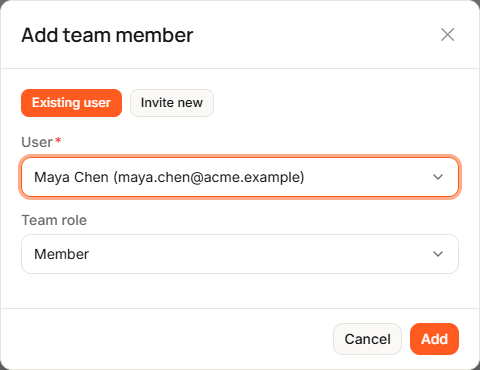
The Add team member dialog opens on Existing user.
-
Select the User.
The list shows people in your organization who aren't on this team yet. Removed people and open invitations aren't listed.
-
Select the Team role: Member or Lead.
-
Select Add.
You see Member added, and the person appears in Members.
Invite someone new to the team
-
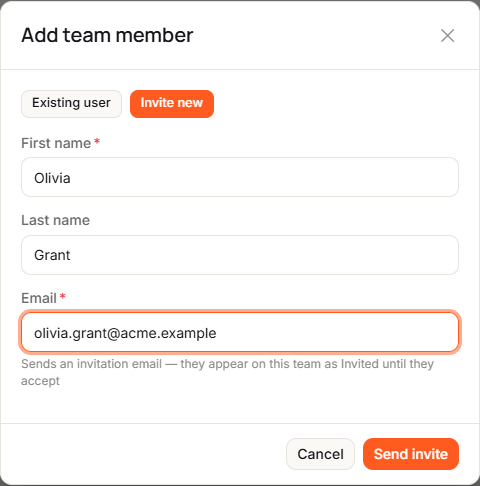
On the team's page, select + Add member, then select Invite new.
-
Enter First name and Email. Last name is optional.
The person joins the organization as a Member and the team as a Member.
-
Select Send invite if you're an Admin, or Request invite if you're the team's Lead.
- As an Admin, you see Invitation email sent to and the email address. The person appears in Members as Invited, with Awaiting acceptance, until they accept.
- As a Lead, you see Invite request for the email address submitted for admin approval. No email is sent until an Admin approves it on Pending Invites.
If the email already has an open invitation, Admins see Pending invitation exists with Send again, and Leads see Invite request exists with Update request. Select Not now to keep it as it is. For how invitations work, see Members & invitations.
Change a team role
-
In Members, select the new role in the person's Role column: Member or Lead.
You see Team role updated.
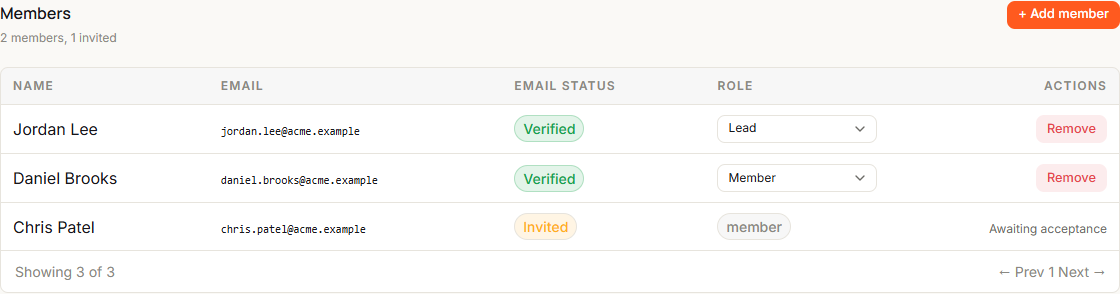
Invited people keep a read-only role until they accept.
Remove someone from the team
-
In Members, select Remove on the person's row.
The person is removed right away. There's no confirmation step. You see Member removed.
Removing someone from a team doesn't remove them from the organization. A Lead can remove Members but not other Leads; only an Admin can.
If something goes wrong, see Troubleshooting → Teams and Common Spaces.
Share through Common Spaces
A Common Space groups several teams. When you share a report with a space, the members of every attached team can see it, as long as the report is published. You share it once instead of once per team.
Admins and Integrators see every space. Everyone else sees only the spaces their active team is attached to.
Create a Common Space
-
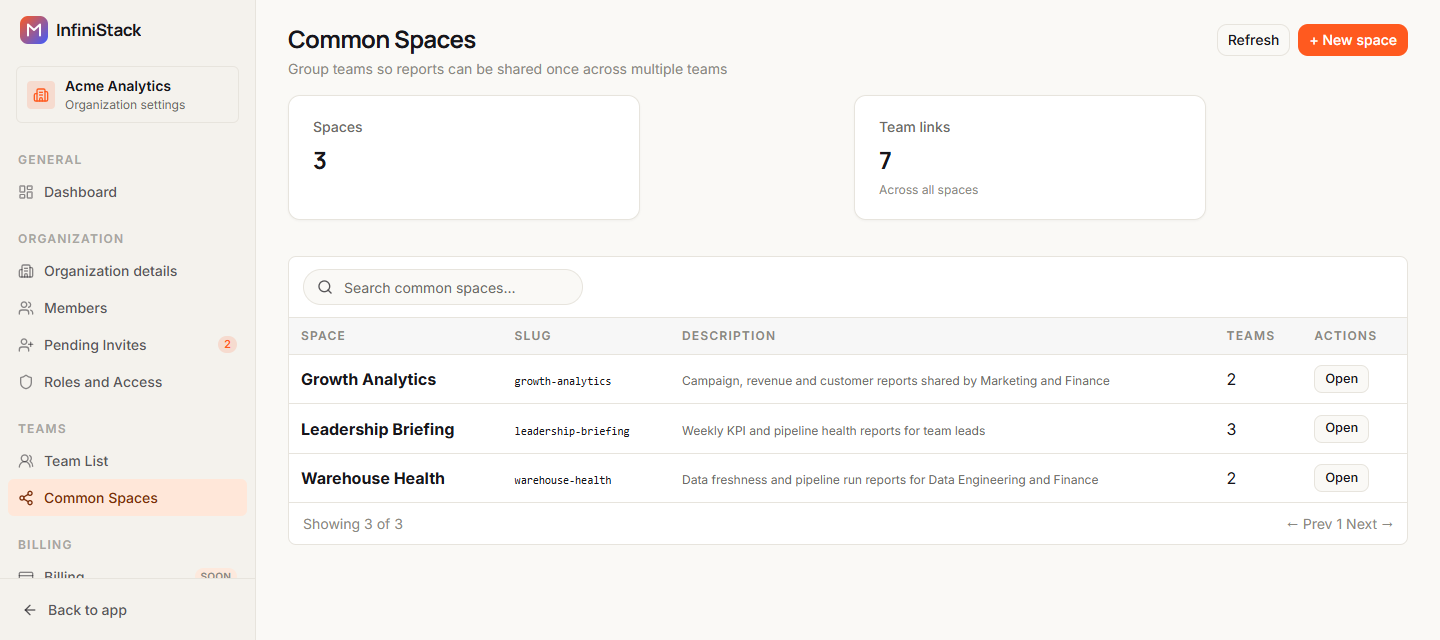
Open Common Spaces.
The cards at the top count Spaces and Team links (Across all spaces). If there are none yet, you see No common spaces yet. Create one to share reports across teams.
-
Select + New space.
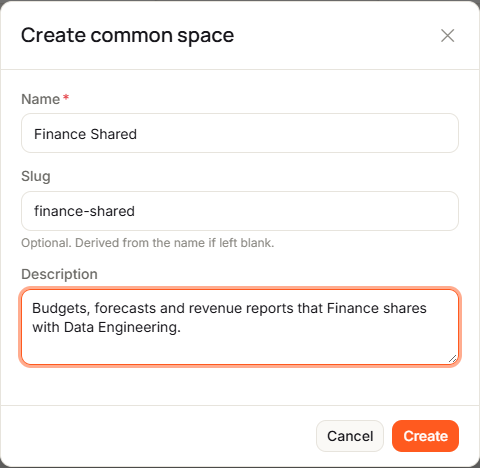
The Create common space dialog opens.
-
Enter a Name, such as Finance Shared. It's required and can be up to 255 characters.
-
Optionally, enter a Slug, such as finance-shared, up to 64 characters. If you leave it blank, it's made from the name.
-
Optionally, enter a Description of who uses the space, up to 5,000 characters.
-
Select Create.
You see Created space and the space's name, and the space's page opens.
Attach teams to the space
-
On the space's page, under Attached teams, select + Attach team.
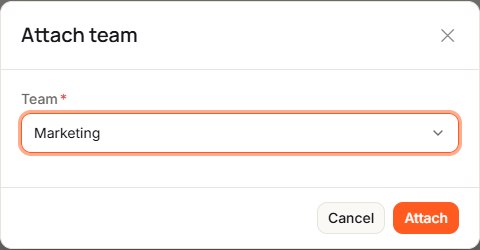
The Attach team dialog opens.
-
Select the Team.
Teams already attached aren't listed. If every team is attached, you see No teams available.
-
Select Attach.
You see Team attached, and the team appears under Attached teams.
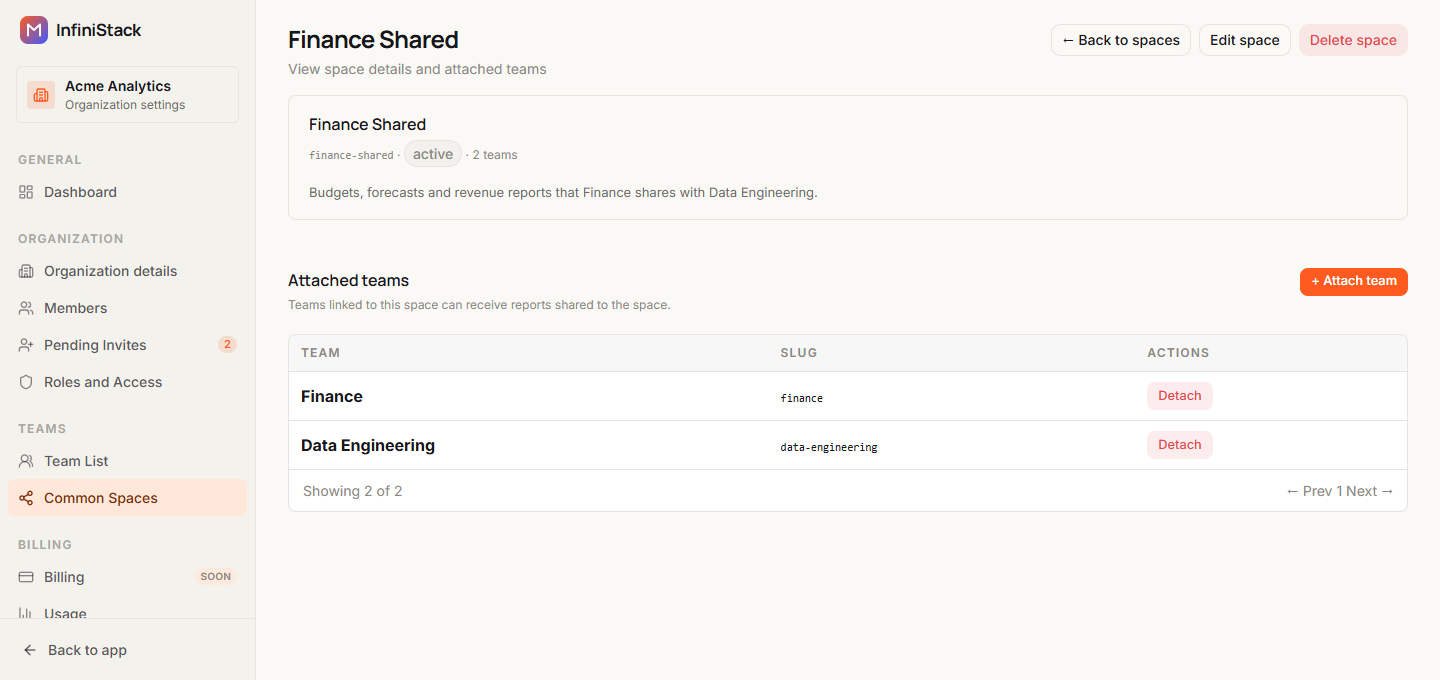
To take a team out of the space, select Detach on its row. You see Team detached. Its members lose access to reports shared only through this space.
Share a report with the space
You share reports from the report itself: select Share, then the Common Spaces tab. You can also create a space with its teams from there. See Share with teams and Common Spaces.
Edit or delete a space
- To edit, select Edit space, change the fields in Edit common space, and select Save changes. You see Common space updated.
- To delete, select Delete space, then Delete in Delete common space?. You see Common space deleted. All teams are detached, and members lose access to reports shared only through this space.
If something goes wrong, see Troubleshooting → Teams and Common Spaces.