Build & publish business knowledge
Generate business objects from your connectors, check them, and publish them so Chat can use them.
Before you begin
- You need the Admin role. Integrators can view published objects but can't generate, publish or clear. They see Only organization admins can generate or publish BKL. See Roles at a glance.
- You need at least one connector. See Connectors.
- Drafts are built from what Schema Intelligence learned about your tables. Check that its schema map is healthy first. If a connector's tables changed, rebuild it in Schema Intelligence before you generate drafts. See Review & correct the schema map.
The page shows the same order in its Rebuild order box: Schema Intelligence first, Then BKL.
Generate drafts
-
Open Business Knowledge.
-
Select a connector in Connector.
Each option shows the connector's name and its type. The first connector is selected for you.
-
Select Generate drafts.
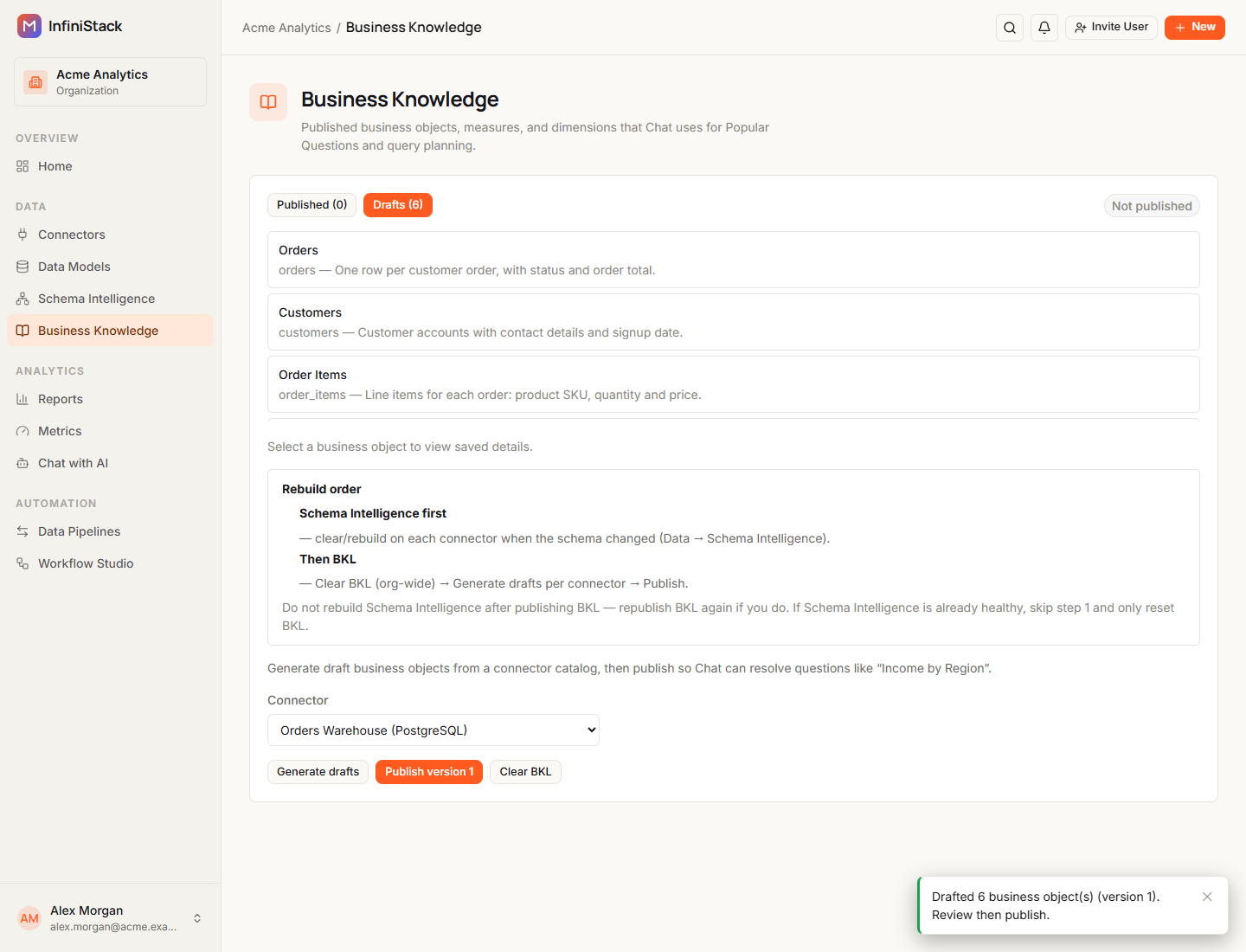
The button reads Generating… while it runs. When it's done, a message such as Drafted 6 business object(s) (version 1). Review then publish. appears, and the page switches to Drafts.
-
Repeat steps 2 and 3 for each of your other connectors.
Drafts use the tables in the connector's public schema. You can't choose another schema.
If a table already has a published object, generating drafts reopens that object as a draft instead of adding a second one. Drafts are never published on their own.
Review measures, dimensions and synonyms
-
Select Drafts.
The list shows each draft object with its technical name and the start of its description.
-
Select an object.
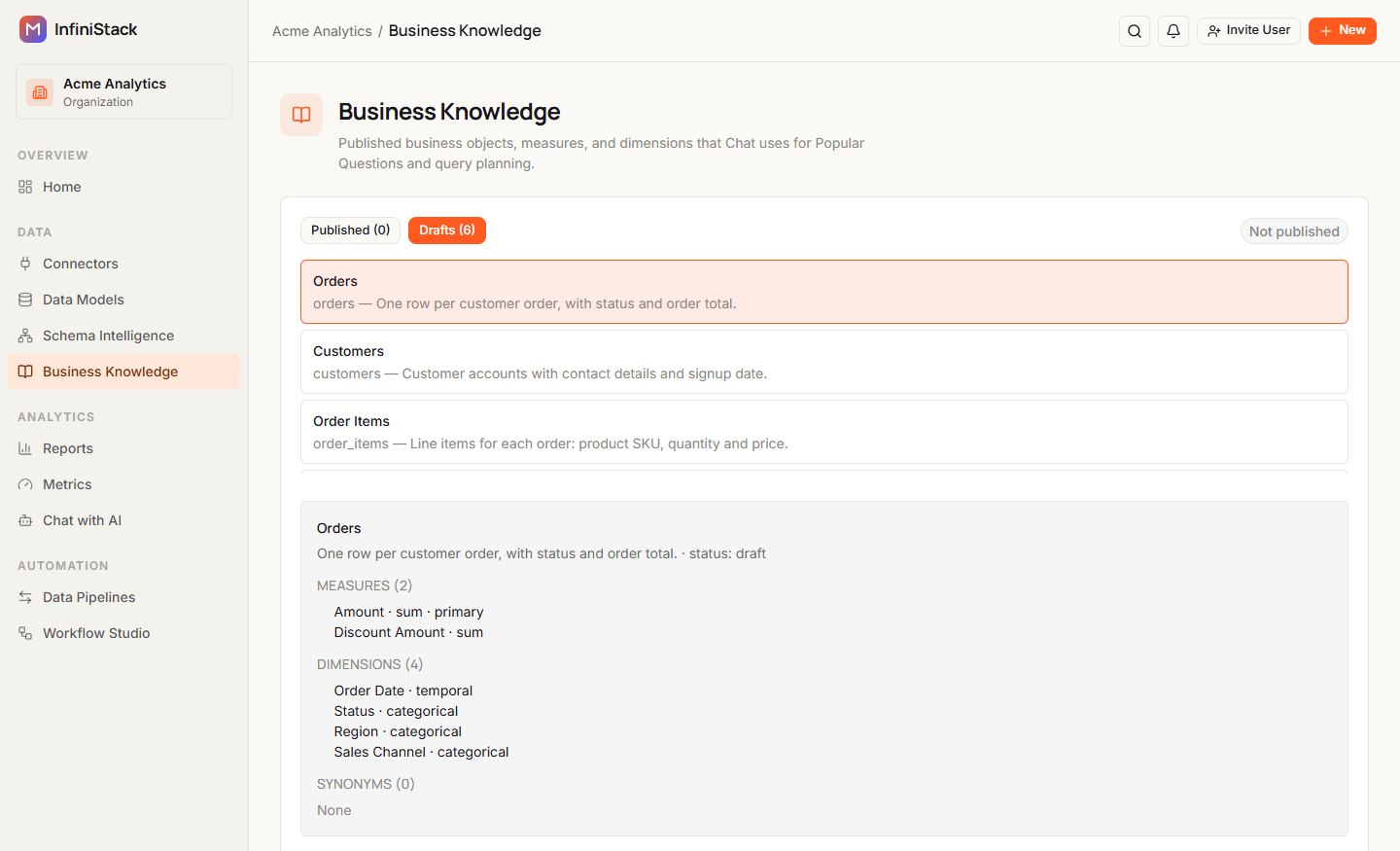
The details show the object's description and status, then its Measures, Dimensions and Synonyms.
-
Check that each measure has the right calculation and that the right measure is marked primary.
The object's measures decide the suggested question Chat shows for it. See How it improves AI answers.
-
Check that each dimension has the right type.
Date columns should be temporal. See Business objects, measures and dimensions.
You can't edit drafts or add synonyms on this page. Drafts start with no synonyms. If an object is wrong, fix the table in Schema Intelligence, then reset Business Knowledge and generate drafts again. See Keep it up to date.
Publish a version
-
Select Publish version and the version number, such as Publish version 1.
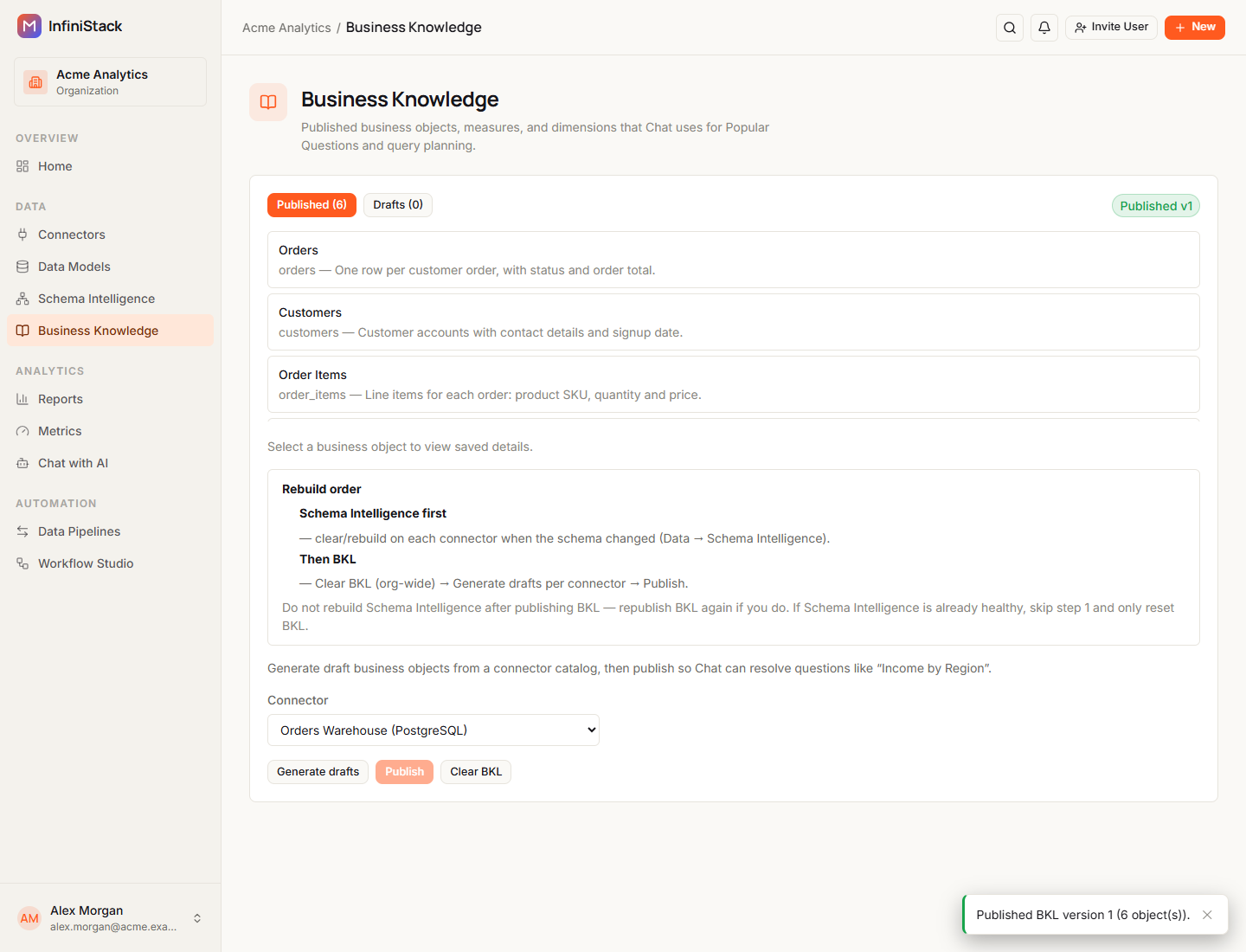
The button reads Publishing… while it runs. When it's done, a message such as Published BKL version 1 (6 object(s)). appears, and the page switches to Published.
The badge changes to the new version, such as Published v1.
Publishing publishes every draft at once, with its measures, dimensions and synonyms. You can't publish some drafts and keep others back.
Publish version is only available when there's at least one draft.
To publish, every draft needs at least one measure and must still be linked to its table. Once an object is published, it can't be changed. To update it, generate drafts again and publish the new version.
If publishing fails, see Troubleshooting.
Keep it up to date
When your connectors' tables change, rebuild in this order:
-
Rebuild the changed connectors in Schema Intelligence.
If Schema Intelligence is already healthy, skip this step.
-
In Business Knowledge, select Clear BKL.
A confirmation asks you to clear all Business Knowledge for the organization.
-
Confirm.
The button reads Clearing… while it runs. When it's done, Business Knowledge Layer cleared for this organization. appears.
-
Generate drafts for each connector. See Generate drafts.
-
Publish. See Publish a version.
Clear BKL removes Business Knowledge for every connector in your organization: drafts, published objects, their mappings to your tables, and the Popular Questions in Chat. You can't undo it.
If you rebuild Schema Intelligence after you publish, publish Business Knowledge again.
InfiniStack can also mark a published object stale when its source table changes. Stale objects drop out of the Published list. Generate drafts for the connector again to reopen them, then publish.