Ask questions & read answers
Before you begin
- Any role can use Chat with AI. See Roles at a glance.
- If you're a Member, you need to be in a team. Ask an Admin to add you. See Teams & Common Spaces.
- Your organization needs a MySQL or PostgreSQL connector. See Add a connector.
- AI features must be turned on for your organization. See AI controls.
Start a conversation
-
Open Chat with AI and select New chat, at the top right.
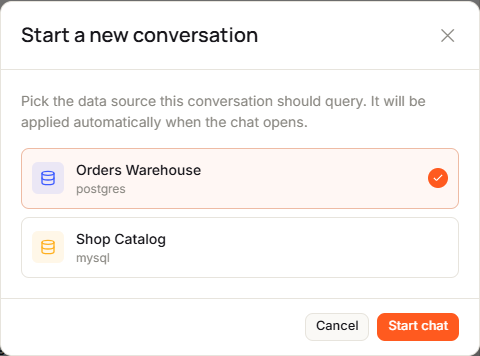
The Start a new conversation dialog opens.
-
Select the data source you want this conversation to query.
-
Select Start chat.
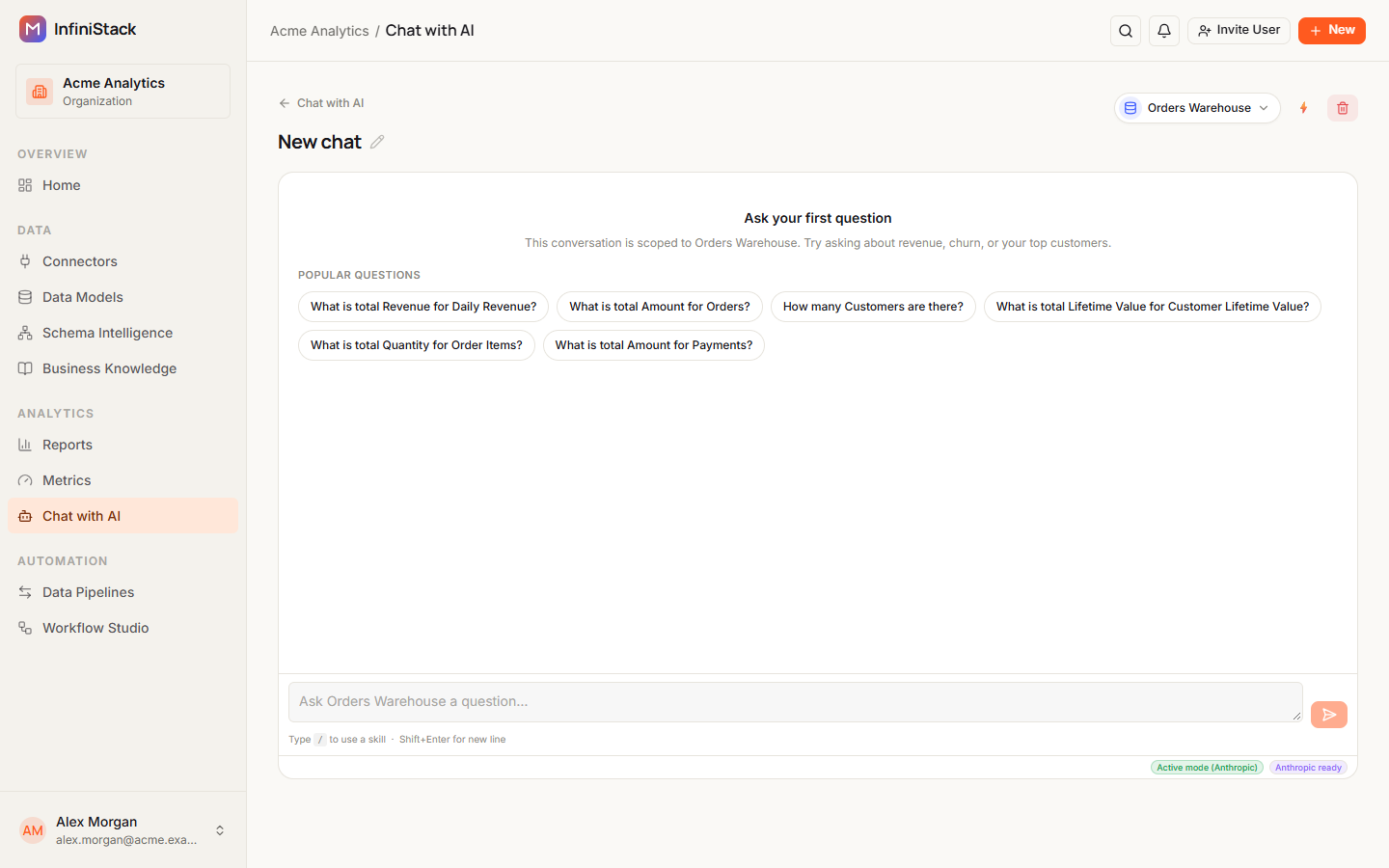
An empty conversation opens with Ask your first question. It isn't saved until you send your first message.
-
Type your question in the box at the bottom, which reads Ask <data source> a question…, and press Enter.
To add a new line instead, press Shift+Enter.
The Thinking… indicator shows while Chat works, then the answer appears.
The conversation takes its title from your first message. To go back to your conversations, select Chat with AI at the top of the conversation.
You can send one message at a time. The send button stays off until you've typed something, a data source is selected, and the previous answer has finished. It also stays off if AI features are turned off for your organization or the AI service isn't set up yet.
Use Popular Questions
In an empty conversation, Popular Questions shows up to 8 ready-made questions for the selected data source.
-
Select a question.
Chat sends it straight away, as if you'd typed it.
Popular Questions come from the Business Knowledge your Admins have published for that data source. The ones picked most often show first. If no Business Knowledge is published for the data source, no Popular Questions show. See Business Knowledge.
Answer clarifying questions
Sometimes Chat needs more detail before it can answer, such as which time period you mean. It asks, and shows options under its reply:
| Label above the options | What they are |
|---|---|
| Choose an option | Answers to Chat's clarifying question, such as Last 7 days, Last 30 days, Last year or All time. |
| Popular Questions | Questions you could ask instead. |
| Suggested analyses | Follow-up questions about the answer you just got. |
-
Select an option.
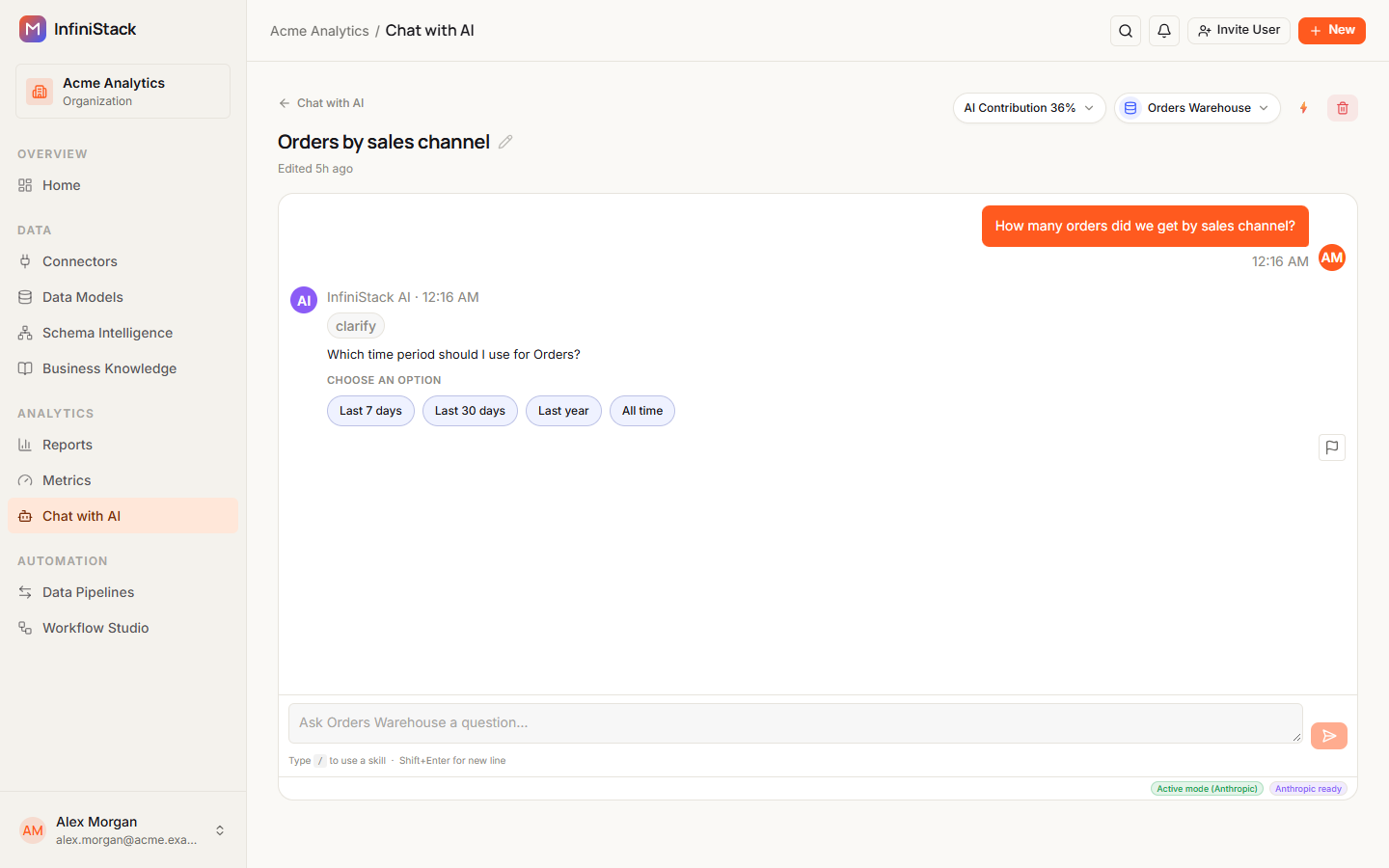
Chat sends it as your reply and continues.
Options show only under Chat's latest reply. You can also type your own reply instead.
Read charts, tables and SQL
An answer can have up to three parts under the written reply:
- Chart. The result drawn as a chart, when the data suits one.
- Query results. A table of the rows the answer is based on. The badge shows how many rows there are, for example 24 rows. The table shows the first 50 rows. Select Hide table to collapse it and Show table to open it again.
- Query. The SQL Chat ran. It's hidden at first. Select Show query to see it.
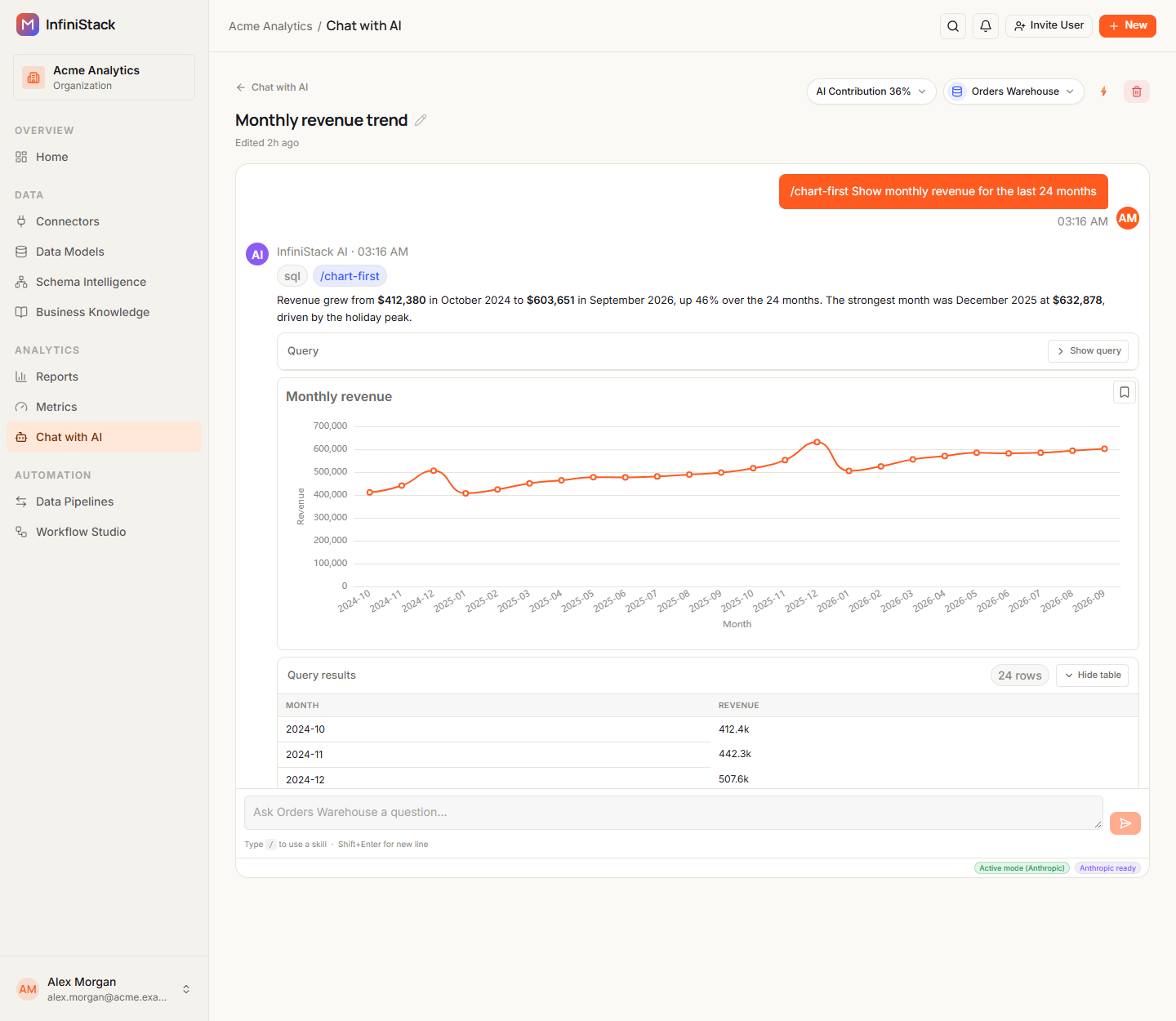
If an answer used skills, they show as badges above it, for example /chart-first. See Skills & AI memory.
To read older messages, scroll up. They load as you go. If you've scrolled up, select Scroll to bottom to jump back to the latest message.
If a chart or table shows Couldn't load chart/table, select Retry.
Report a wrong answer
If an answer is wrong or unhelpful, report it so the InfiniStack team can review it.
-
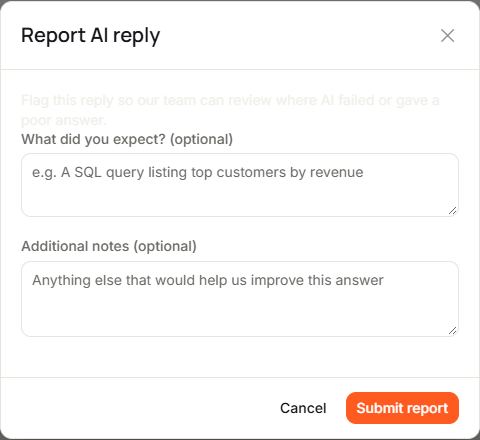
Under the answer, select the flag icon (Report AI reply).
The Report AI reply dialog opens.
-
Optionally, fill in What did you expect? (optional) and Additional notes (optional).
-
Select Submit report.
You see Thanks — your report was submitted. The flag now reads Reported.
Your report includes the question you asked before the answer.
If something goes wrong, see Troubleshooting → Chat with AI.