Save & reuse answers
Before you begin
- To save an answer as a metric or add it to a report, you need the Integrator or Admin role. Members can find and reopen their past conversations. See Roles at a glance.
- You need an answer in a conversation. See Ask questions & read answers.
Save an answer as a metric
You can save an answer that has a chart or a Query results table. The metric keeps the answer's query, so you can open it again later in Metrics.
-
On the answer's chart, select the bookmark icon (Save as metric).
If the answer has no chart, the icon is on the Query results table header instead. Open the table first if it's hidden. The icon doesn't show on a collapsed table.
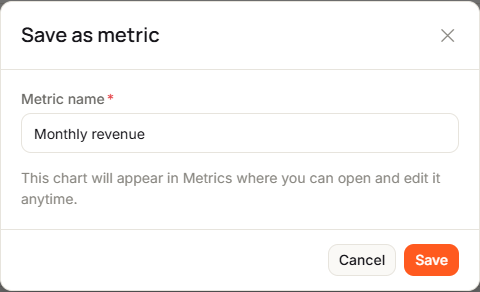
The Save as metric dialog opens.
-
Check Metric name. It's filled in from the chart title, or from the table's columns if there's no chart. Change it if you like, for example
Revenue by region. A name is required. -
Select Save.
You see Saved to Metrics. Select Open metric to go to it. The icon now reads Saved as metric.
To edit or delete the metric, see Metrics.
Deleting the conversation later doesn't delete metrics you saved from it.
Add an answer to a report
Right after you save an answer as a metric, Add to report appears next to it. It's gone once you start a new chat, reload the page or reopen the conversation. Later, open the metric in Metrics and select Add to report there.
-
Next to the answer you just saved, select Add to report.
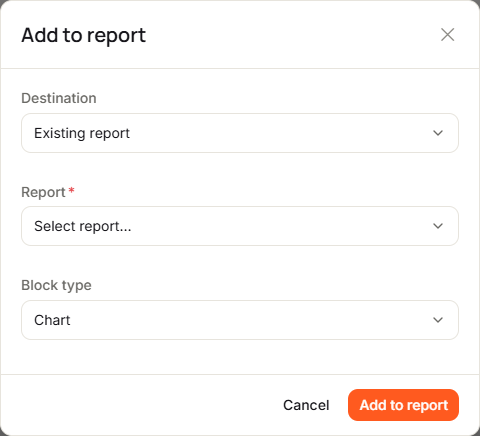
The Add to report dialog opens.
-
Choose a Destination:
- Existing report: pick one under Report.
- Create new report: enter a Report title.
-
Choose a Block type: Chart, Big number, Table or Pivot table.
-
Select Add to report.
You see Added to and the report's name, and the report opens in the builder.
To arrange and publish the report, see Build a report.
Find past conversations
-
Open Chat with AI.
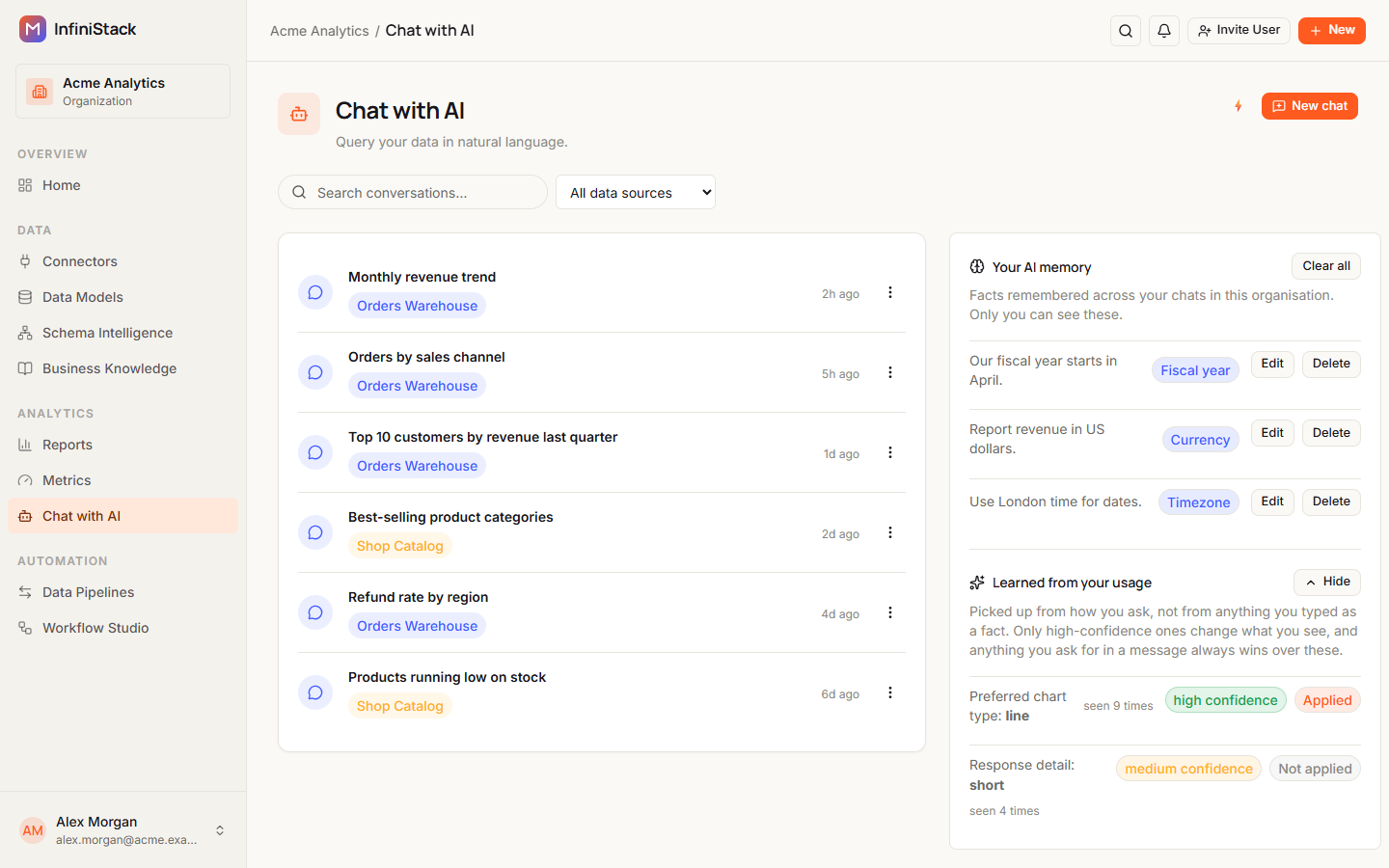
Your conversations are listed with the most recent activity first. Each shows its title, its data source, and when it was last used. If its data source was deleted, it shows Data source removed.
-
To narrow the list, type in Search conversations…. Search matches the titles of conversations already loaded in the list. To find an older conversation, scroll down to load more first.
-
If your organization has more than one data source for Chat, pick one from All data sources to show only its conversations.
More conversations load as you scroll, 10 at a time.
-
Select a conversation's title to open it.
You only see conversations you started.
Delete a conversation
-
On the conversation's row, select the three-dot menu, then Delete.
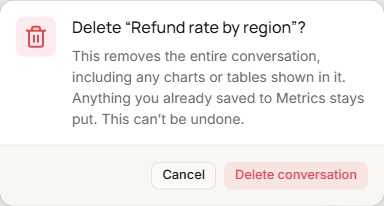
The dialog asks Delete "<title>"?.
-
Select Delete conversation.
The conversation and the charts and tables in it are removed. This can't be undone. Metrics you saved from it stay.
If something goes wrong, see Troubleshooting → Chat with AI.