Skills & AI memory
Before you begin
- Any role can use skills and see their own AI memory. See Roles at a glance.
- You need a conversation open to use a skill. See Ask questions & read answers.
A skill is a set of instructions that changes how Chat answers, for example "show a chart first" or "write
for executives". You add it to a message by typing / and its name. AI memory is what Chat remembers about
you across conversations, such as your currency or time zone.
Use platform skills
Platform skills come with InfiniStack. You can use them but not change them.
-
In a conversation, type
/in the message box.A list of skills opens. Each shows its name, a Platform or Custom badge, and its
/name.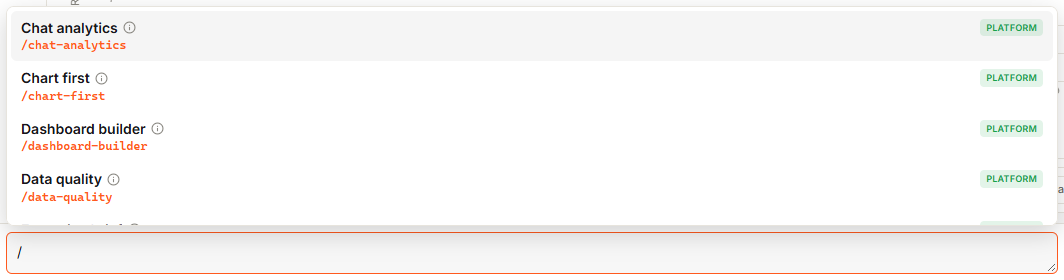
-
Use the Up and Down arrow keys to pick a skill, then press Enter or Tab to add it. Press Escape to close the list.
-
Type the rest of your question after the skill and send it:
/executive-brief How did revenue change this quarter?The answer shows the skills it used as badges above it.
You can use up to 3 skills in one message.
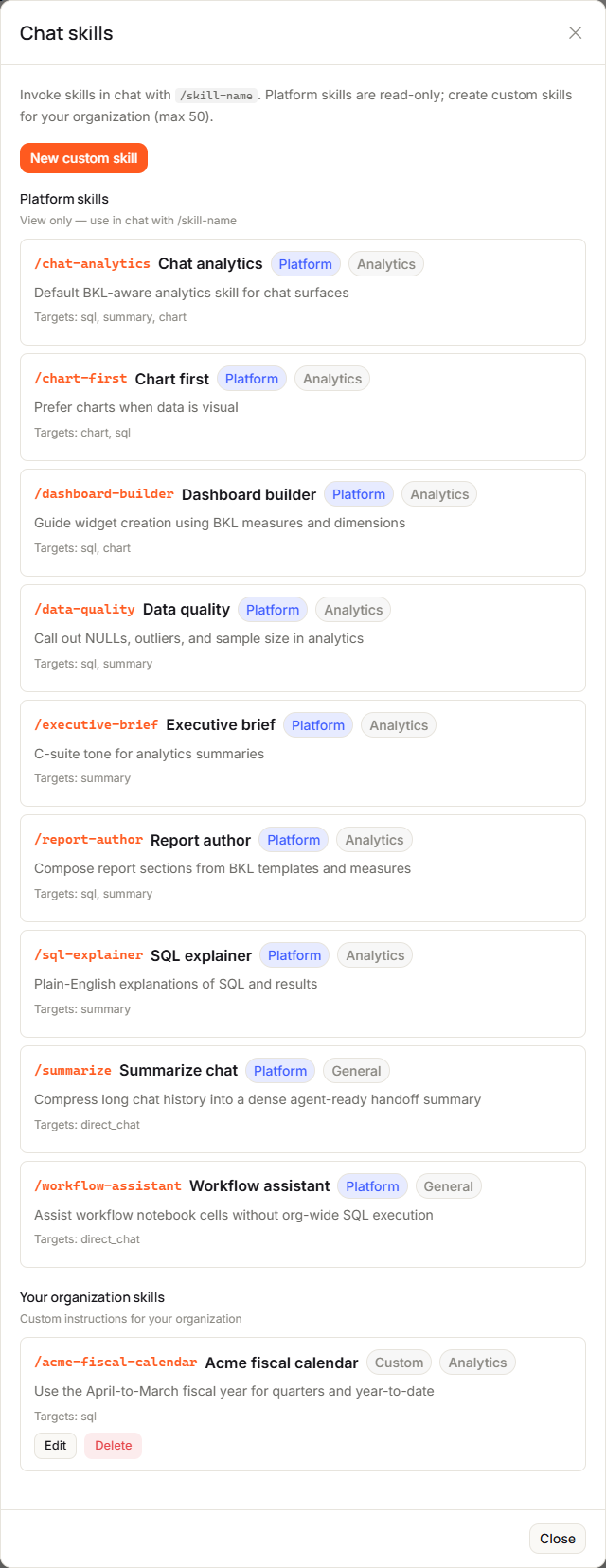
To see every skill available to you, select the ⚡ button (Manage skills) at the top of Chat with AI or of a conversation. The Chat skills dialog lists them under Platform skills. Platform skills include, for example:
| Skill | What it does |
|---|---|
/chart-first | Prefers charts when the data is visual. |
/data-quality | Calls out empty values, outliers and sample size. |
/executive-brief | Writes summaries in a tone for senior leaders. |
/sql-explainer | Explains the SQL and the results in plain English. |
Create a custom skill
Custom skills are shared with everyone in your organization. An organization can have up to 50.
-
Select the ⚡ button (Manage skills).
The Chat skills dialog opens.
-
Select New custom skill.
-
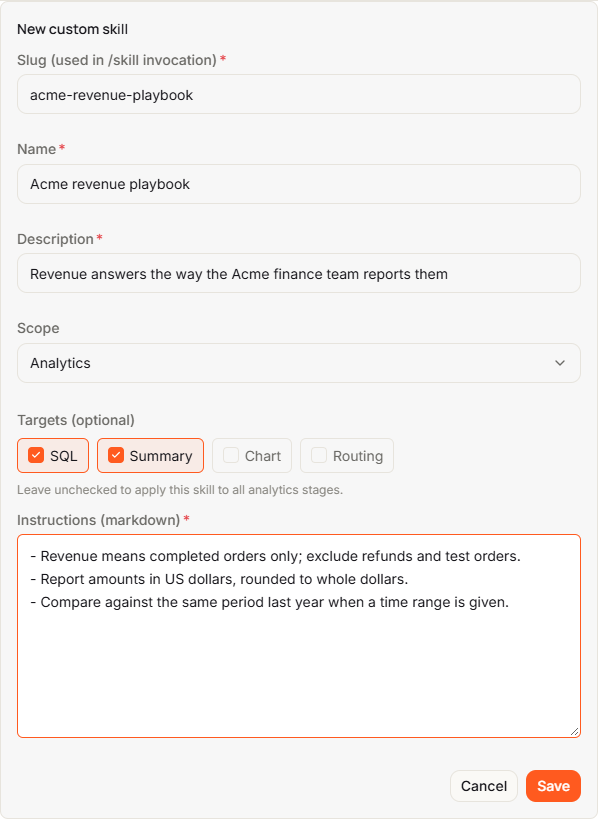
Fill in the form:
- Slug (used in /skill invocation): the name you type after
/, such asacme-revenue-playbook. Use 3 to 64 lowercase letters, numbers and hyphens. It can't be the same as a platform skill's, and you can't change it later. - Name: up to 128 characters.
- Description: what the skill is for, up to 512 characters.
- Scope: Analytics (the default) for questions about your data, or General. General skills apply to direct chat only.
- Targets (optional): for Analytics skills, the parts of the answer the skill shapes: SQL, Summary, Chart or Routing. Leave them all off to apply the skill everywhere.
- Instructions (markdown): what Chat should do when the skill is used, up to 16 KB.
Slug, Name, Description and Instructions are required.
- Slug (used in /skill invocation): the name you type after
-
Select Save.
You see Skill created. The skill shows under Your organization skills, and you can use it with
/and its slug.
To change a custom skill, select Edit next to it under Your organization skills, make your changes and select Save. To remove it, select Delete, then Delete again in the Delete custom skill dialog.
Your AI memory
Chat can remember facts about you across all your conversations in an organization, such as your preferred chart format, fiscal year, time zone, currency, main KPI, or how to address you. It picks them up when you say something lasting, for example:
Remember that our fiscal year starts in April.
It keeps up to 50 memories. Only you can see them.
-
Open Chat with AI.
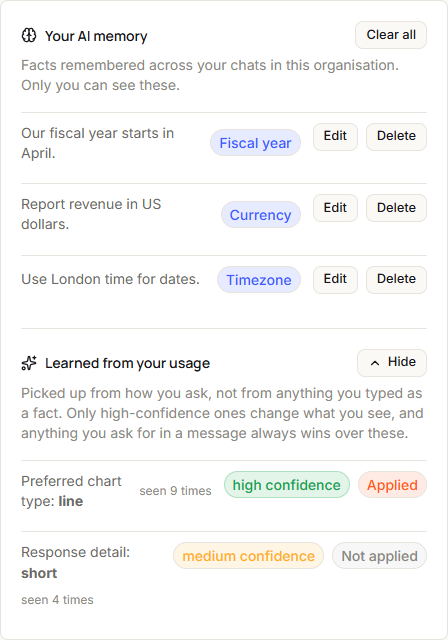
The Your AI memory panel lists what Chat remembers. If there's nothing yet, it shows No saved memories yet.
-
To change a memory, select Edit, update the text (up to 1,000 characters) and select Save.
You see Memory updated.
-
To remove a memory, select Delete.
You see Memory deleted.
Under Learned from your usage, the panel also shows preferences Chat has picked up from how you use it. Each shows how confident Chat is and whether it's Applied or Not applied. Select Hide or Show to fold the list.
To start over, select Clear all, then Clear all again in the Clear everything the assistant remembers? dialog. This removes your memories and learned preferences for the organization. Your conversations aren't deleted. This can't be undone.
If something goes wrong, see Troubleshooting → Chat with AI.