Add a connector
Connect a PostgreSQL or MySQL database to InfiniStack, then test, edit or delete it.
Before you begin
You need:
- The Integrator or Admin role. See Roles at a glance.
- To be signed in to an organization. Otherwise the page shows Organization session required.
- The host, port, database name, username and password of the database you want to connect.
- Room under your organization's connector limit, if it has one. See Connectors.
Choose a connector type
-
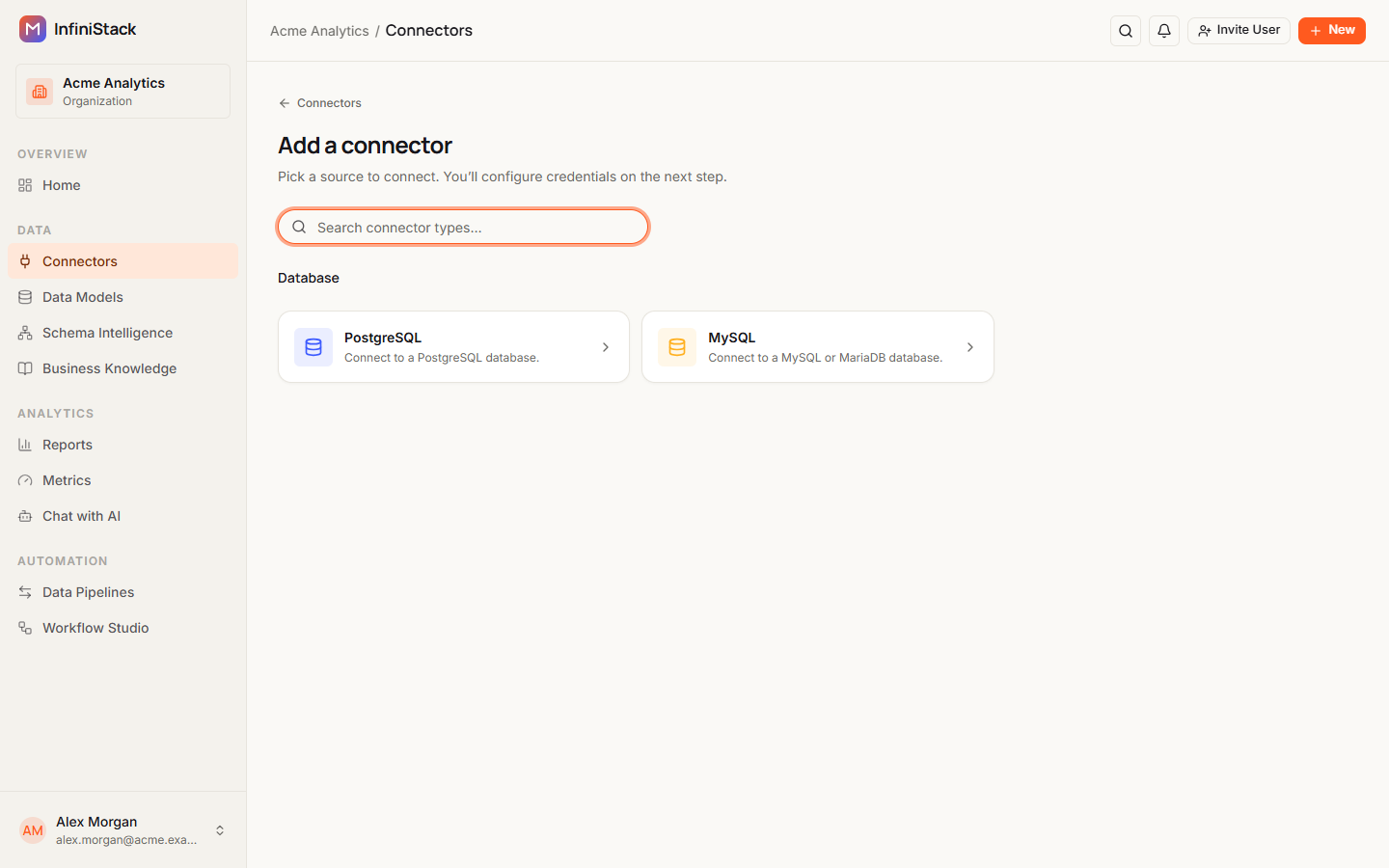
Open Connectors and select Add connector.
If you have no connectors yet, you can also select Add connector in the middle of the page.
The Add a connector page opens.
-
Find the database type. Type in Search connector types… to filter the list.
-
Select the type, for example PostgreSQL or MySQL.
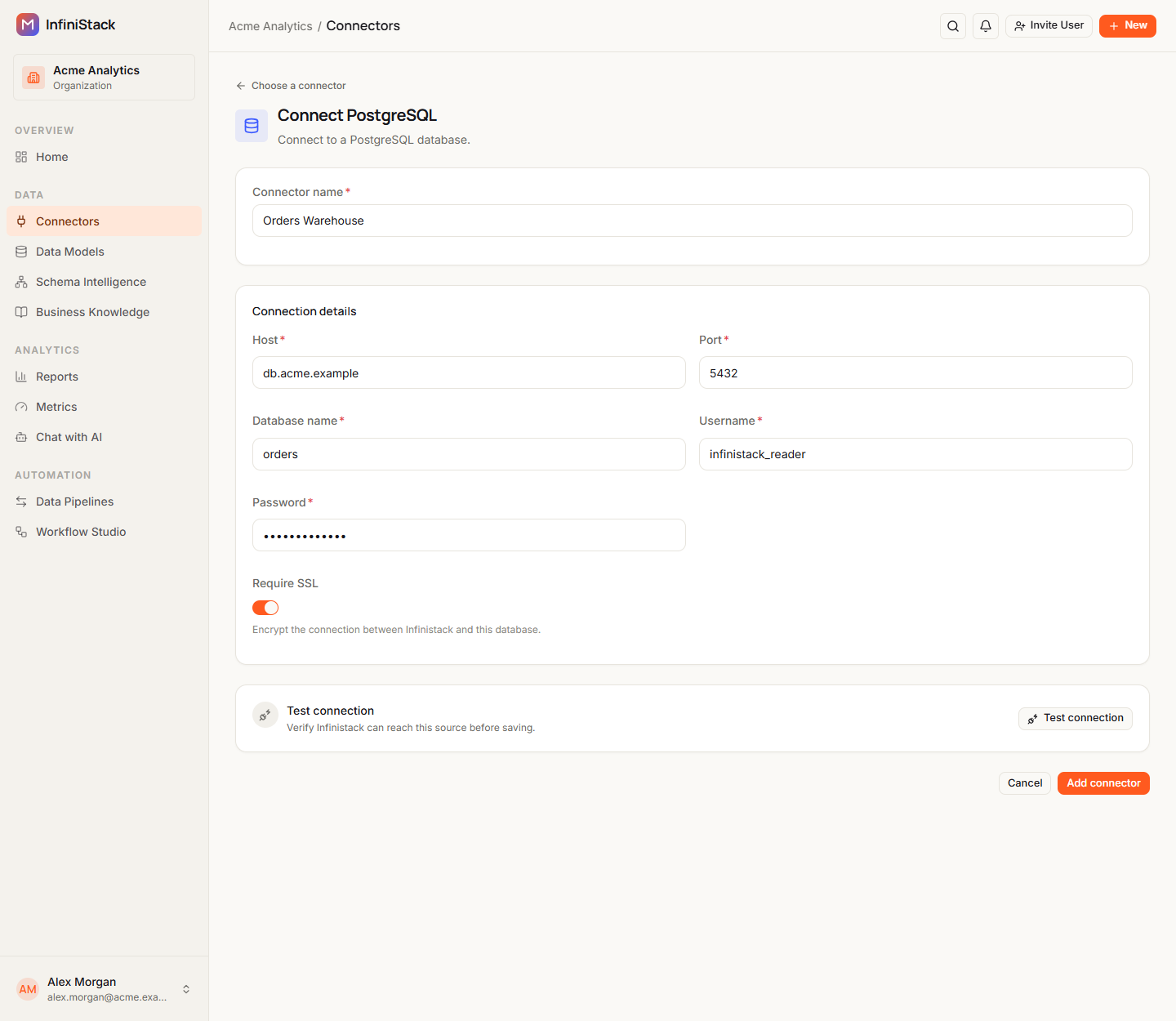
A page titled Connect followed by the type name opens, for example Connect PostgreSQL.
Enter the connection details
-
Enter a Connector name, for example
PostgreSQL · prod. It's required. -
Under Connection details, enter:
- The host of your database server, such as
db.internal.acme.com. - The port: 5432 for PostgreSQL, 3306 for MySQL.
- Database name: the database to connect to.
- Username and the password of the database user InfiniStack signs in as.
- The host of your database server, such as
-
Leave Require SSL on to encrypt the connection between InfiniStack and the database. It's on by default.
-
Optional: test the connection first. See Test the connection.
-
Select Add connector.
InfiniStack saves the connector and opens its schema, so you can explore your tables right away. See Explore your data.
If a required field is empty, the form names it under the field, for example Database name is required. To leave without saving, select Cancel.
If you save a connector with the same type, name and connection details as one you already have, InfiniStack keeps the existing connector instead of creating a duplicate.
Test the connection
Testing is optional, but it tells you before you save that InfiniStack can reach the database.
-
In the Test connection panel, select Test connection.
The panel shows Checking connection… while it runs.
- Connection successful. means InfiniStack reached the database and read its tables.
- Couldn't connect — check the values above. means the test failed. The error from your database appears below it.

If you change any connection detail after a test, the result clears. Test again before you save.
To test a connector you already saved:
-
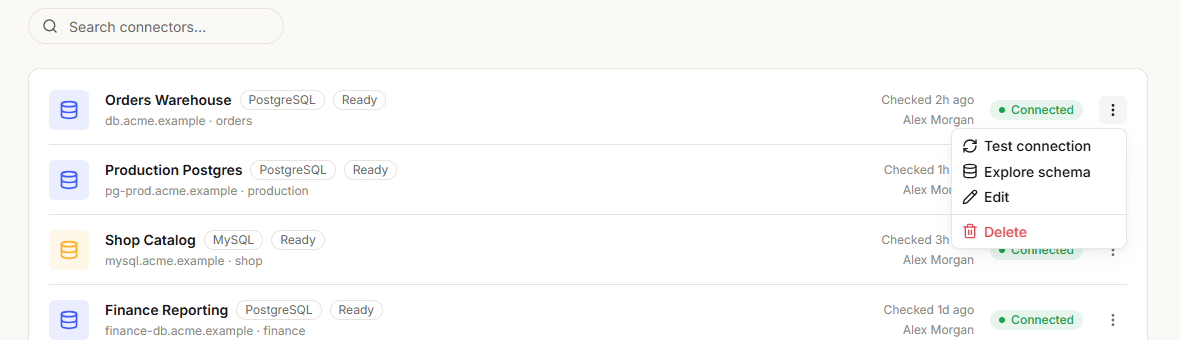
On the Connectors page, open the ⋮ menu on the connector's row.
-
Select Test connection.
A message shows Connection successful! or the error. The connector's health status updates. See Connection health.
Edit or delete a connector
Edit a connector
-
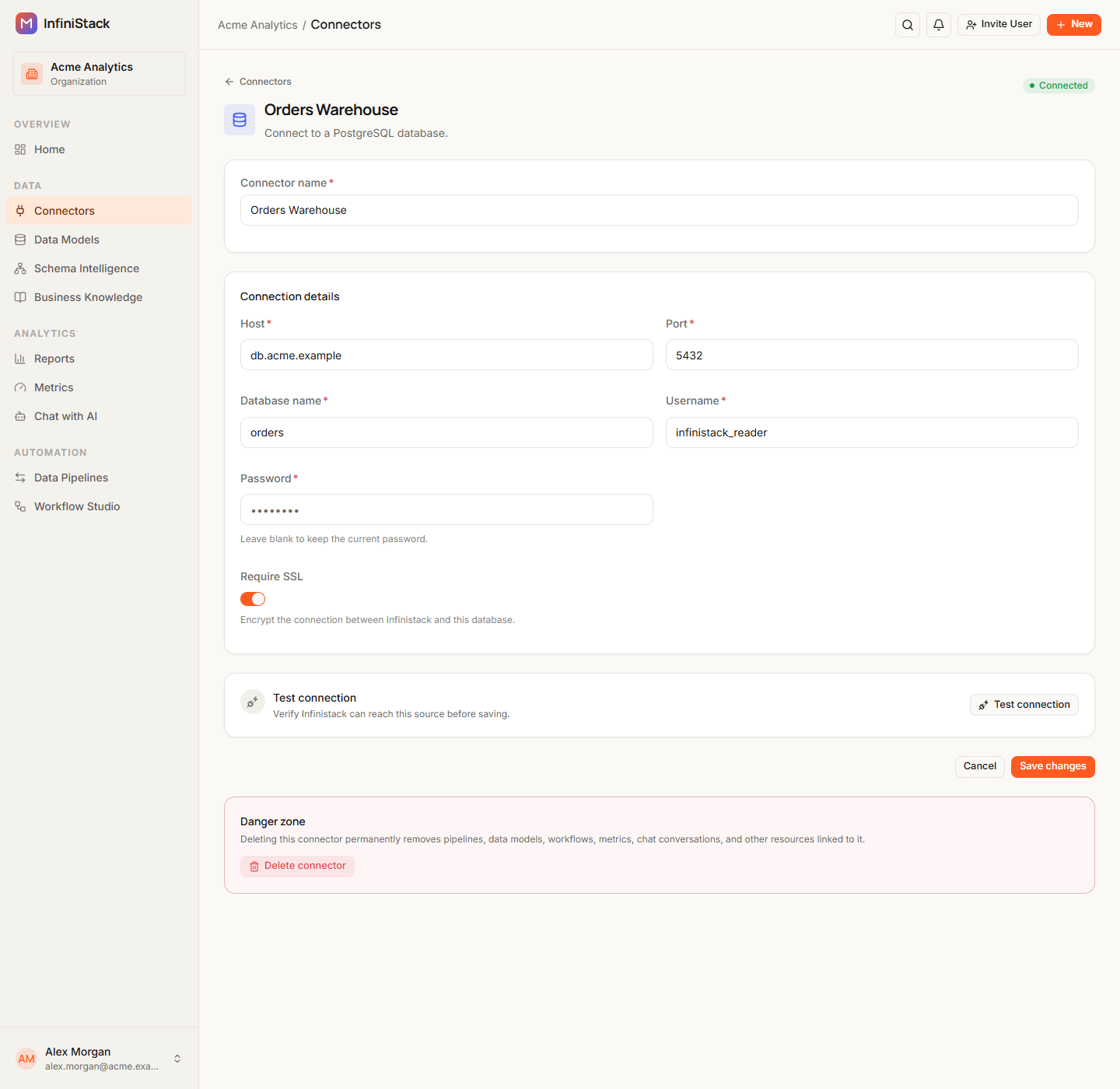
On the Connectors page, select the connector's name.
You can also open the ⋮ menu on its row and select Edit.
-
Change the fields you need.
Saved passwords show as empty, with Leave blank to keep the current password. under the field. Leave it empty to keep the password you saved.
-
Select Save changes.
The Connectors page opens with the updated connector.
You can't save changes while a pipeline that uses the connector is running. Wait for the run to finish, then try again.
Delete a connector
Deleting a connector permanently deletes everything built on it. You can't undo it.
-
Open the ⋮ menu on the connector's row and select Delete.
You can also select Delete connector in the Danger zone at the bottom of the connector's edit page.
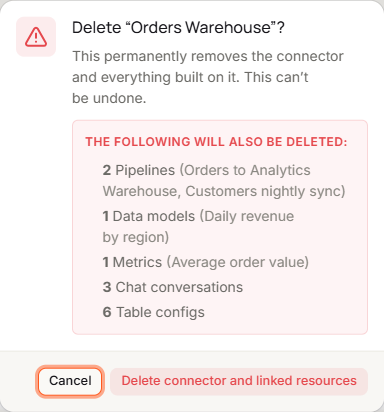
A dialog opens. It shows Checking linked resources… while it looks for anything built on the connector.
- If something is linked, it lists it under The following will also be deleted:, for example pipelines, data models, workflows, metrics or chat conversations.
- If nothing is linked, it shows No pipelines, workflows, or other resources are linked to this connector.
-
Review what the dialog shows.
-
Select Delete connector and linked resources.
The message Connector deleted. appears.
To keep the connector, select Cancel.
If something goes wrong
Error messages from adding, testing, editing and deleting connectors, and what to do about each, are in Troubleshooting → Connectors.