Explore your data
Browse the schemas and tables inside a connected database, check their columns and indexes, and preview a few rows. Exploring is read-only: nothing you do here changes your database.
Before you begin
You need:
- The Integrator or Admin role. See Roles at a glance.
- At least one connector. See Add a connector.
Open a connector’s schema
-
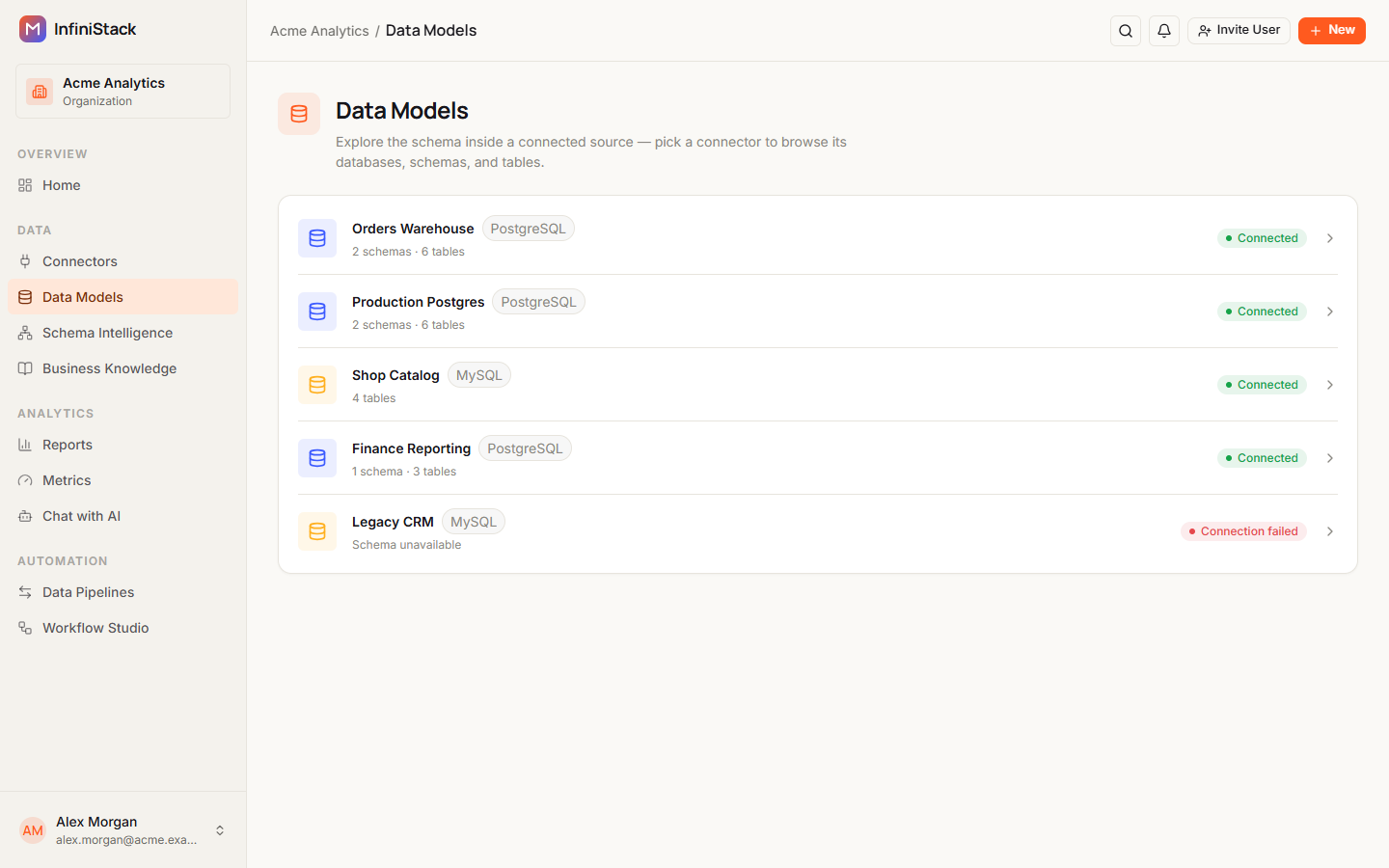
Open Data Models from the sidebar.
The page lists your connectors. Each row shows the number of schemas and tables, or Schema unavailable, and the connector's health status.
-
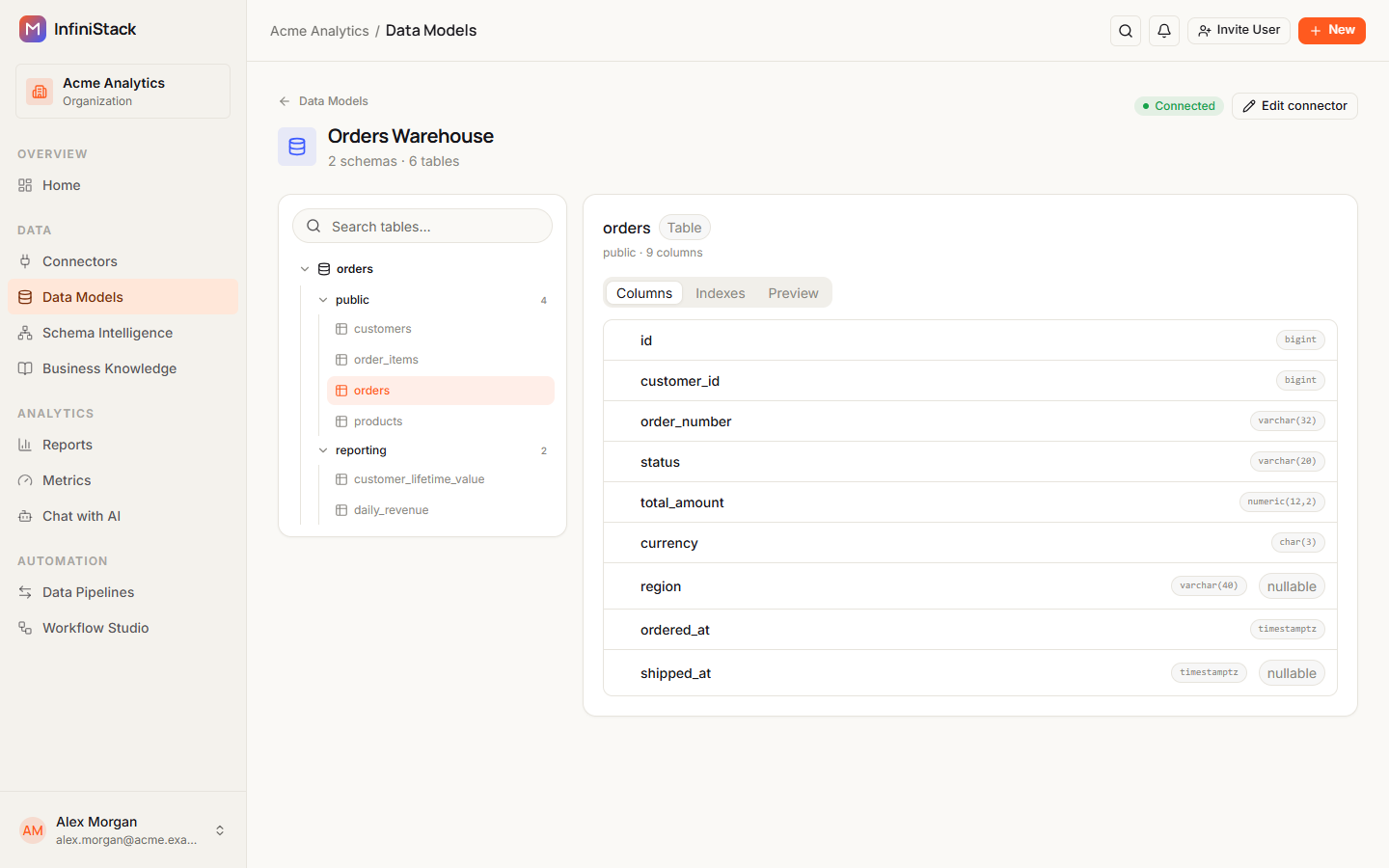
Select a connector.
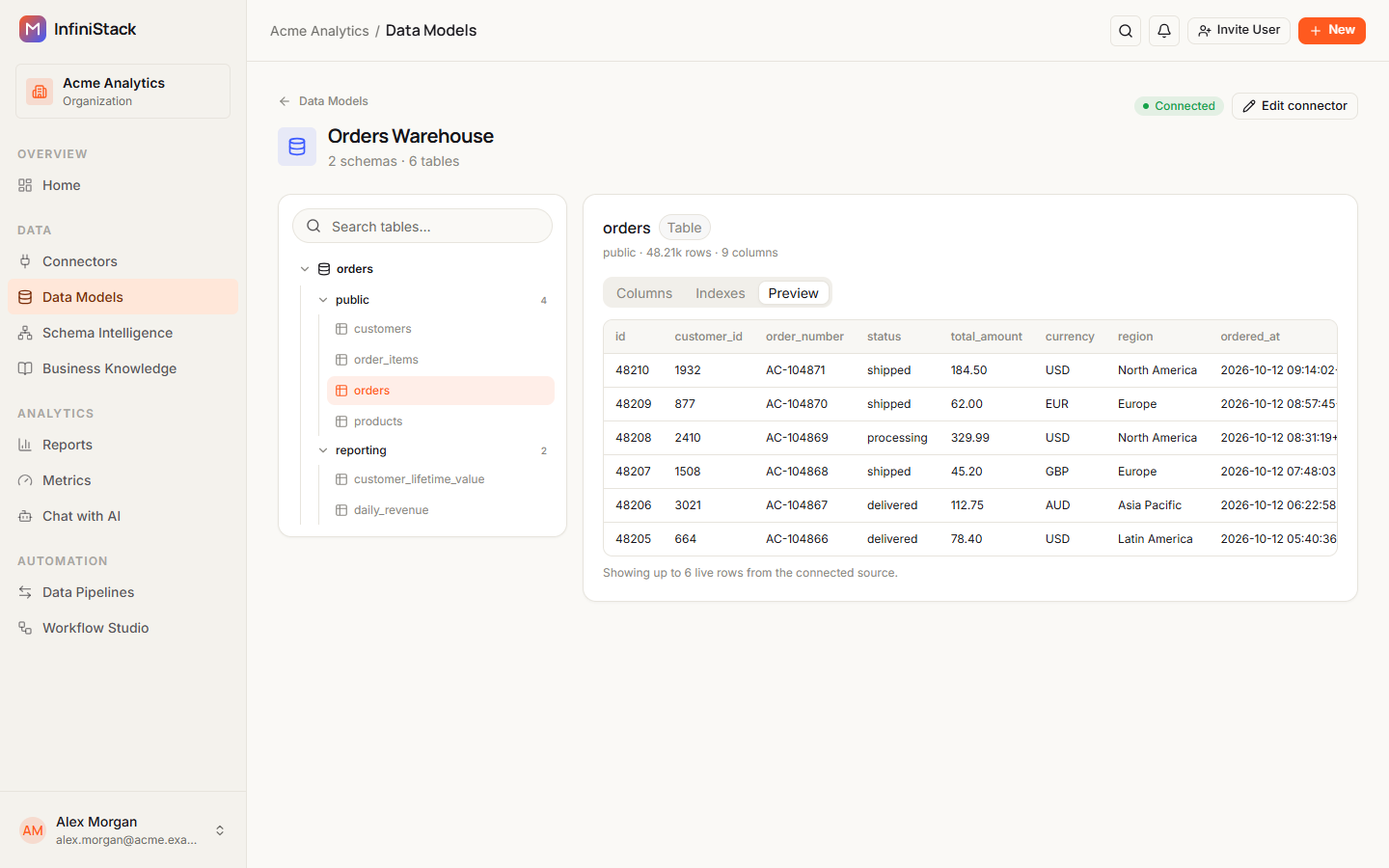
Its schema opens. The header shows the connector name, the number of schemas and tables, and an Edit connector button.
You can also open a schema from the Connectors page: open the ⋮ menu on a connector's row and select Explore schema. When you add a new connector, its schema opens on its own.
If the connector's last test failed, a banner says the connection is failing health checks and shows the last known schema. Fix the connection to browse live data. See Test the connection.
Browse schemas and tables
The tree on the left shows the database, its schemas with the number of tables in each, and the tables, views and objects inside them. The first table opens on its own.
-
Select a database or schema to expand or collapse it.
-
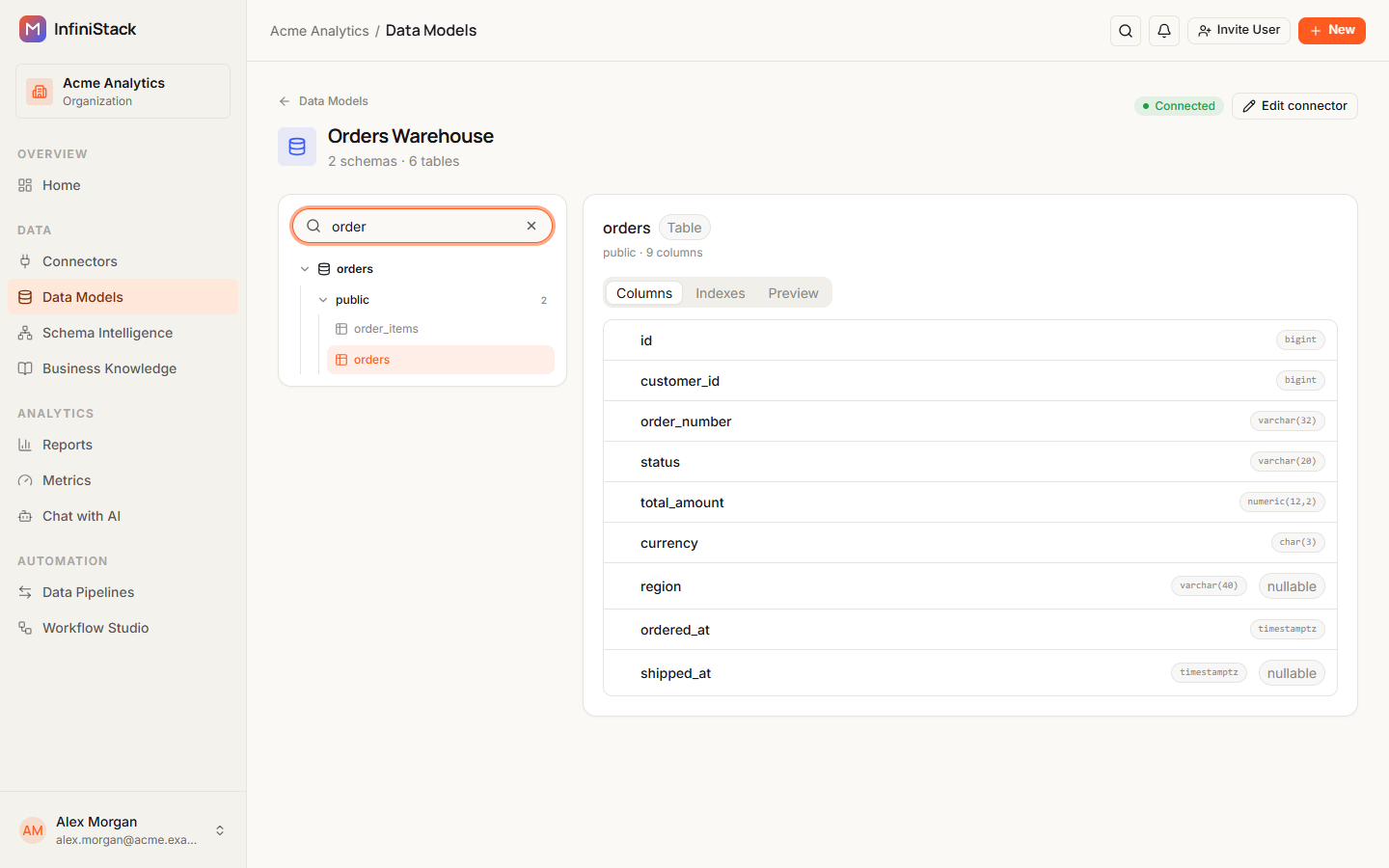
To find a table, type in Search tables….
The tree expands and shows only the tables whose name matches.
-
Select a table to inspect it.
If nothing matches, the tree shows No tables match followed by your search. If the database has no tables, it shows No tables found for this connector.
Columns, indexes and preview
The panel on the right shows the selected table's name, whether it's a Table, View or Object, its schema and its number of columns. It has three tabs:
| Tab | What it shows |
|---|---|
| Columns | Each column with its data type. Columns that can be empty are marked nullable. |
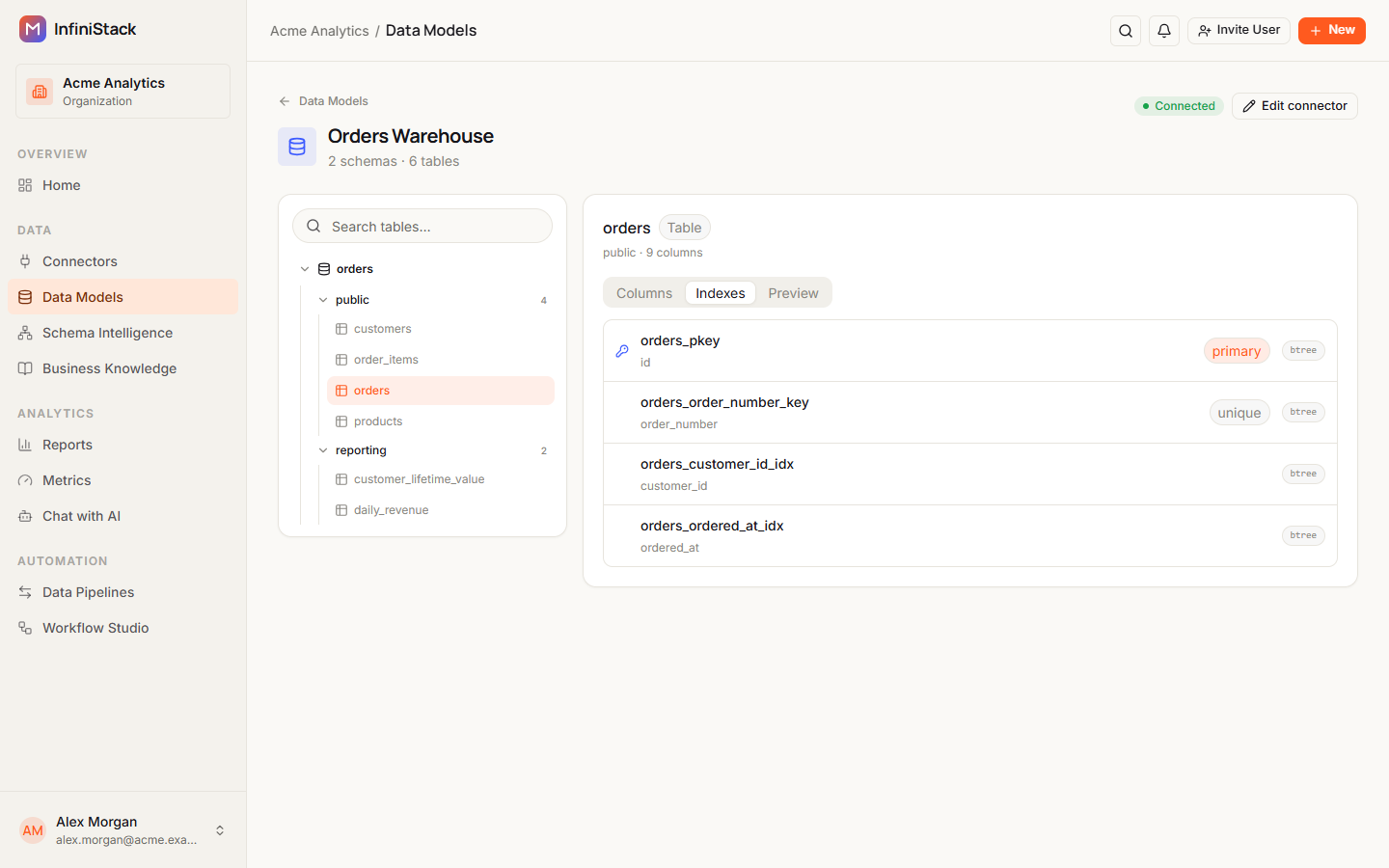
| Indexes | Each index with its columns. The primary key is marked primary, and unique indexes unique. |
| Preview | Up to 6 sample rows read live from the database. |
-
Select Indexes to see the table's indexes.
If it has none, the tab shows No indexes found on this table.
-
Select Preview to see sample rows.
The header now also shows the number of rows. If the table is empty, the tab shows Table is empty — no sample rows available.
The explorer reuses a table list for up to 5 minutes, and a table's indexes and preview for up to 60 seconds. To see changes you just made in your database, reload the page.
If the schema doesn't load, the page shows Could not load schema. or an error that starts with Schema introspection failed. Test the connector and fix its connection details. See Test the connection.