Data Pipelines
A pipeline copies data from a table in one connector to a table in another, on a schedule or when you run it. Open Pipelines to see, run and edit yours.
What a pipeline does
Each pipeline reads one table from a source connector and loads it into one table on a destination connector. You build it in a wizard: pick the source and the table, optionally transform the data, pick the destination, check a preview, then name it and choose a schedule.
Only Integrators and Admins can open Pipelines. Members and Team Leads don't see it. See Roles at a glance.
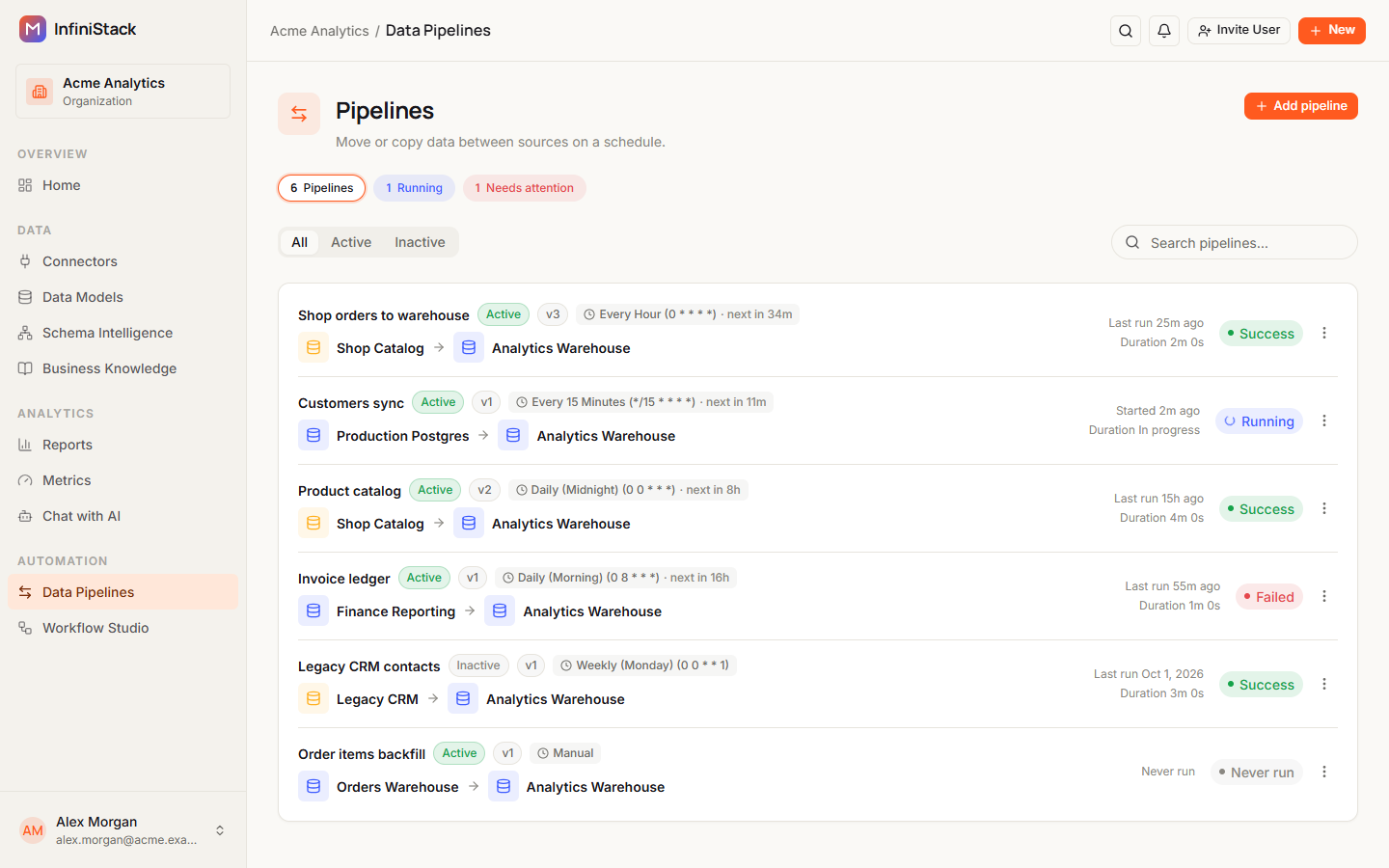
Each row in the list shows:
- The pipeline name, with an Active or Inactive badge.
- The version it runs, such as v3, or No active version.
- The schedule and, for scheduled pipelines, when it runs next.
- The source and destination connectors.
- The Last run, its Duration, and the run status. A pipeline that has never run shows Never run.
Above the list, the chips count your Pipelines and, when there are any, the ones Running and the ones that Needs attention because their last run failed or was cancelled. Use the All, Active and Inactive tabs, or type in Search pipelines… to find a pipeline by its name, connectors or table names.
The menu at the end of each row has Run now, View runs, Edit, Deactivate (or Activate), Reset sync state and Delete. Select the pipeline name to open its detail page.
You need at least one connector before you can create a pipeline. With no connectors, the page shows Connect your data to get started. See Connectors.
Delete a pipeline
-
In the row menu, select Delete.
-
In Delete Pipeline, select Delete.
The pipeline is removed and you see Pipeline deleted. This can't be undone.
You can't delete a pipeline while a run is queued or running. Wait for it to finish first.
ELT and ETL
A pipeline either copies data as it is, or changes it on the way:
| Mode | What happens | How you choose it |
|---|---|---|
| Copy as is | Rows are loaded into the destination unchanged. | Leave Enable ETL transformation off. |
| ETL | Rows are changed by your transformation rules before they're loaded. | Turn on Enable ETL transformation on the Streams step. The wizard then adds a Transform step. |
The transformation actions are DROP Field, Generate New field, Rename Field, String Manipulation, Hashing, Filter, Combine Fields, Type Casting, Datetime Operations, Faker and Duplicate Table. See 3. Transform (optional).
Full and incremental sync
Pipelines sync incrementally. Each run loads only rows that are new or updated since the last run. The pipeline uses the Replication key you set to tell which rows are new, so pick a column that always increases, such as the primary key or a date or timestamp column.
There's no separate full-sync mode. To read the whole table again, use Reset sync state. The next run, manual or scheduled, reads all records from the source. Data already in the destination isn't deleted. See Reset sync state.
Run statuses
Each run has a status. The run history shows:
| Status | What it means |
|---|---|
| Queued | The run is waiting for a free slot to start. See Why a run is queued. |
| Dispatching | The run is starting. |
| Running | The run is reading and loading data. |
| Success | The run finished. |
| Failed | The run stopped with an error. |
| Cancelled | The run was stopped before it finished. |
In the pipeline list, Dispatching shows as Running, and Cancelled shows as Failed. A pipeline that has never run shows Never run.
A run status is separate from the Active / Inactive badge. Only active pipelines run, on schedule or by hand.
Guides
Create a pipeline
Move data from a source to a destination.
Run, schedule & monitor
Run pipelines on a schedule and watch their runs.
Edit safely with versions
Change a pipeline without breaking the running one.