Create a pipeline
Build a pipeline in the wizard: pick a source table, optionally transform it, pick a destination, check a preview, then name and schedule it.
Before you begin
- You need the Integrator or Admin role. See Roles at a glance.
- You need a source connector and a destination connector. See Add a connector.
- Your workspace must be ready. Right after your organization is created, Add pipeline stays disabled with Workspace is still being prepared. This usually takes under a minute.
To start, open Pipelines and select Add pipeline. The New pipeline wizard opens.
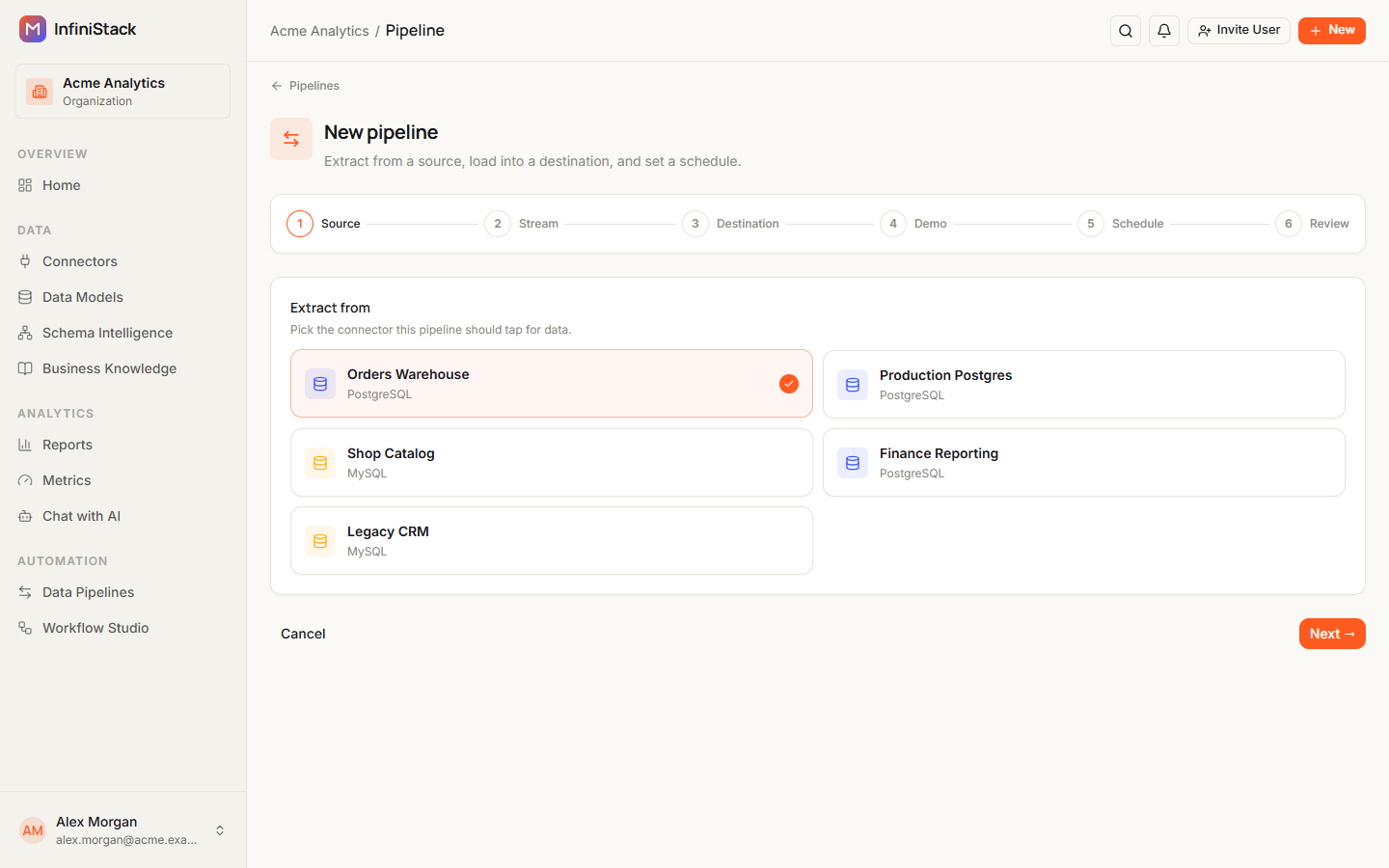
Select Next → to go to the next step and ← Back to go back. If you leave with unsaved changes, you see Discard unsaved changes? Select Keep editing to stay, or Discard changes to leave.
If something goes wrong, see Troubleshooting → Pipelines.
1. Source
-
Under Extract from, select the connector to read data from.
-
Select Next →.
The Streams step opens and lists the tables in that connector.
2. Streams
-
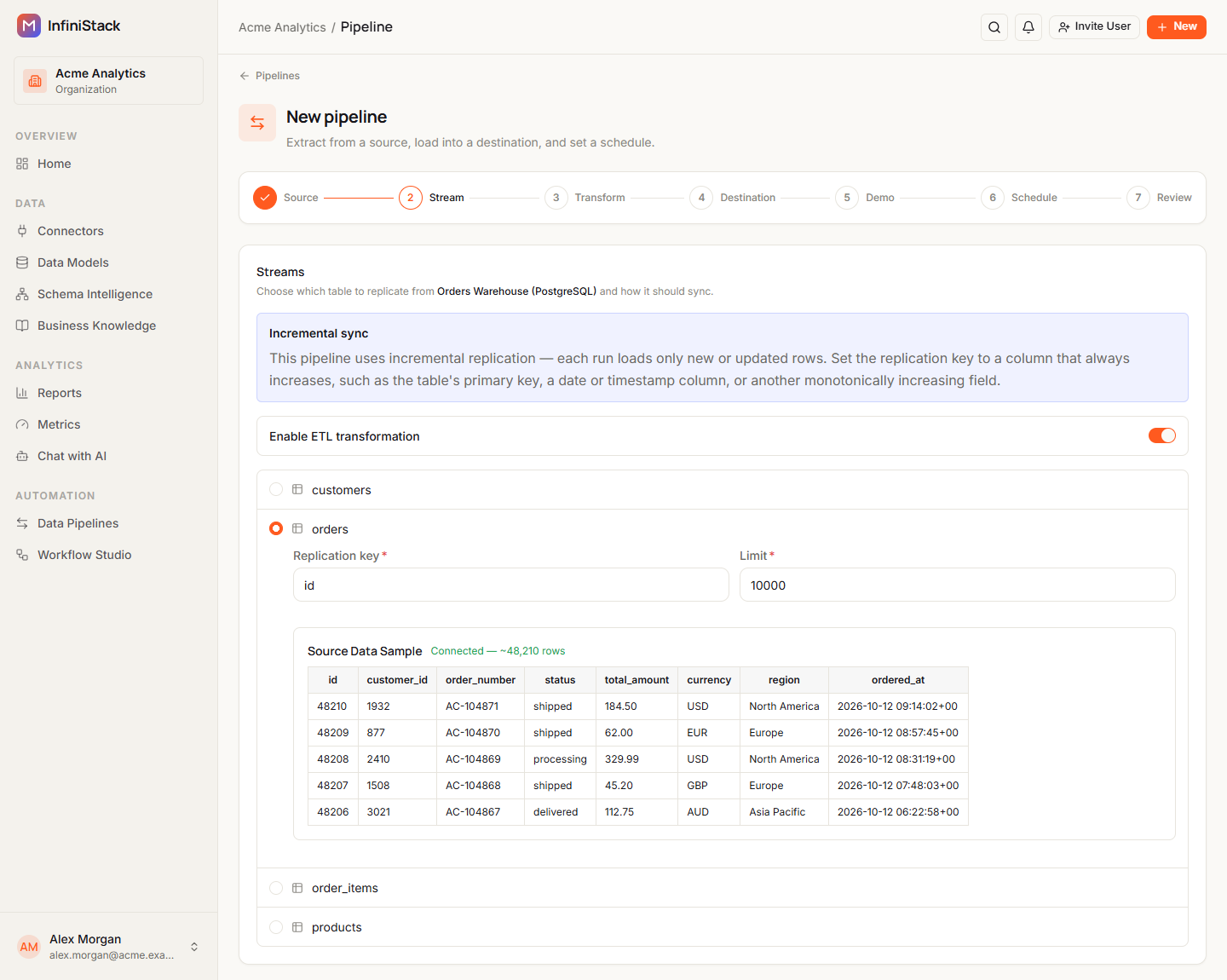
Select the table to copy. You can pick one table per pipeline.
The table expands to show its settings and a sample of its data.
-
In Replication key, enter the column that tells which rows are new. Pick a column that always increases, such as the primary key or a date or timestamp column.
-
In Limit, enter a whole number from 0 to 100000. The default depends on the source connector, for example 20000 for MySQL and 10000 for PostgreSQL.
-
To change the data on the way, turn on Enable ETL transformation.
The wizard adds a Transform step.
-
Select Next →.
Each run loads only rows that are new or updated since the last run. See Full and incremental sync.
3. Transform (optional)
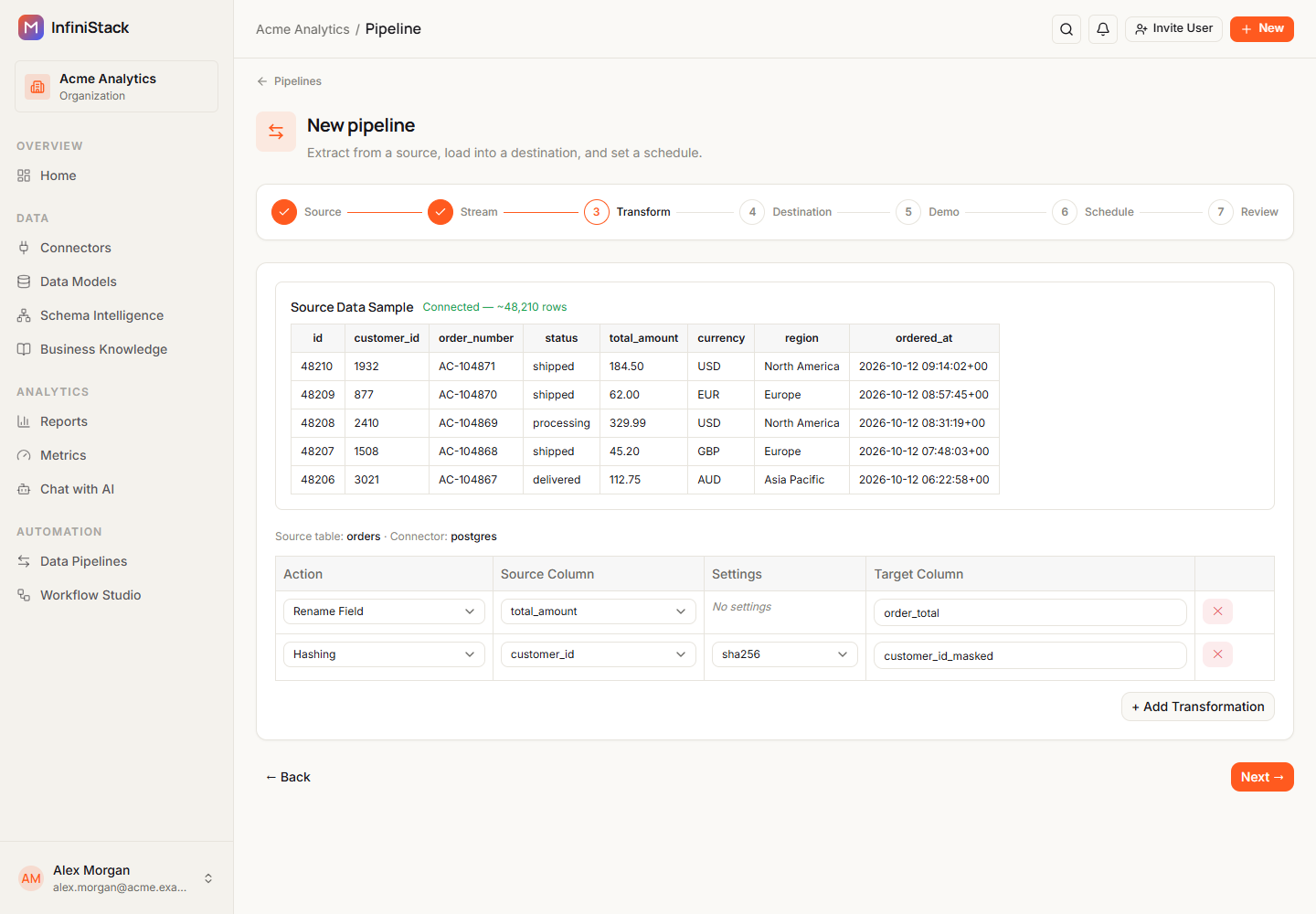
You only see this step if you turned on Enable ETL transformation. It shows a Source Data Sample, then a table of rules with the columns Action, Source Column, Settings and Target Column.
-
In the first row, choose an Action.
The actions are DROP Field, Generate New field, Rename Field, String Manipulation, Hashing, Filter, Combine Fields, Type Casting, Datetime Operations, Faker and Duplicate Table.
-
Choose the Source Column if the action uses one, and fill in Settings if the action has any.
-
If the action creates a column, enter the Target Column name. It must start with a letter or underscore, and use only letters, numbers and underscores. Two rules can't use the same target name.
If the name matches a source column, you see Overwrites source column.
-
To add another rule, select + Add Transformation. To remove a rule, select ✕ on its row.
You need at least one rule.
-
Select Next →.
4. Destination
-
Under Load into, select the connector to load the data into.
The table you picked shows at the top as Source stream. The destination table gets the same name.
-
Select Next →.
The wizard checks the source and the destination.
5. Preview
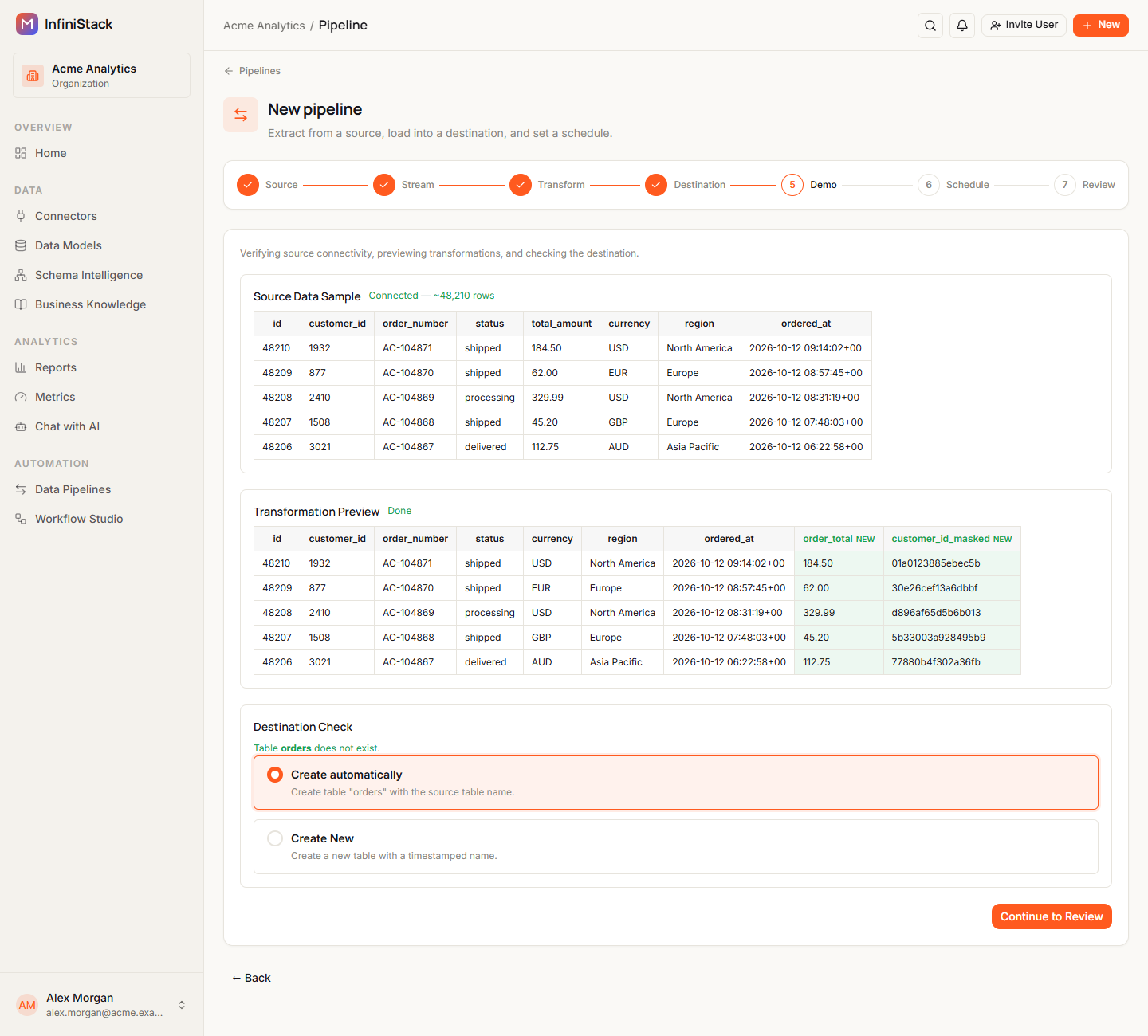
This step is labelled Demo in the step indicator. It runs three checks:
- Source Data Sample: connects to the source and shows 5 rows. When it's done you see Connected — ~N rows.
- Transformation Preview: only if you added rules. It shows the sample after your rules run. New columns are marked NEW.
- Destination Check: checks whether the destination table already exists.
-
Wait for the checks to finish. If Source probe failed appears, select Retry.
-
Under Destination Check, choose what to do with the destination table:
The table… Option What happens doesn't exist Create automatically (default) The table is created with the source table name. doesn't exist Create New A new table is created with a timestamped name. already exists Upsert (default) Rows are loaded into the existing table. Rows that match the primary key are updated. already exists Create New The data goes into a new table instead. -
If you chose Create New, check New table name. It's filled in as the table name plus a date and time, such as
orders_20261014_093000. -
Select Continue to Review.
It's available once all checks have finished.
6. Name & schedule
-
In Pipeline name, enter a name, such as
Postgres → Snowflake nightly sync. -
In Schedule, choose how often it runs. Each option shows the schedule name followed by its timing code, such as Daily (Midnight) (0 0 * * *). The default is the manual schedule: it only runs when you select Run now.
The schedules include Every 5 Minutes, Every 15 Minutes, Every Hour, Twice Daily, Daily (Midnight), Daily (Morning), Weekdays Only, Weekly (Sunday), Weekly (Monday), Monthly (1st), Quarterly and Never (Manual). Schedules run in UTC.
-
Select Next →.
7. Review & create
-
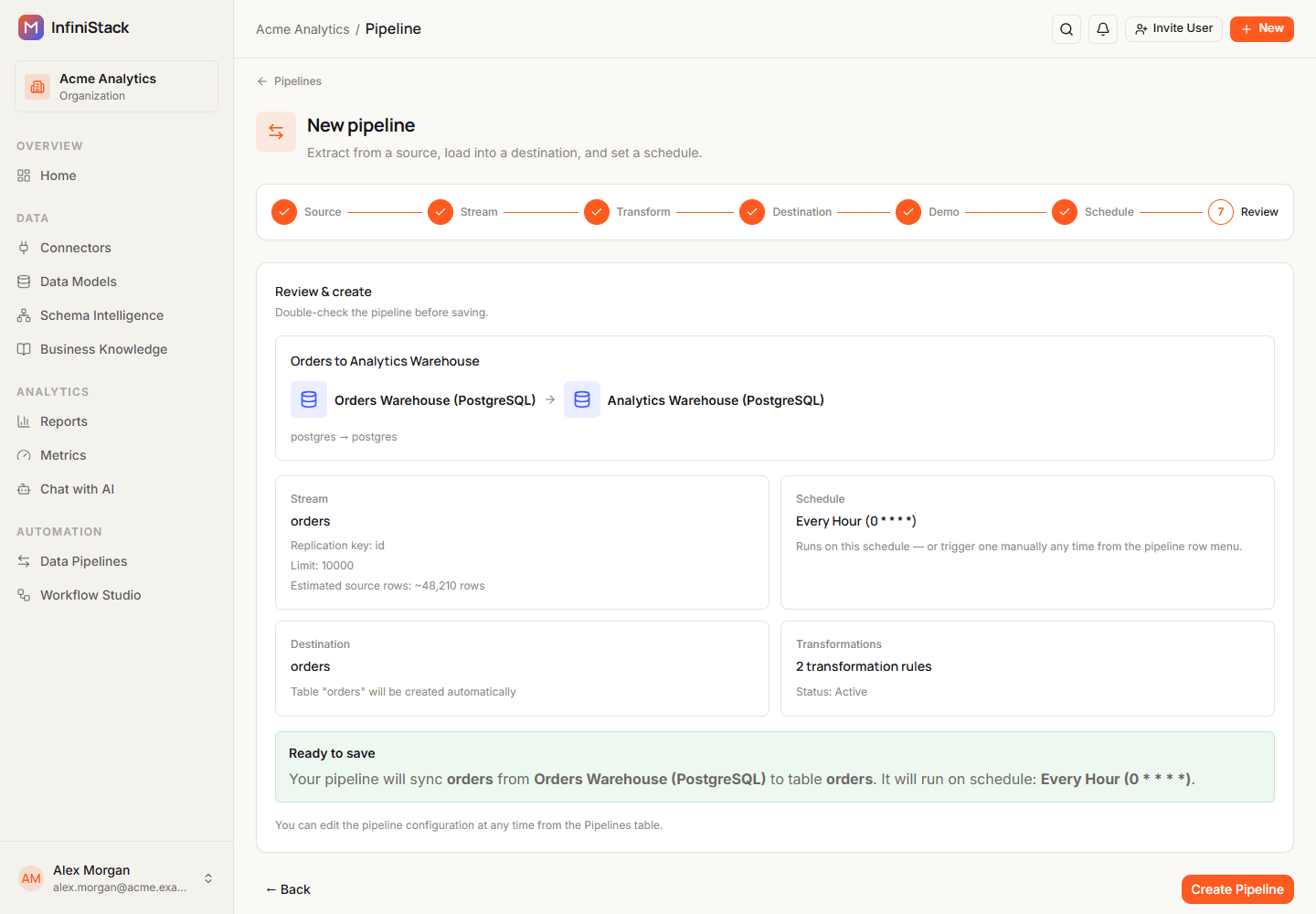
Check the summary:
- Stream: the table, its Replication key, Limit, and Estimated source rows.
- Schedule: the schedule you picked.
- Destination: the destination table, and whether rows are upserted or a table is created.
- Transformations: how many rules, or No transformations.
-
Select Create Pipeline.
You see Pipeline created successfully. The pipeline is Active and appears in the list.
If you see Failed to save pipeline., read the message under Save error, fix the step it names, and select Create Pipeline again.
Next, run it and watch its runs. To change it later, see Edit safely with versions.