Run, schedule & monitor
Run a pipeline by hand or on a schedule, then follow each run in its history and live log.
You need the Integrator or Admin role. See Roles at a glance. If something goes wrong, see Troubleshooting → Pipelines.
Run a pipeline now
-
Open Pipelines.
-
In the pipeline's row menu, select Run now.
You see Pipeline triggered. Open run history to track status. If all run slots are busy, you see Run queued — waiting for runner capacity. instead, and the run starts when a slot is free.
You can also select Run now in the run history panel.
Run now is unavailable, and shows why when you point at it, when:
- Pipeline is inactive: activate the pipeline first.
- A run is already in progress: a pipeline runs one at a time. Wait for the current run to finish.
- Workspace ELT runner is not ready: your workspace is still being prepared. Try again in a minute.
Set a schedule
You choose a schedule when you create a pipeline. To change it later:
-
Open Pipelines and select the pipeline name.
-
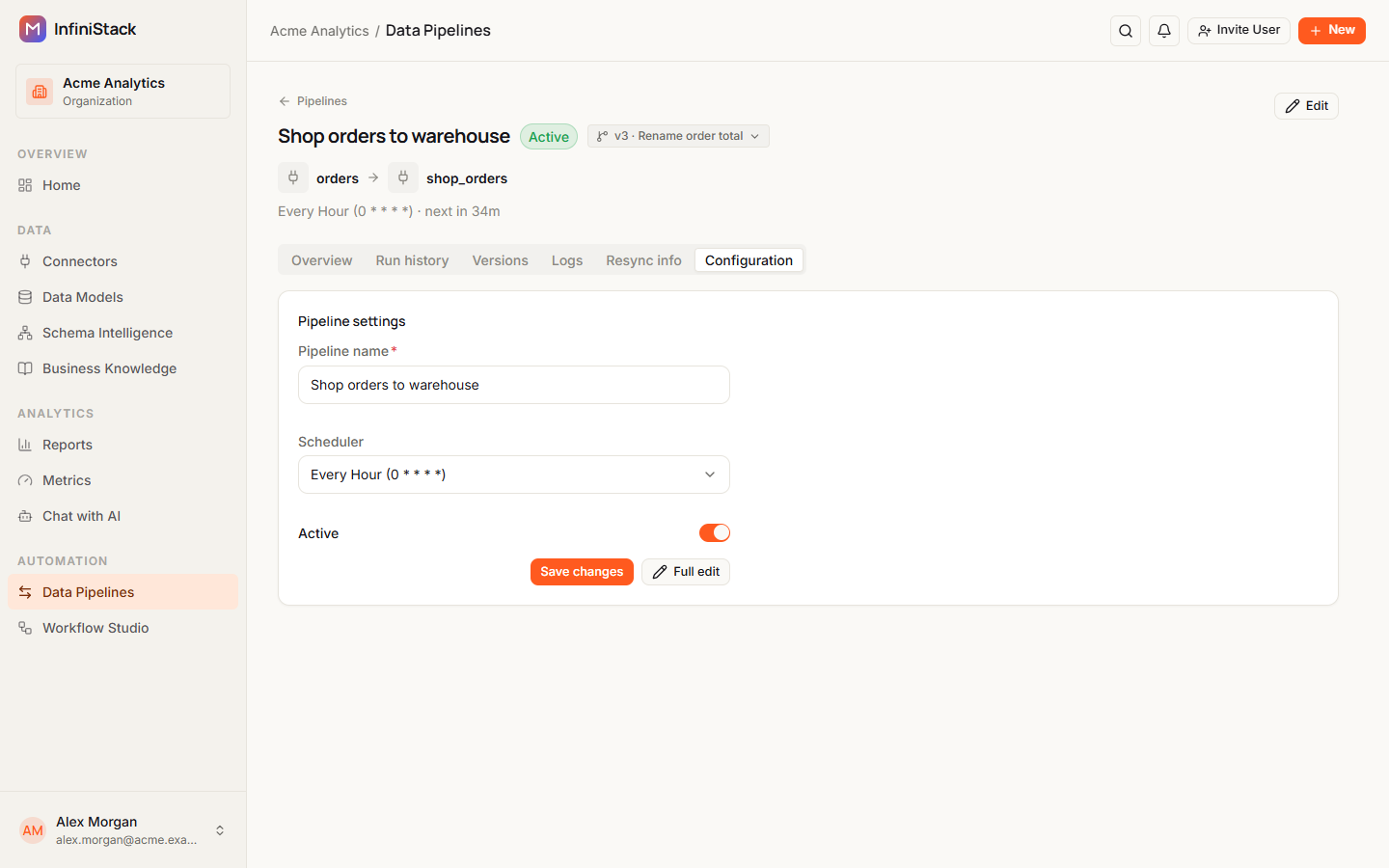
Select the Configuration tab.
-
In Scheduler, choose a schedule.
-
Select Save changes.
You see Configuration saved.
In the same tab you can rename the pipeline in Pipeline name, or turn it on and off with Active. To change anything else, select Full edit. See Edit safely with versions.
How schedules work:
- Schedules run in UTC.
- Only Active pipelines run on schedule.
- If a run of the pipeline is still queued or running when the next one is due, that scheduled run is skipped.
- A manual schedule has no next run. Scheduled pipelines show when they run next in the list, and under Next run on the Overview tab.
Run history and live logs
-
Open Pipelines.
-
In the pipeline's row menu, select View runs.
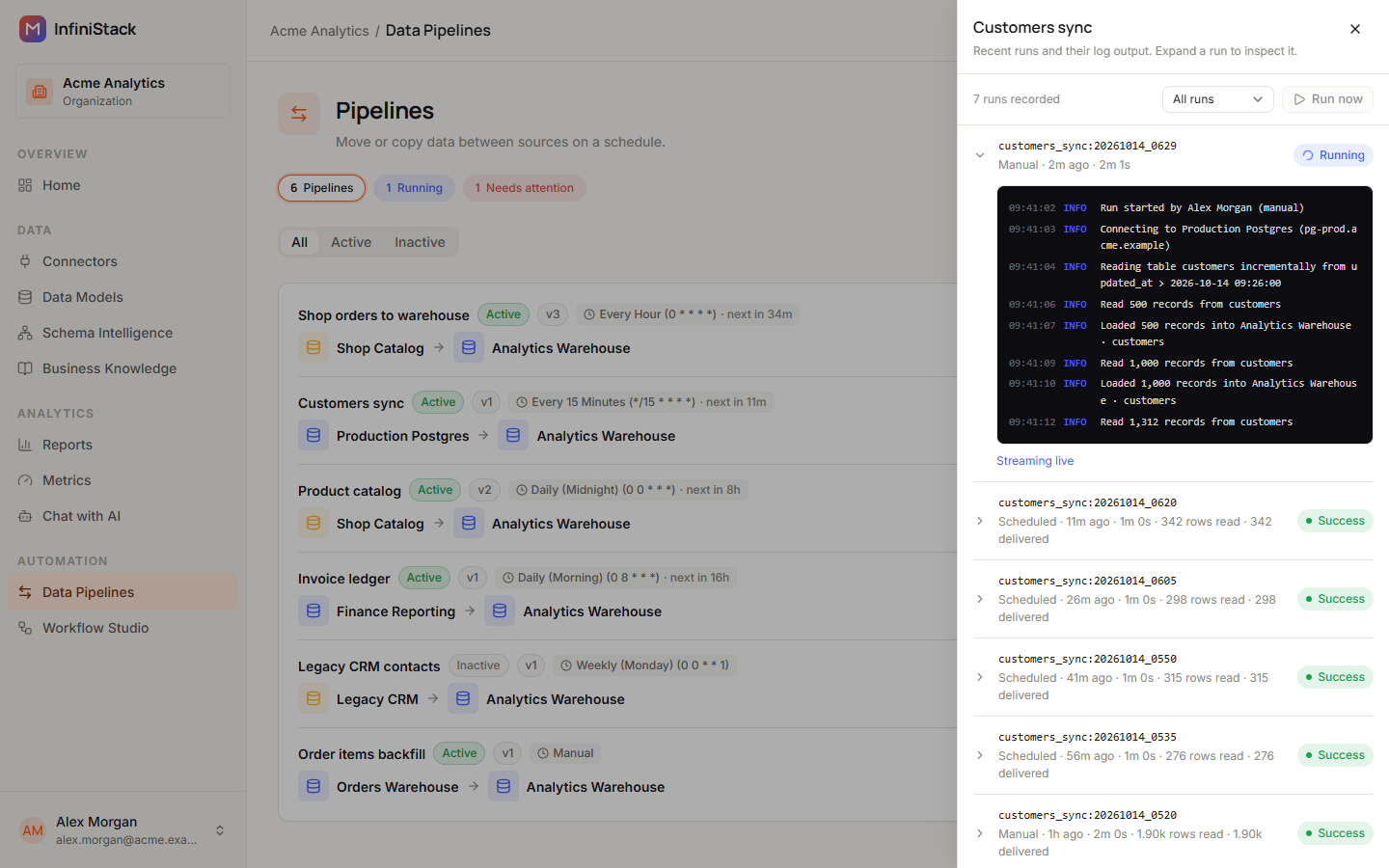
The run history panel opens and shows how many runs are recorded.
-
To narrow the list, choose All runs, Manual, Scheduled, Success, Queued, Failed or Running.
The list shows 15 runs per page. Use Prev and Next to page through.
-
Select a run to expand it.
Each run shows whether it was Manual or Scheduled, when it started, how long it took, how many rows were read and delivered, and its status. The expanded run shows its log. While the run is active, you see Streaming live and the log updates every 3 seconds.
The history refreshes on its own: every 5 seconds while a run is active, and every 10 seconds otherwise.
On the pipeline's page
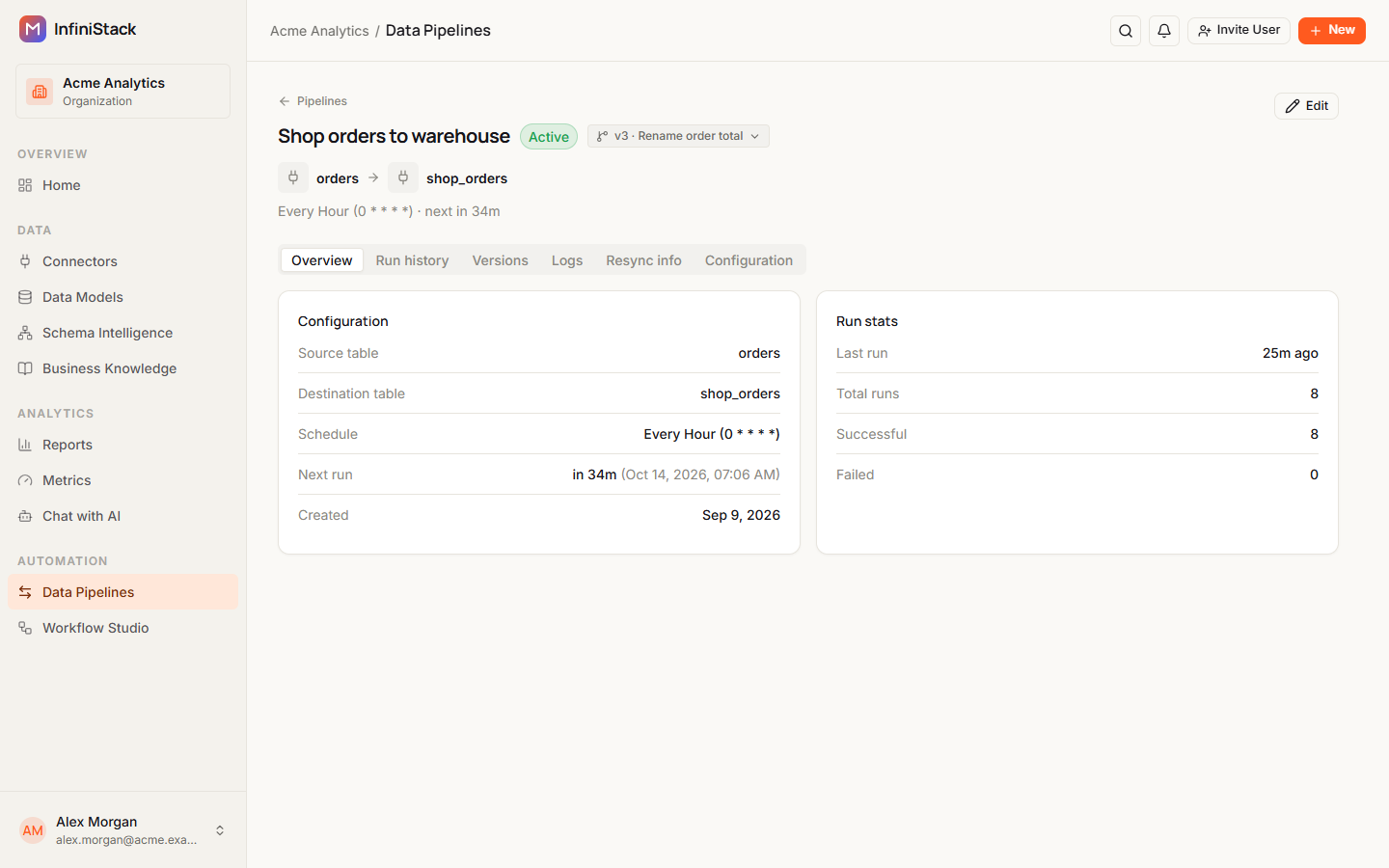
Select the pipeline name in the list to open its page. Its tabs are Overview, Run history, Versions, Logs, Resync info and Configuration.
- Overview shows the pipeline's setup and Run stats: Last run, Total runs, Successful and Failed.
- Logs shows the Job log output for the run you choose.
When a run succeeds, fails or is cancelled, Admins, Integrators and the person who started it get a notification.
Why a run is queued
Your organization can only run a limited number of pipelines at the same time. When every slot is busy, a new run waits as Queued. When a slot frees up, it moves to Dispatching, then Running.
- A pipeline has at most one queued or running run at a time.
- How many runs can go at once depends on how your InfiniStack is set up. Ask your administrator if runs often wait.
You don't need to do anything. The run starts on its own.
Automatic deactivation after failures
If an active pipeline fails several runs in a row (5 by default), InfiniStack turns it off. A cancelled run breaks the streak. Its badge changes to Inactive, and Admins and Integrators get a Pipeline disabled notification. Scheduled runs stop until you turn it back on.
-
Open the run history and read the log of the failed runs. Fix the cause, such as a connector's details or the pipeline's setup.
-
In the pipeline's row menu, select Activate.
You see Pipeline activated. You can also turn on Active on the Configuration tab and select Save changes.