Edit safely with versions
Save changes as a new version so the running pipeline keeps working, then switch to the new version when you're ready.
You need the Integrator or Admin role. See Roles at a glance. If something goes wrong, see Troubleshooting → Pipelines.
Drafts and versions
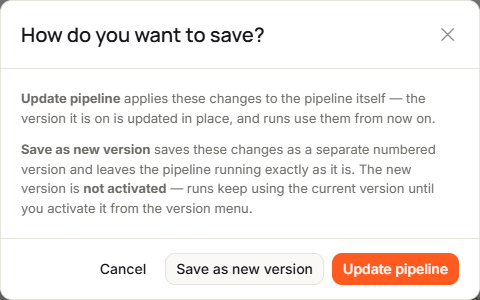
A pipeline always runs its active version. When you edit a pipeline, you choose how to save:
- Update pipeline changes the active version in place. The next run uses your changes.
- Save as new version keeps your changes as a separate numbered version. Runs keep using the active version until you activate the new one.
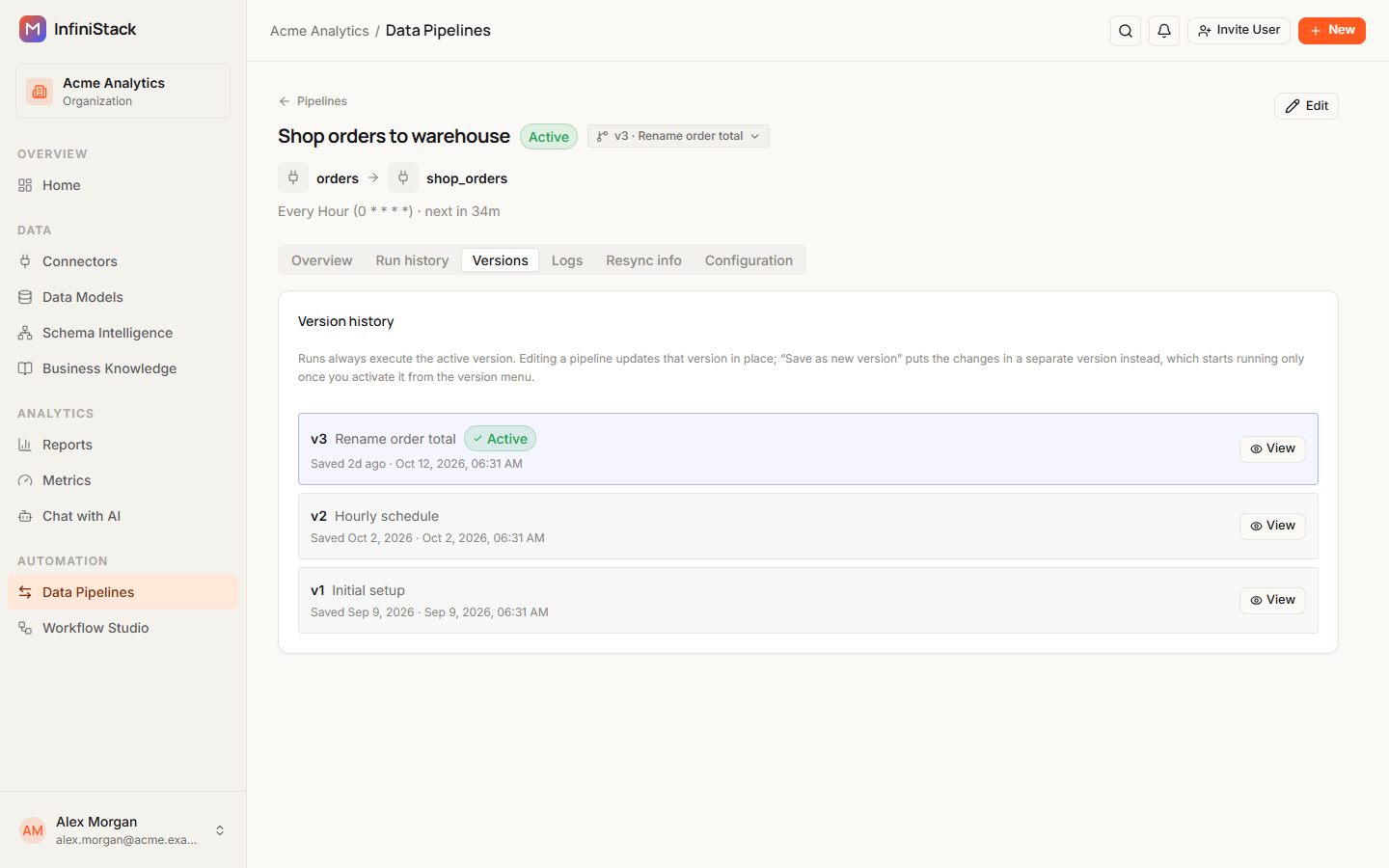
The version a pipeline runs shows next to its name: v3, or v3 · label if the version has a label. A pipeline without one shows No active version.
To see every version, open the pipeline and select the Versions tab. Version history lists each version with its number, its label (or untitled), when it was saved, and an Active badge on the one that runs. Select View to see a version's setup.
Save as a new version
-
Open Pipelines, and in the pipeline's row menu select Edit.
The Edit pipeline wizard opens with the pipeline's current setup.
-
Make your changes and go through the steps to Review & create. See Create a pipeline for each step.
-
Select Update Pipeline.
How do you want to save? opens.
-
Select Save as new version.
-
Optionally, enter a Version label of up to 255 characters, such as
adds order status column. -
Select Save version.
You see Version N saved — activate it from the version menu to make it live. The pipeline keeps running its active version.
To change the running pipeline directly, select Update pipeline in step 4 instead. You can't do this while a run is queued or running.
If you changed the source connector, the table, the primary key, the replication key, the replication method, the destination connector or the transformations, Update pipeline opens Save pipeline changes? Select Save to keep the current sync state, or Save & Reset Sync State so the next run reads all the data again. See Reset sync state.
Activate a version
-
Open Pipelines and select the pipeline name.
-
Select the version menu next to the pipeline name.
Saved versions lists each version.
-
Select Activate on the version you want.
You see Version N is now active — runs will execute this snapshot. The version's transformation rules come back with it.
You can also select the eye icon on a version to open it, then select Activate this version.
You can't switch versions while a run is in progress. Wait for it to finish, or select View run to follow it.
Delete a version
-
In the version menu, select the bin icon on the version.
-
Select Delete to confirm.
You see Version N deleted.
You can't delete the active version. Activate a different version first.
Reset sync state
A pipeline remembers how far it has read, so each run only loads new or updated rows. Reset the sync state to read the whole table again.
-
Open Pipelines.
-
In the pipeline's row menu, select Reset sync state.
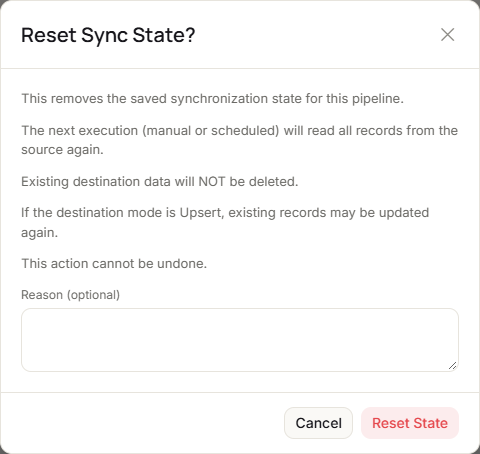
Reset Sync State? opens.
-
Optionally, enter a Reason of up to 512 characters.
-
Select Reset State.
You see Sync state reset. The next run will read all records from the source.
The next run, manual or scheduled, reads every record from the source. Data already in the destination isn't deleted. If the destination uses Upsert, existing rows may be updated again. This can't be undone.
You can't reset while the pipeline is running. You see Cannot reset sync state. Select View Run to follow the run, and reset once it finishes.
To see the last reset, open the pipeline and select Resync info. Last sync state reset shows who reset it, their role, when, and the reason.