Quickstart
Before you begin
You need:
- An InfiniStack account with the Integrator or Admin role. See Roles at a glance.
- The host, port, database name, user, and password of a PostgreSQL or MySQL/MariaDB database.
If someone in your organization sent you an invitation, don't sign up. Follow the link in the invitation email instead.
Create an account
If you don't have an account yet, create one with your name, your email, and a password. Use an email address you can open right away: the verification link expires after 2 hours. The password needs at least 8 characters, with an uppercase letter, a lowercase letter, and a number.
-
Open the sign-in page and select Sign up, below the Sign in button.
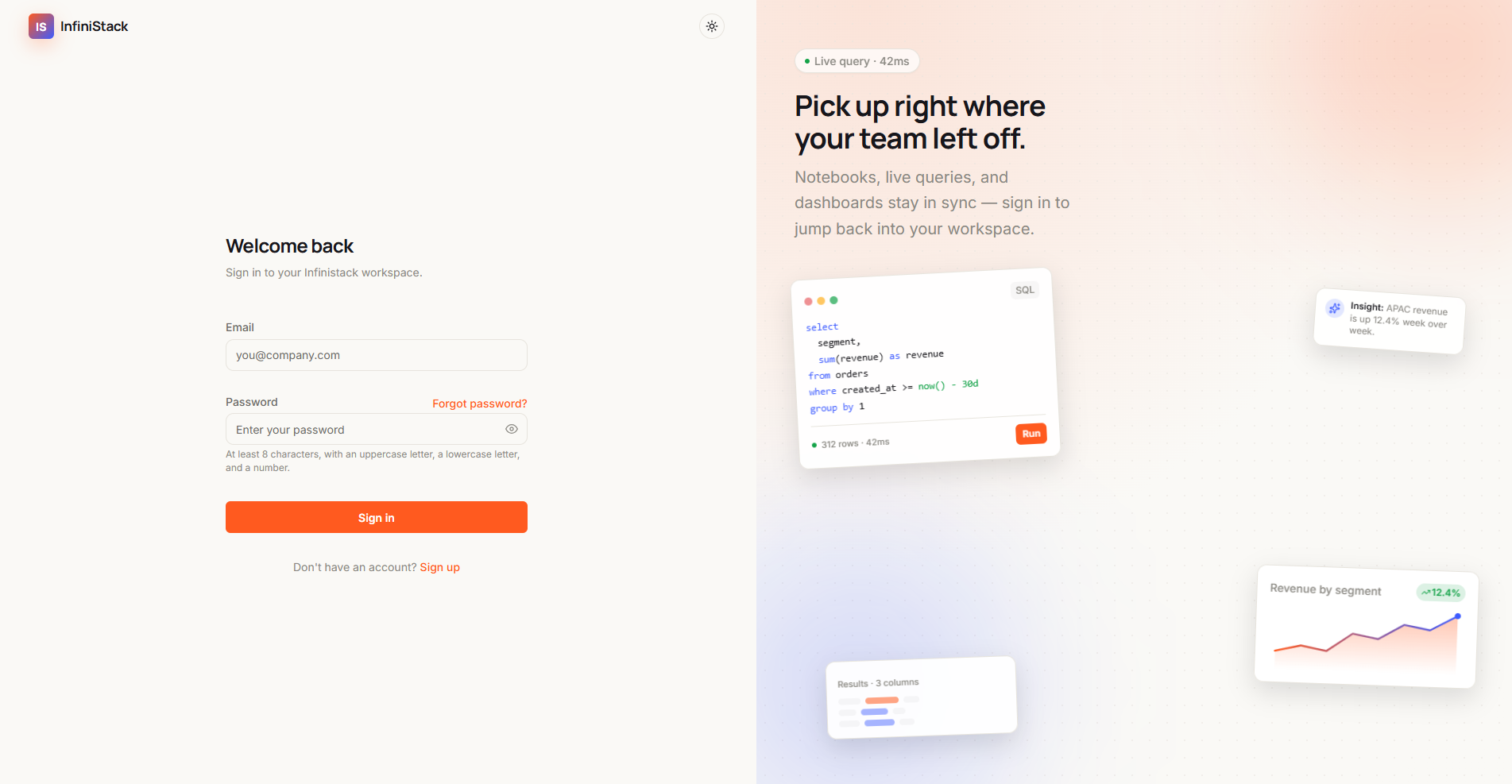
You can also go straight to the Create your account page.
-
On the Create your account page, enter your details:
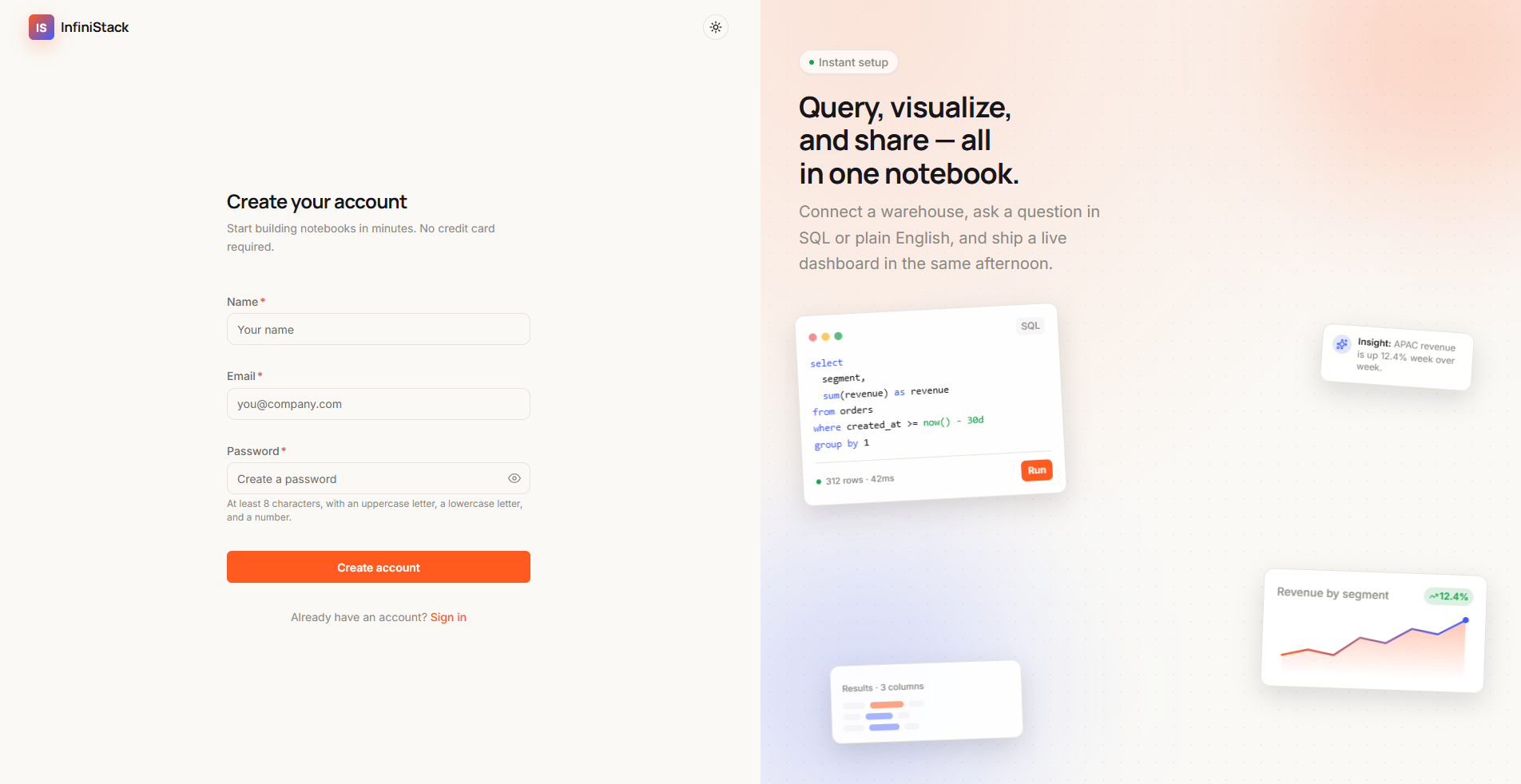
- Name: your full name, at least 2 characters.
- Email: the address you want to sign in with, such as
you@company.com. - Password: a password that meets the rules shown under the field. Select the eye icon to show or hide what you typed.
-
Select Create account.
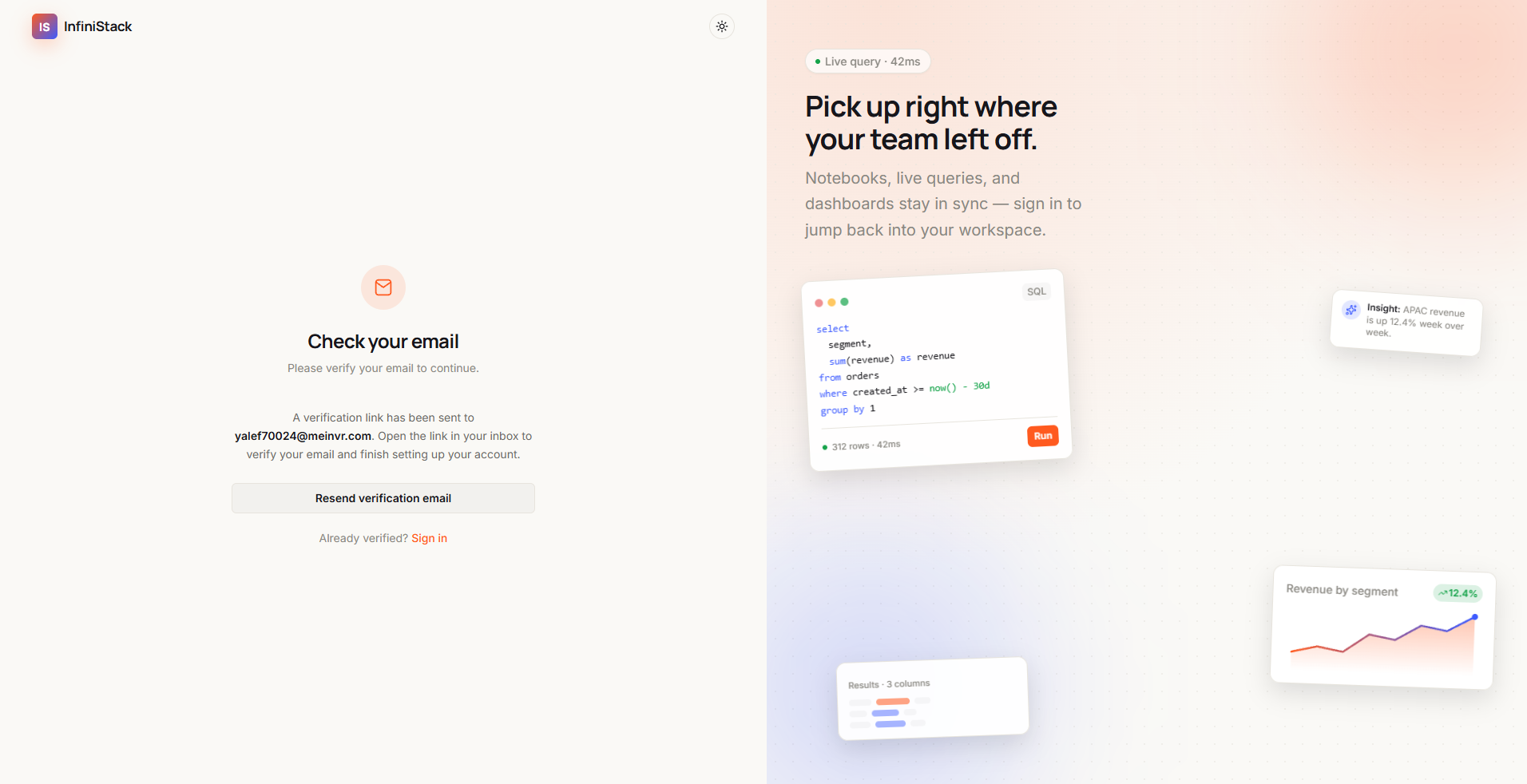
The Check your email page opens and shows the address InfiniStack sent the verification link to.
-
Open the email titled Verify your email and select the link in it.
InfiniStack verifies your email and signs you in. The Welcome page opens.
-
Select Create organization. You become its Admin, so you can do every step in this quickstart.
If something goes wrong, see Sign-in and access.
1. Connect a database
- Open Connectors and select Add connector.
- Select PostgreSQL or MySQL, then enter a Connector name and the connection details.
- Select Test connection, then Add connector.
InfiniStack starts reading your schema in the background, so Chat with AI can understand your tables.
For every field, and what to do if the test fails, see Add a connector.
2. Ask your first question
AI-
Open Chat with AI and select New chat.
-
Select the connector you just added, then select Start chat.
-
Ask a question about your data, such as:
What was our total revenue by month this year?
The answer can include a chart, a table of results, and the SQL behind it. To use Popular Questions, answer clarifying questions, and read answers, see Ask questions.
3. Save the answer as a metric
- On the answer, select the bookmark icon (Save as metric).
- Enter a Metric name and select Save.
The metric now appears on the Metrics page. See Save & reuse answers.
4. Add it to a report and share it
- Select Add to report, choose Create new report, enter a title, and select Add to report.
- In the report that opens, select Share and choose the teams or Common Spaces that should see it.
- Select Publish.
Members see the report once it's published and shared with them. See Build a report and Publish & share a report.
Next steps
- Explore your data and the schema InfiniStack read.
- Create and manage metrics by hand or with AI.
- Invite your team and set up teams and Common Spaces.
- Move data on a schedule with Data Pipelines.