Tour the app
This page walks you through what you see after you sign in. What you see depends on your role, so some areas on this page may be missing for you. See Roles at a glance.
Every screen has the same frame: the sidebar on the left, and a top bar above the page. The top bar shows your organization's name and the name of the page you're on, followed by Search, Notifications, Invite User, and New.
Home dashboard
Home is the first page you see after you sign in. Open it any time from Home in the sidebar, or select the InfiniStack logo above the sidebar.
The page greets you by name. To reload everything on it, select Refresh in the top-right corner of the page.
What Home shows depends on your role.
If you're an Integrator or an Admin
| Section | What it shows |
|---|---|
| Operational summary | A short summary of what's happening in your organization right now |
| Counters | Connected sources, Active pipelines, Workflow runs today, and AI chat sessions this week |
| Recent pipeline runs | Your latest pipeline runs, with failures first. The newest run is tagged Latest. |
| Workflow Studio activity | Workflows that were recently run or edited |
| Recent AI chat activity | Your recent chats. Select one to pick up where you left off. |
| Quick actions | Shortcuts such as Connect a data source, Build a pipeline, and Ask AI a question |
If any pipeline runs failed recently, a red banner above Recent pipeline runs tells you how many.
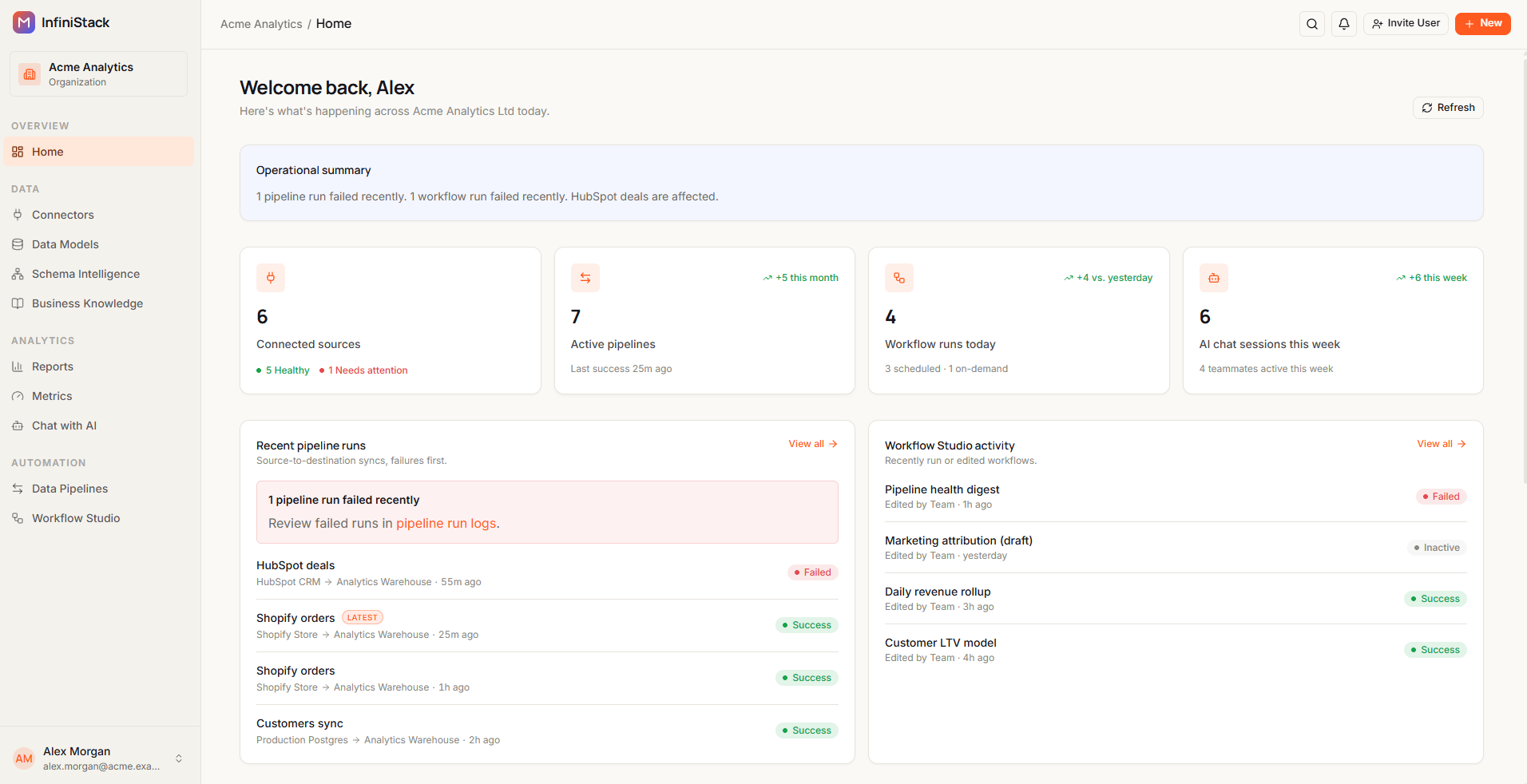
While InfiniStack is still setting up your organization, Home shows Workspace provisioning in progress instead of the counters. Once setup is done and you haven't added a connector, pipeline, or workflow yet, Home shows a Welcome to banner with your organization's name and the first steps: Connect a source, Configure tables, Build your first pipeline, and Ask AI a question. Select Connect a data source to start, or follow the Quickstart.
If you're a Member
| Section | What it shows |
|---|---|
| Pinned reports | Reports you pinned for quick access. To add one, open a report and choose Pin to Home. Select Browse reports to see them all. |
| Recent AI chat activity | Your recent chats. Select one to pick up where you left off. |
| Quick actions | Ask AI a question |
The sidebar
The sidebar is how you move between areas of the app. At the top, it shows your organization's name. Areas are grouped under headings, and you only see the areas your role can open.
| Heading | Area | What it's for | Who sees it | Docs |
|---|---|---|---|---|
| Overview | Home | Your organization at a glance | Everyone | This page |
| Data | Connectors | Connect the databases InfiniStack reads from and writes to | Integrator, Admin | Connectors |
| Data Models | Explore schemas and preview table data from your connectors | Integrator, Admin | Explore your data | |
| Schema Intelligence | How InfiniStack reads your tables, relationships, and lineage | Integrator, Admin | Schema Intelligence | |
| Business Knowledge | The business terms Chat uses to plan its answers | Integrator, Admin | Business Knowledge | |
| Analytics | Reports | Reports of metrics and narrative, shared with your teams | Everyone | Reports |
| Metrics | Saved charts and KPIs from Chat or the metric builder | Integrator, Admin | Metrics | |
| Chat with AI | Ask questions about your data in plain English | Everyone, when AI is on | Chat with AI | |
| Automation | Data Pipelines | Move data between databases on a schedule | Integrator, Admin | Data Pipelines |
| Workflow Studio | Build and schedule notebook-style workflows | Integrator, Admin | Workflow Studio |
If an Admin turns AI off for your organization, Chat with AI disappears from the sidebar. See AI controls.
Reports opens in its own layout, with a sidebar for the report library. To return to the rest of the app, select Back to app at the bottom of that sidebar.
If you're a Member, the active Team appears under your organization's name. Select it to switch to another team you belong to.
On a small screen, the sidebar is hidden. Select the menu icon at the top-left to open it.
Search and the New menu
Search
Search finds pages, actions, and the things in your organization by name.
-
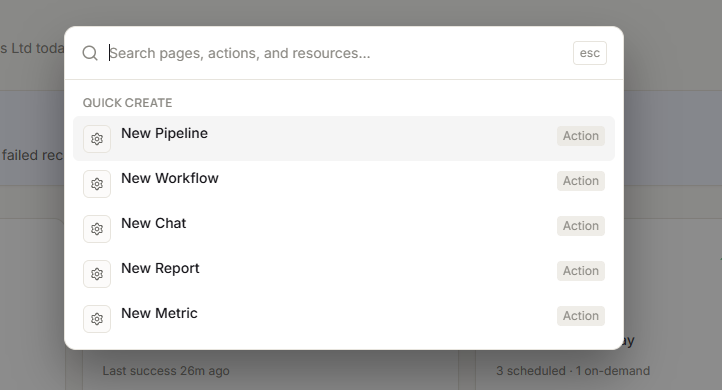
Select the magnifying glass in the top bar, or press Ctrl+K (⌘K on a Mac).
The search box opens with Recents and Quick create listed below it.
-
Type what you're looking for.
Results appear grouped by type, such as Pages, Actions, and Reports. Select Show more under a group to see more results.
-
Select a result to open it.
Search only shows what your role can open. Everyone can find pages and reports; Integrators and Admins also find connectors, pipelines, metrics, and workflows.
The New menu
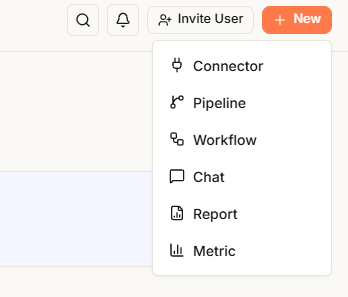
If you're an Integrator or an Admin, the top bar has a New button. Hover over it or select it to create something without leaving the page you're on:
| Option | Opens |
|---|---|
| Connector | The connector library, to add a connector |
| Pipeline | The pipeline wizard, to create a pipeline |
| Workflow | A new workflow in Workflow Studio |
| Chat | Chat with AI |
| Report | A new report, to build a report |
| Metric | The metric builder, to create a metric |
Members don't see New. Use the Quick create list in search instead; it only offers what you can create.
Invite User
Select Invite User in the top bar to invite someone to your organization. If you're an Admin, you choose their Organization role and select Send invite. Anyone else can only invite someone as a Member, and selects Request invite. See Members & invitations.
Notifications
InfiniStack tells you when pipelines, workflows, and reports change. Run results for pipelines and workflows go to Admins, Integrators, and the person who started the run. When a report is published, the members who can see it are notified.
-
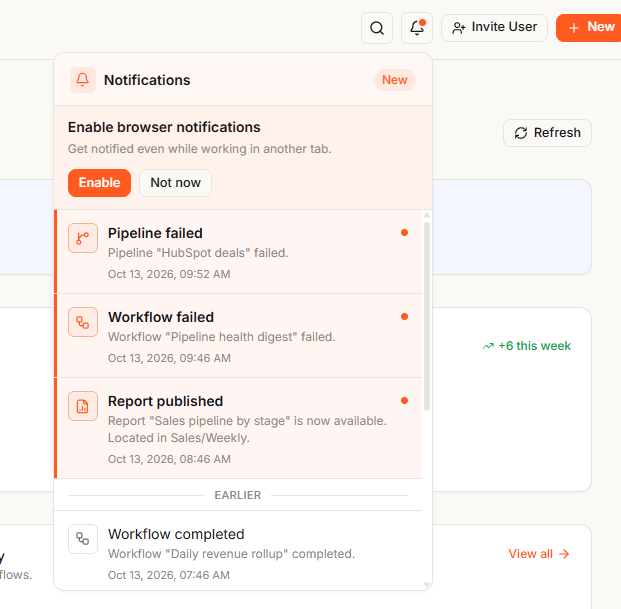
Select the bell in the top bar.
A dot on the bell means you have unread notifications. The list shows the newest first, with older read ones under Earlier.
-
Select a notification to open the pipeline, workflow, or report it's about.
The notification is marked as read.
-
To see everything, select See all notifications.
The Notifications page opens.
On the Notifications page, select Mark all read to clear the unread count. To remove notifications, select them and choose Discard, then pick Selected, Read, Unread, Other than selected, or All. Discarded notifications are deleted permanently.
Notifications are kept for 30 days, then removed automatically.
InfiniStack may offer Enable browser notifications next to the bell. Select Enable to get a desktop alert while InfiniStack is open in another tab. Select Not now to skip it.
Organization settings
Organization settings is where you see your organization and, if you're an Admin, manage it.
-
Select your name at the bottom of the sidebar.
-
Select Organization settings.
Organization settings opens with its own sidebar. Select Back to app at the bottom to return.
| Section | Page | What it's for | Who sees it |
|---|---|---|---|
| General | Dashboard | Your organization's name and ID, Your role, and the AI settings PII Guard and AI Agent | Everyone |
| Organization | Organization details | Your organization's name, contact information, and location | Admin |
| Members | Everyone in your organization and their roles | Admin | |
| Pending Invites | Invitations that haven't been accepted yet | Admin | |
| Roles and Access | How roles map to what people can do | Everyone | |
| Teams | Team List | Teams in your organization. Members and Integrators see public teams and the private teams they belong to. | Everyone |
| Common Spaces | Groups of teams, so a report can be shared once with several teams | Everyone | |
| Billing | Billing | Marked Soon: not available yet | Admin |
| Usage | Your organization's AI usage for a period you choose | Admin |
For the details, see Members & invitations, Teams & Common Spaces, AI controls, and AI usage.
Your profile and settings
Select your name at the bottom of the sidebar to open your menu. The top of the menu shows your name, your email, and a badge with your role. If you're an Admin, the badge reads Owner.
| Menu item | What it does |
|---|---|
| Profile settings | Opens your personal settings |
| Organization settings | Opens Organization settings |
| Billing | Not available yet |
| Switch to dark mode / Switch to light mode | Changes the app's colors |
| Log out | Signs you out, after you confirm in Confirm log out |
Profile settings opens the Settings page. Everyone can use all four sections:
| Section | What you can do |
|---|---|
| Profile | Change your First Name, Last Name, and Contact Number, then select Save Changes. Your Email can't be changed here. |
| Password | Enter your Current Password, a New Password, and Confirm Password, then select Change Password |
| Notifications | Select Enable to allow desktop alerts in this browser. Which events notify you is set by your organization, not here. |
| Active Sessions | See the devices signed in to your account. Select Revoke to sign one out, or Revoke all other sessions to sign out everywhere except this device. |
If you can't sign in or open a page you expect, see Sign-in and access.