Metrics
Metrics are saved charts and KPIs. You build them in the metric builder or save them straight from a Chat with AI reply, then reuse them in reports.
What a metric is
A metric is a saved SQL query on one of your connectors, plus how to show its result. Each metric has:
- A name.
- A visual type: chart, KPI, table or pivot table.
- The connector it reads from.
- The SQL query that produces its data.
- Its display settings, such as chart axes or KPI prefix.
Metrics belong to your organization. Everyone who can open Metrics sees the same catalog.
You find Metrics in the Analytics section of the sidebar. The page is open to the Integrator and Admin roles. Team leads and members can't open it. See Roles at a glance.
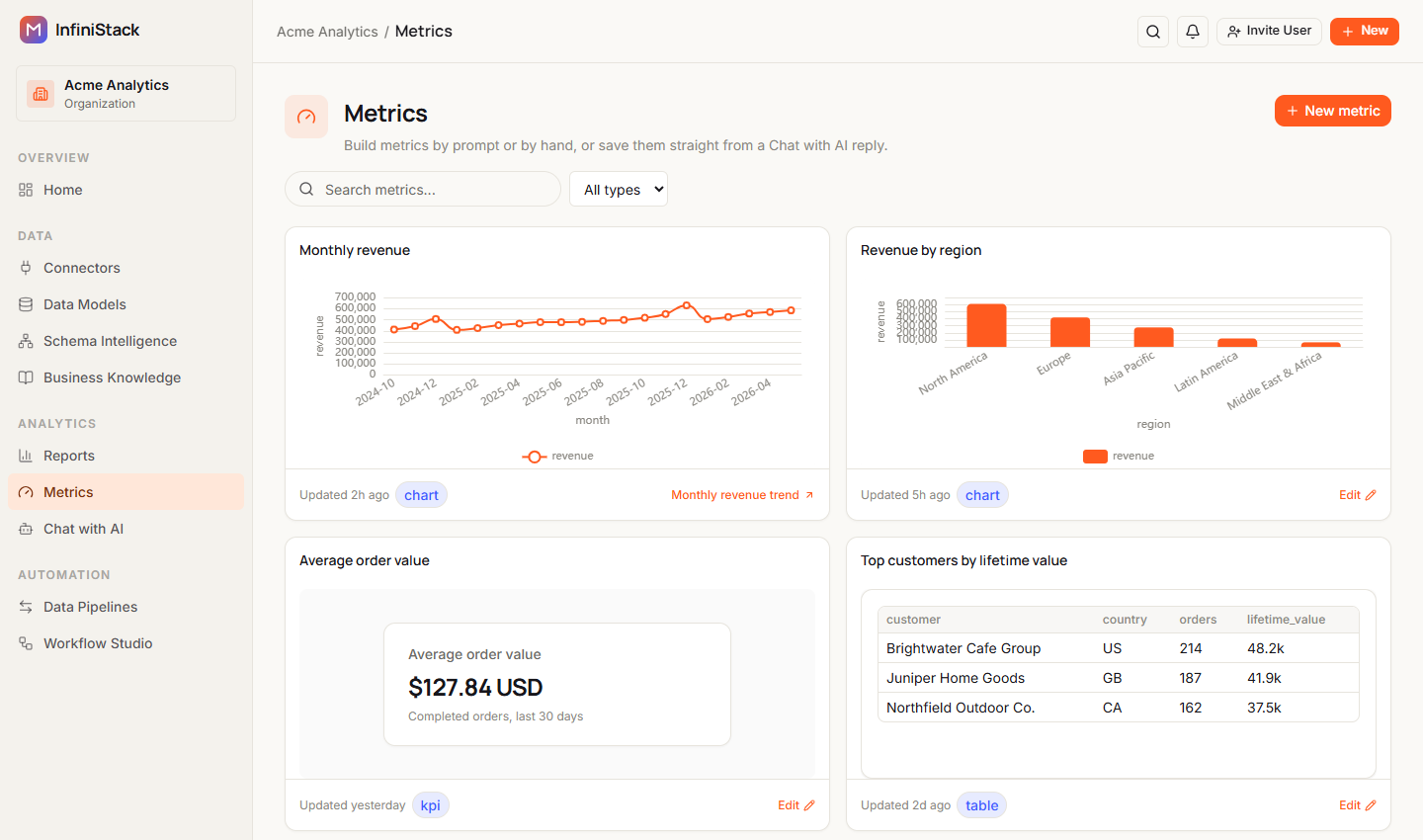
Metric types
| Type | Label in the builder | Use it for | Needs |
|---|---|---|---|
| Chart | Chart | A trend or comparison across categories. | At least one dimension column and a measure. A query that returns a single value can't be a chart. |
| KPI | KPI | One headline number. | Any result. |
| Table | Table | The rows of your result, paged. | Any result. |
| Pivot | Pivot table | Values cross-tabbed by one or more dimensions. | At least one categorical column. All-numeric or single-value results can't pivot. |
New metrics start as Chart. If your query result doesn't fit a type, that type is greyed out in Visual type. Hover over it to see why.

On the Metrics page, Filter by type narrows the list to Chart, KPI, Table or Pivot.
Where metrics come from
A metric comes from one of two places.
The metric builder. Select New metric on the Metrics page. You write the SQL yourself or describe the metric to Ask AI. See Create & manage metrics.
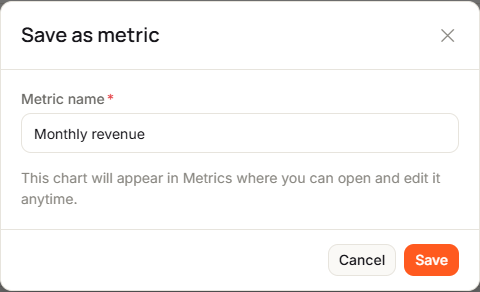
A Chat with AI reply. When a reply has a chart or table built from a SQL query, select Save as metric under it. Enter a Metric name and select Save. A reply with a chart is saved as a Chart metric. Any other reply is saved as a Table metric. See Save an answer as a metric.
A metric saved from chat links back to its conversation. Its card shows the conversation title, and its menu has View in conversation.
Where metrics are used
Metrics feed report blocks. Four block types show a saved metric:
| Block | What it shows |
|---|---|
| Chart | Visualize a saved metric. |
| Big number | Highlight a single KPI. |
| Table | Tabular metric results. |
| Pivot table | Cross-tab metric data by dimensions. |
You can add a metric to a report in three ways:
- In a report, from the Add metric block menu.
- In the metric editor, with Add to report.
- In Chat with AI, with Add to report under a reply you saved as a metric.
Adding a metric to a report needs the Integrator or Admin role. See Reports.
Guides
Create & manage metrics
Define a metric once and keep it up to date.