Create & manage metrics
Build a metric in the metric builder, shape how it looks, and keep it current.
Before you begin
- You need the Integrator or Admin role. See Roles at a glance.
- You need at least one connector. Without one, the builder shows Connect your data to create metrics. See Connectors.
- To use Ask AI, AI features must be on for your organization, and the connector must be MySQL or PostgreSQL.
Create a metric
-
Open Metrics and select New metric.
If your catalog is empty, select Add metric on the Build your metrics library card instead.
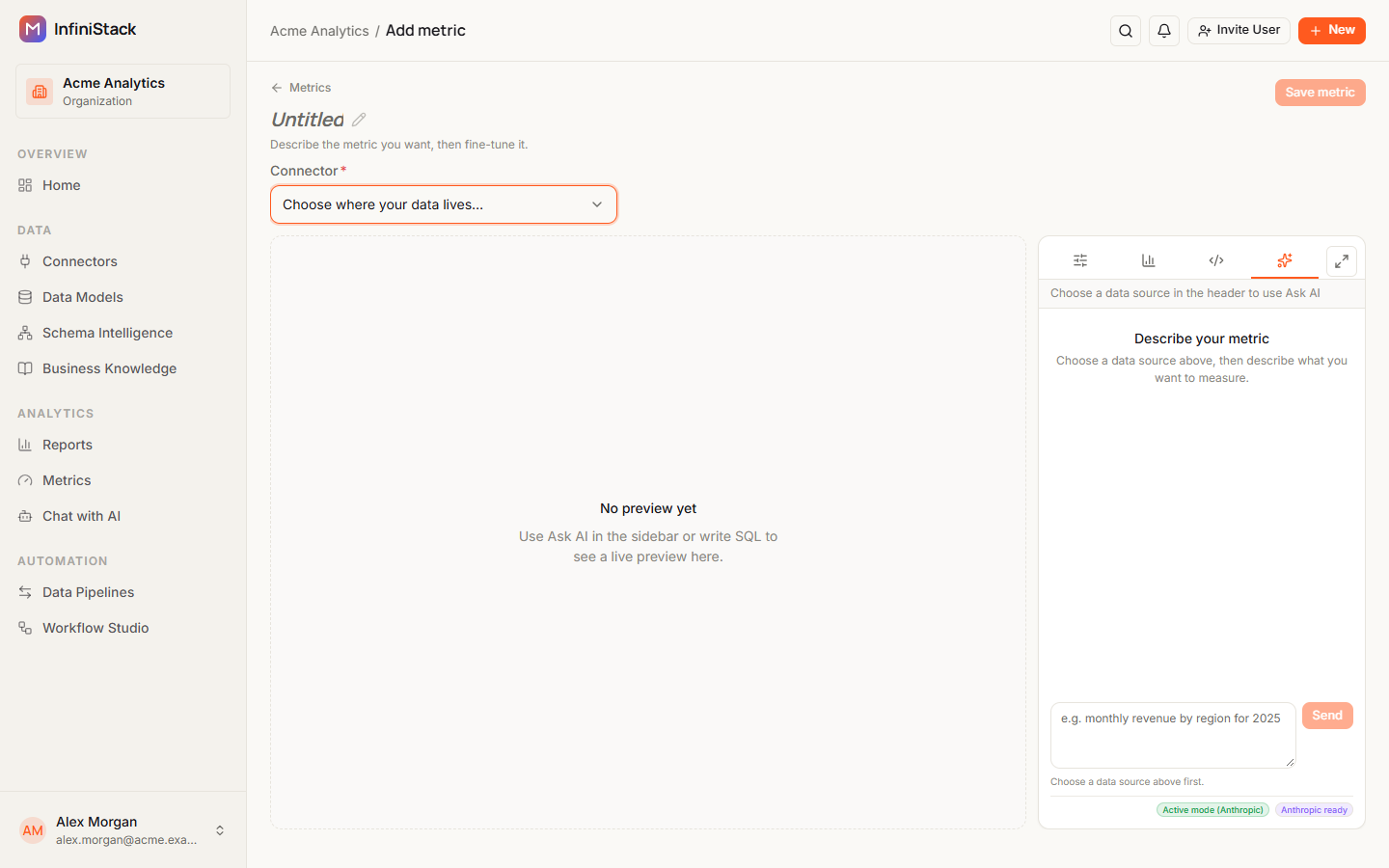
The builder opens with the subtitle Describe the metric you want, then fine-tune it.
-
Select the title at the top and type a name for the metric.
-
In Connector, select the connector your data lives in.
 note
noteChanging the connector later clears the table, SQL, preview and chart settings.
-
Write the query, or ask AI to write it. See Write SQL or ask AI.
The preview shows the query result as soon as it runs.
-
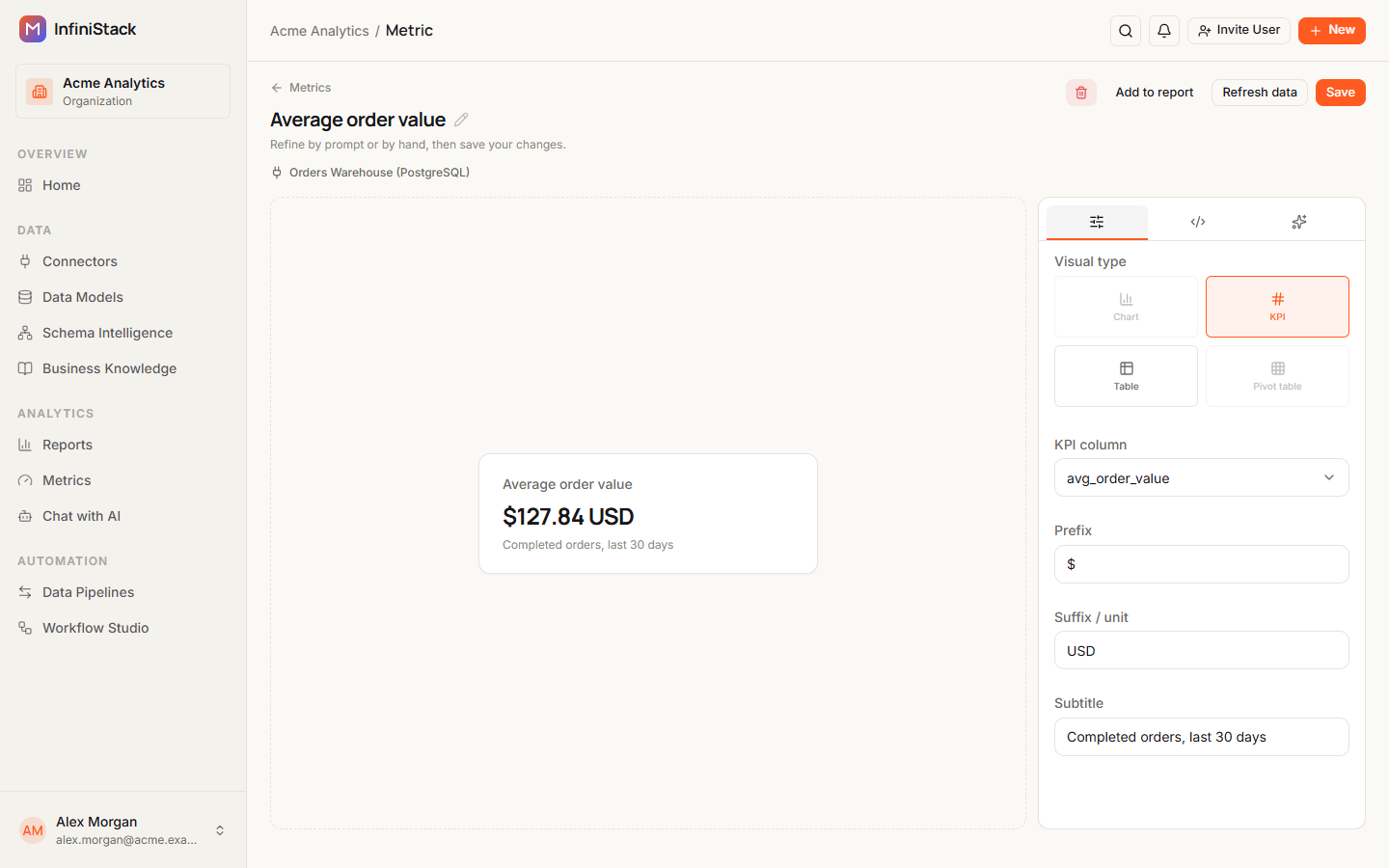
In the right panel, select the Configure tab and pick a Visual type: Chart, KPI, Table or Pivot table.
A type your result can't support is greyed out. Hover over it to see why.
-
Adjust how the metric looks. See Chart settings.
-
Select Save metric.
You see Metric created and return to the Metrics page. The metric runs its query once right away.
Save metric stays unavailable until the latest version of your query has run without errors. If you leave the builder with unsaved changes, Discard unsaved changes? asks you to confirm. Select Keep editing to stay, or Discard changes to leave.
Write SQL or ask AI
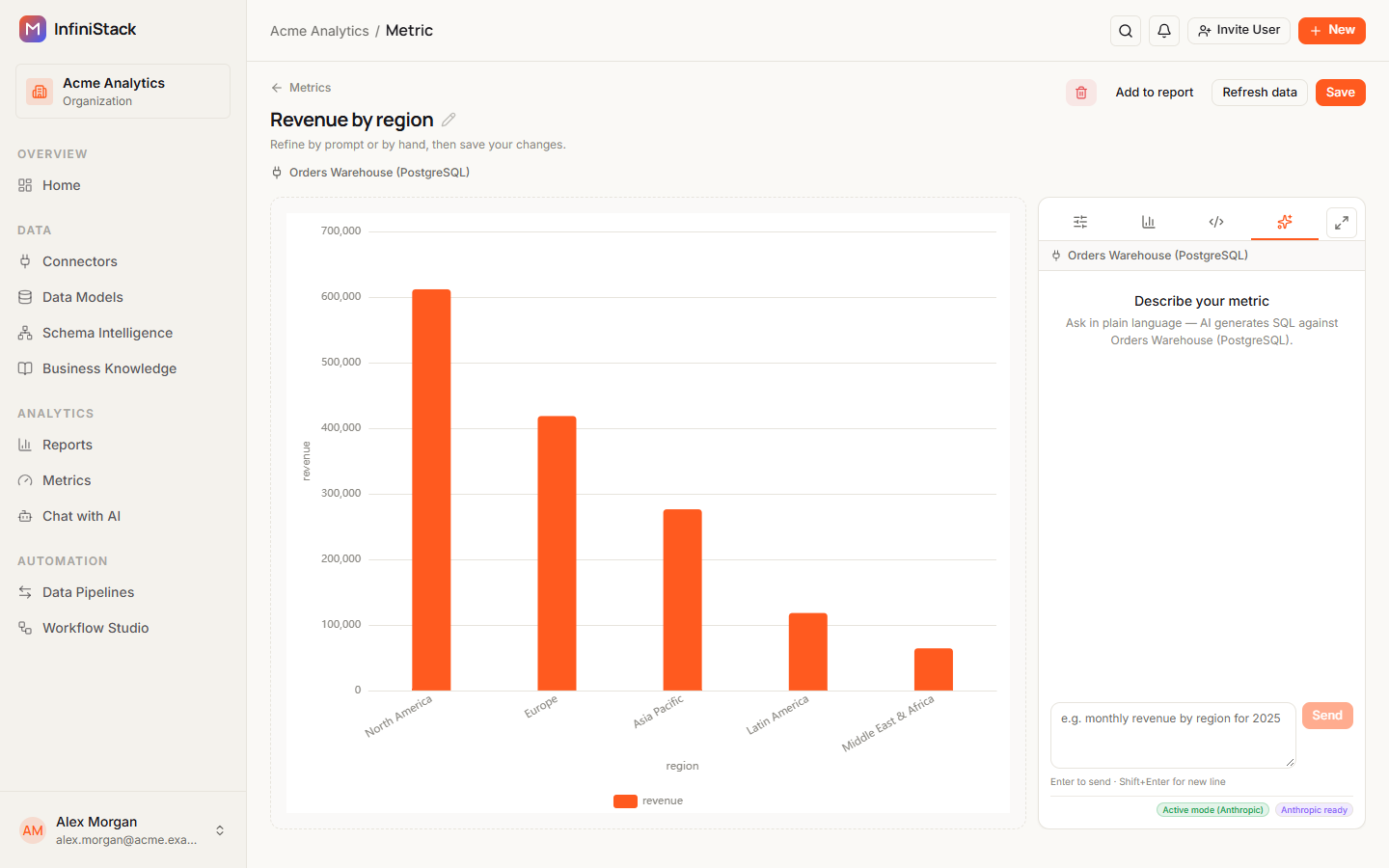
AIThe right panel has up to four tabs, shown as icons: Configure, Chart settings, SQL Query and Ask AI. Chart settings appears only when the visual type is Chart, and Ask AI only when AI features are on.
Write the SQL yourself
-
Select the SQL Query tab.
-
Optional: in Browse your data, select a table.
The table name appears under Selected, and SQL query suggests
SELECT * FROM `table` LIMIT 1000. -
Type your query in SQL query.
The preview runs 0.7 seconds after you stop typing. Running query… shows while it runs.
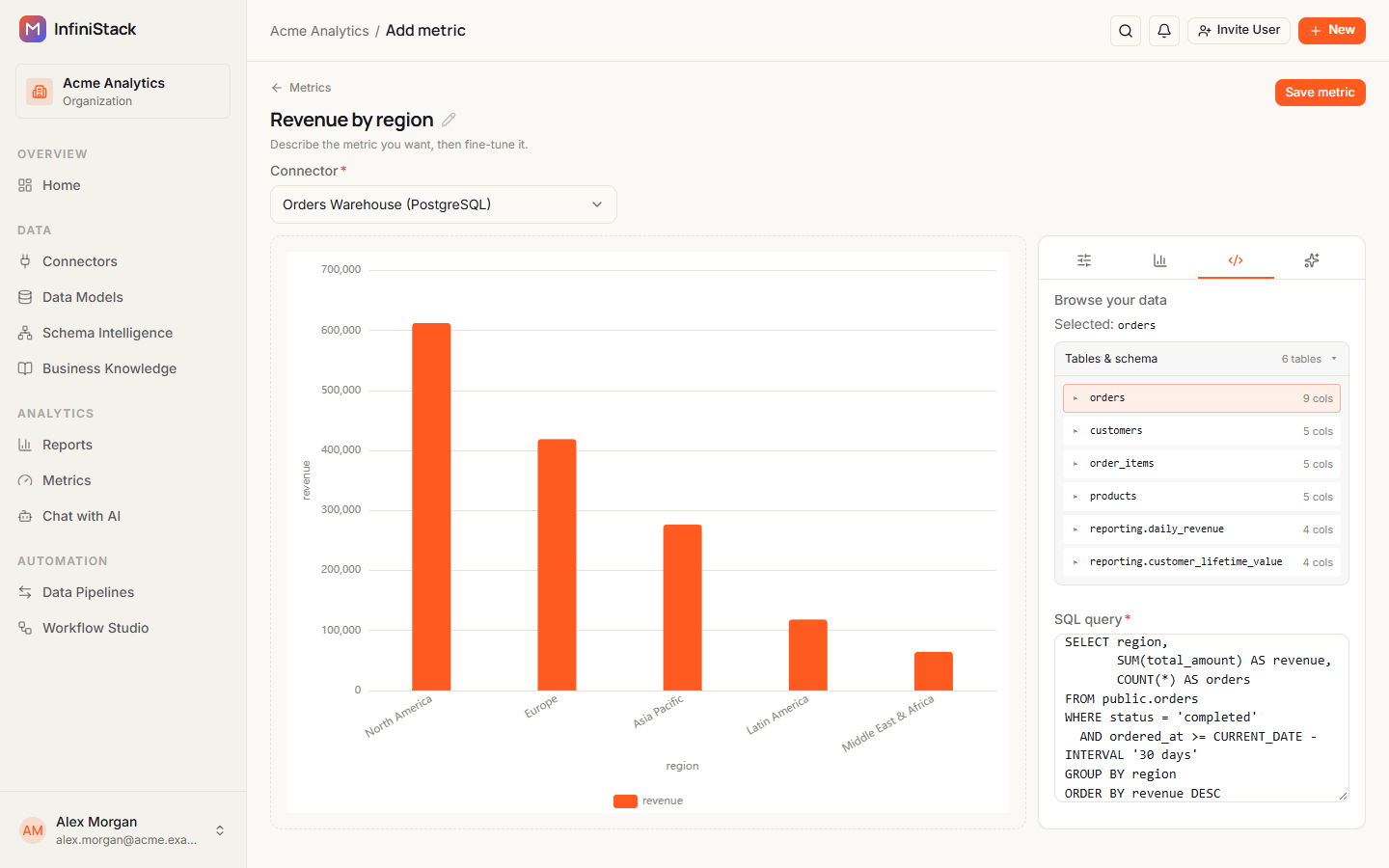
The preview returns at most 50,000 rows and waits up to 90 seconds for an answer. If the query returns nothing, the preview shows Query ran successfully but returned no rows.
Ask AI to write it
-
Select the Ask AI tab.
It shows Describe your metric. If no connector is selected yet, it shows Choose a data source in the header to use Ask AI.
-
Describe what you want to measure, for example
monthly revenue by region for 2025. -
Press Enter or select Send.
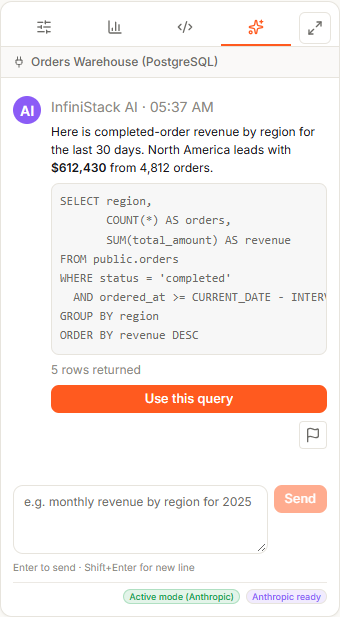
The reply shows the SQL it wrote and how many rows it returned.
-
Select Use this query.
You see Query applied — preview updating, and the SQL moves into the SQL Query tab.
To give the conversation more room, select Expand Ask AI panel at the top of the panel. Press Shift+Enter for a new line in your request.
Chart settings
What you can set depends on the visual type. Each type needs a query that has run and returned rows.
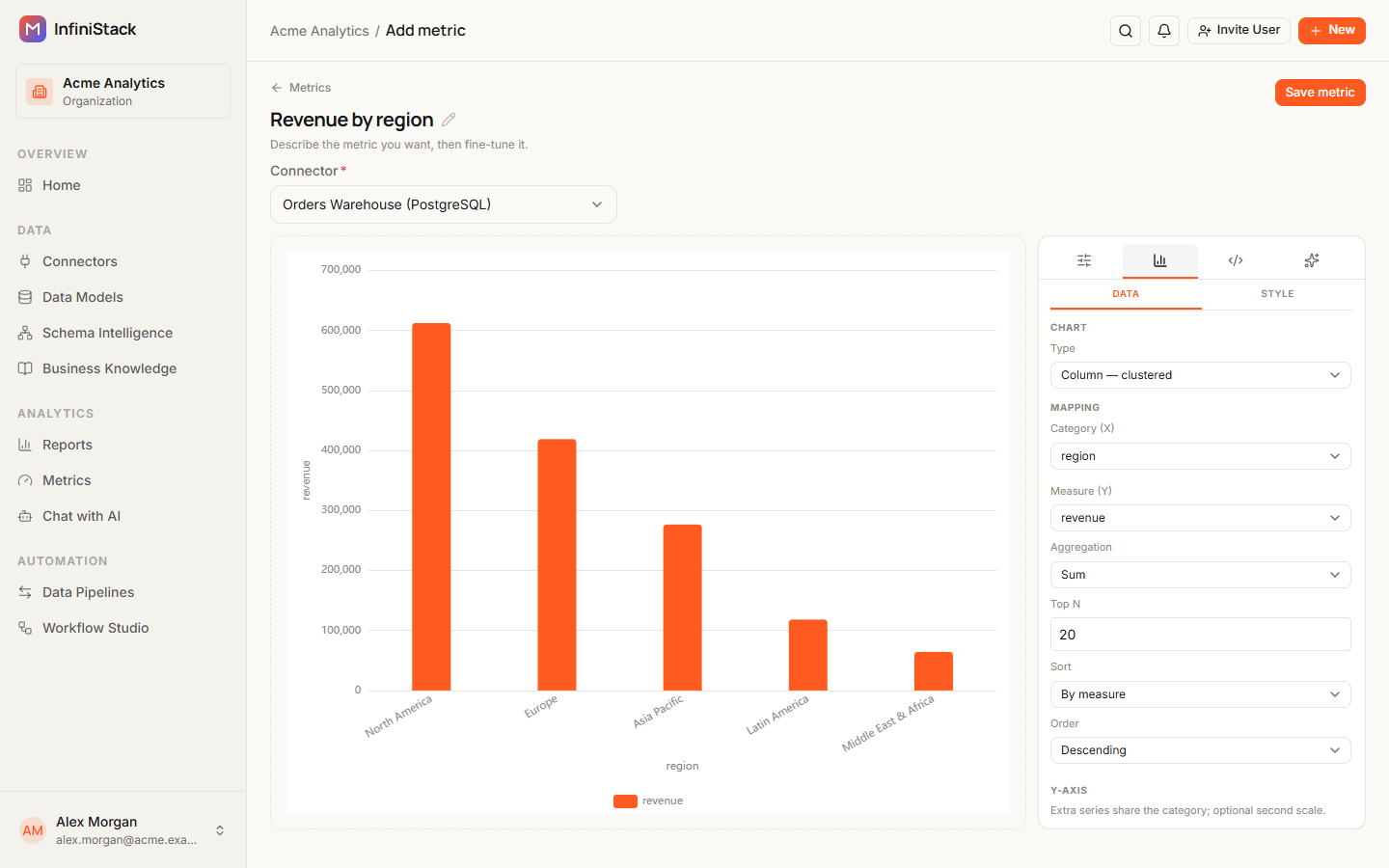
Chart. Select the Chart settings tab. It has two sub-tabs, Data and Style. On Data:
| Setting | Options |
|---|---|
| Type | Column — clustered, Column — stacked, Bar — horizontal, Line, Area, Pie, Donut, Funnel, Scatter |
| Category (X) (Legend (category) for Pie and Donut) | A column from your result |
| Measure (Y) | A column from your result |
| Aggregation | Sum, Average, Count, Min, Max |
KPI, Table and Pivot table. Set these on the Configure tab, under Visual type:
| Type | Settings |
|---|---|
| KPI | KPI column, Prefix (for example $), Suffix / unit (for example %), Subtitle |
| Table | Columns to show, Rows per page: 10, 25, 50 or 100 (default 10) |
| Pivot table | Row dimensions, Column dimension (optional) (default None — simple pivot), Value field (values are summed) |
Refresh, edit and delete
Find a metric. On Metrics, type in Search metrics... to match names and descriptions, or use Filter by type. The newest changes come first, and each card shows when it was Updated and its type. The page shows up to 200 metrics.
Edit a metric
-
On a metric card, select its title or Edit.
The editor opens on the Ask AI tab, or on SQL Query if AI features are off. You can't change the connector of a saved metric.
-
Change the name, query, visual type or settings.
The metric runs its query again each time you save.
-
Select Save.
You see Metric saved and return to the Metrics page.
Refresh a metric's data
-
Open the metric.
-
Select Refresh data.
You see Refresh queued.
Add a metric to a report
-
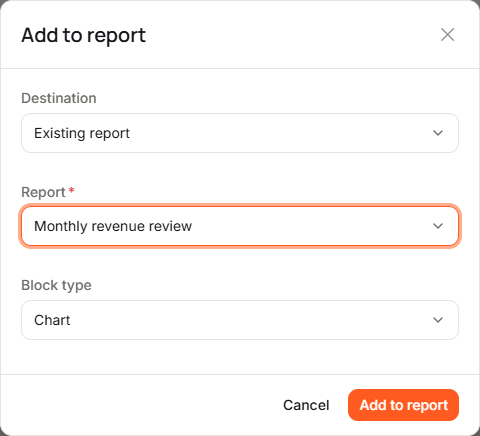
Open the metric and select Add to report.
If you have unsaved changes, the button reads Save and add to report and saves them first.
-
In Destination, select Existing report and pick the Report, or select Create new report and enter a Report title.
-
Select a Block type: Chart, Big number, Table or Pivot table.
-
Select Add to report.
You see Added to followed by the report title, and the report opens in the report builder.
Delete a metric
-
Select Delete in the card's menu, or the Delete metric trash button in the editor.
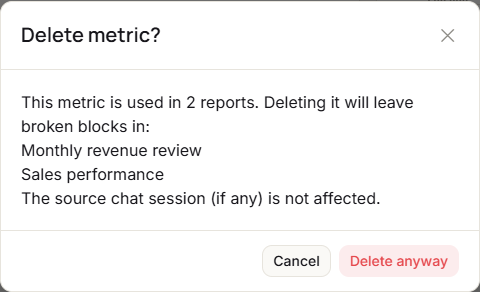
Delete metric? opens and shows Checking report references… while it looks for reports that use the metric.
-
Read the warning.
If reports use the metric, it lists them. Deleting it leaves broken blocks in those reports. A metric saved from chat doesn't affect its conversation.
-
Select Delete metric, or Delete anyway if reports use it.
You see Metric deleted.
Something not working? See Troubleshooting → Metrics.