Build a report
Create a report, lay out its rows and blocks, and choose how its data stays fresh.
Before you begin
- You need the Integrator or Admin role. See Roles at a glance.
- Your organization needs at least one connector. See Connectors.
- Chart, big number, table and pivot blocks show saved metrics. You can pick an existing metric or create one from inside the report. See Metrics.
- Compose with AI and insight blocks need AI features to be on for your organization. See AI controls.
Create a report
-
Open Reports and select New report.
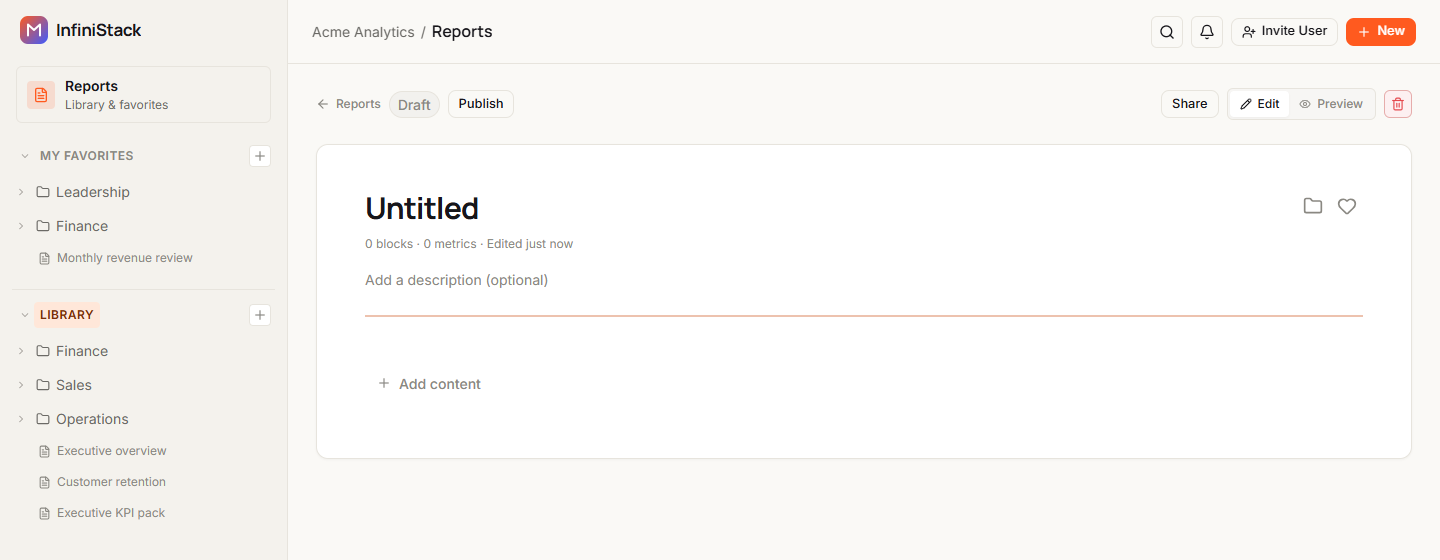
InfiniStack creates an empty draft report and opens it in the builder. The button reads Creating… while it works.
-
Select the title and type a name. It can be up to 255 characters.
The title saves on its own shortly after you stop typing. Saving title… shows while it saves.
-
Optional: select Add a description (optional) and type a description of up to 2,000 characters.
It saves the same way. Saving description… shows while it saves.
Name the report first instead
You can also start from the Create report page. Open it from New > Report in the top bar, or from Create a report on Home.
-
Enter a Name, such as
Executive overview. It's required. -
Optional: enter a Description.
-
Select Create report.
You see Report created, and the report opens in the builder.
Start from a metric or a chat answer
When you select Add to report on a metric or a Chat with AI answer, the Add to report dialog opens. In Destination, pick Existing report and choose a Report, or pick Create new report and enter a Report title. Then pick the Block type.
If your organization has a limit on the number of reports, you can't create more once you reach it. See Troubleshooting → Reports.
Compose with AI
AICompose with AI turns a plain-language description into a report outline. You then create a report from it.
-
Open Reports and select Compose with AI.
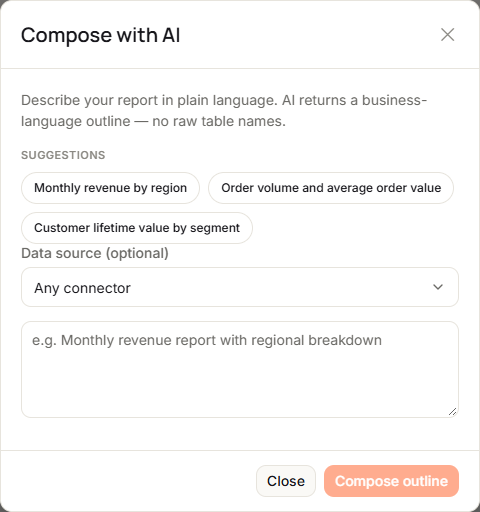
The Compose with AI dialog opens.
-
Describe the report you want, such as
Monthly revenue report with regional breakdown. You can also select one of the Suggestions.The description can be up to 4,096 characters.
-
Optional: in Data source (optional), pick a connector. Leave Any connector to use all of them.
-
Select Compose outline.
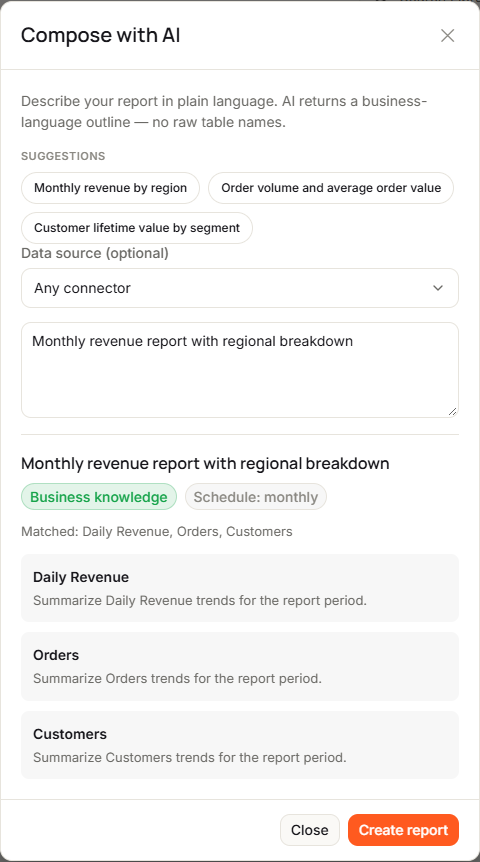
The outline shows a title and a list of sections, each with a short hint of what it covers. A badge shows Business knowledge when the outline uses your organization's business knowledge, or Generic outline when it doesn't. You may also see a suggested Schedule and the business terms it Matched.
-
Select Create report.
You see Report created from outline. The new report gets the outline's title, and the section hints become its description.
The outline doesn't add blocks to the report. Add rows and metric blocks yourself, as described below.
If Generic outline shows, the outline uses generic section templates instead of your metrics. To get metric-aware sections, business knowledge must be enabled for your organization. See Business Knowledge.
Sections, rows and blocks
A report is built from rows. Each row has 1 to 4 columns, and each column holds one block.
Switch to editing
The top bar has an Edit / Preview toggle. Select Edit to change the report.
If the report is published, Edit this report? asks you to confirm. Select Edit & move to draft. You see Moved to draft — republish when you are done editing. Members can't see the report until you publish it again. See Publish a report.
Add content
-
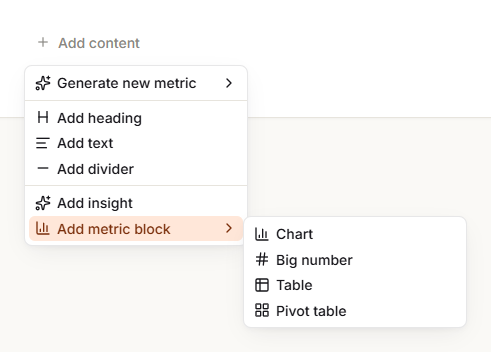
Select Add content below the last row, the + between two rows (Insert content here), or Add block here in an empty column.
A menu opens.
-
Pick what to add:
- Add heading, Add text or Add divider adds it straight away. Type your text in place.
- Add metric block > Chart, Big number, Table or Pivot table opens a dialog where you pick a metric. See Add metrics and AI insights.
- Generate new metric creates a metric and adds it as a block.
- Add insight adds an AI analysis of another block.
-
If a dialog opens and the block goes in a new row, choose Columns in new row: 1 column — full width, 2 columns — side by side, 3 columns or 4 columns.
You see Block added.
Arrange rows and blocks
- To reorder rows, drag a row by its handle (Drag to reorder row).
- To change how many columns a row has, select 1 to 4 next to Columns in the row's toolbar.
- To change column widths, drag the handle between two columns.
- To move a block, drag it into another empty column. A column holds one block only.
- To remove a row with no blocks, select Remove empty row. You see Row removed.
Saving layout… shows while your changes save.
Change or remove a block
Open the block's menu (Block options) and select:
- Expand preview to see the block bigger.
- Edit metric to change the metric behind it.
- Duplicate to add a copy. You see Block duplicated.
- Remove from report to take it off. The metric stays in Metrics.
Delete the report
In edit mode, select the trash icon (Delete report) in the top bar, then confirm in Delete report?. The report and its layout are removed. Its metrics stay in Metrics. You see Report deleted.
Add metrics and AI insights
AIAdd a saved metric
-
Select Add content, then Add metric block and the block type: Chart, Big number, Table or Pivot table.
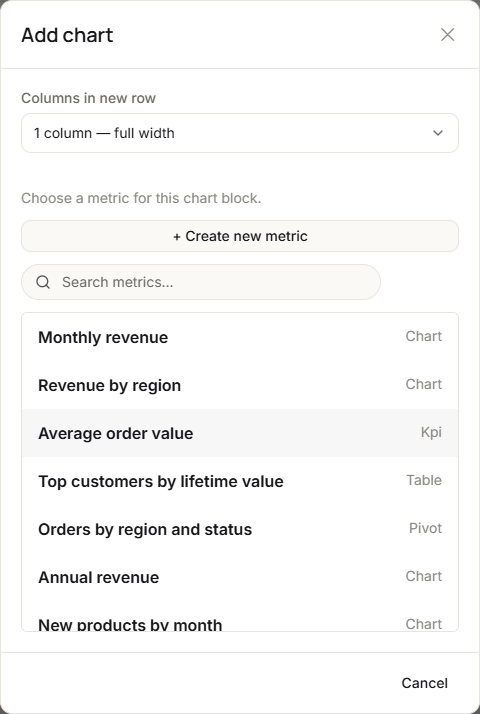
A dialog lists your metrics.
-
Optional: type in Search metrics… to narrow the list. It shows up to 50 metrics.
-
Select a metric.
The block is added with default settings. You see Block added.
If the list shows No metrics found. Create a metric first., select + Create new metric.
Create a metric without leaving the report
-
Select Add content > Generate new metric, then the block type.
The Create metric panel opens: Build a new metric without leaving the report.
-
Build and save the metric. See Create & manage metrics.
The metric is saved and added to the report as a block.
Change a metric from the report
Open a block's menu and select Edit metric. When you save, every block that uses that metric updates.
Add an AI insight
An insight block is an AI analysis of a chart, big number, table or pivot block in the same report. It's generated from that block's latest data.
-
Select Add content > Add insight.
-
Under Choose a visualization block to analyze — insight is generated from its cached data., select a block.
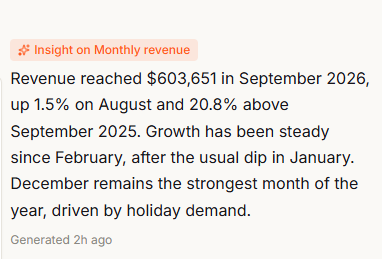
The insight block names the block it analyzes, such as Insight on Monthly revenue, and shows when it was generated. Until it's ready, it shows No insight available yet.
If you see Add a chart, KPI, table, or pivot block first., add a metric block, then try again.
To update the analysis after the data changes, open the insight block's menu and select Regenerate insight. The same menu has Duplicate block and Delete block.
Add insight only appears when AI features are on for your organization.
Filters and auto-refresh
Filters
A Filters bar appears at the top of the report when the report has something to filter:
| Filter | Appears when | Options |
|---|---|---|
| Date range | The report has 2 or more line or area charts. | All time, Last 3 months, Last 6 months, Last 12 months |
| Data source | The report's metrics come from more than one connector. | All sources, then each connector by name |
When you pick a data source, blocks from other connectors are dimmed and show Filtered by data source.
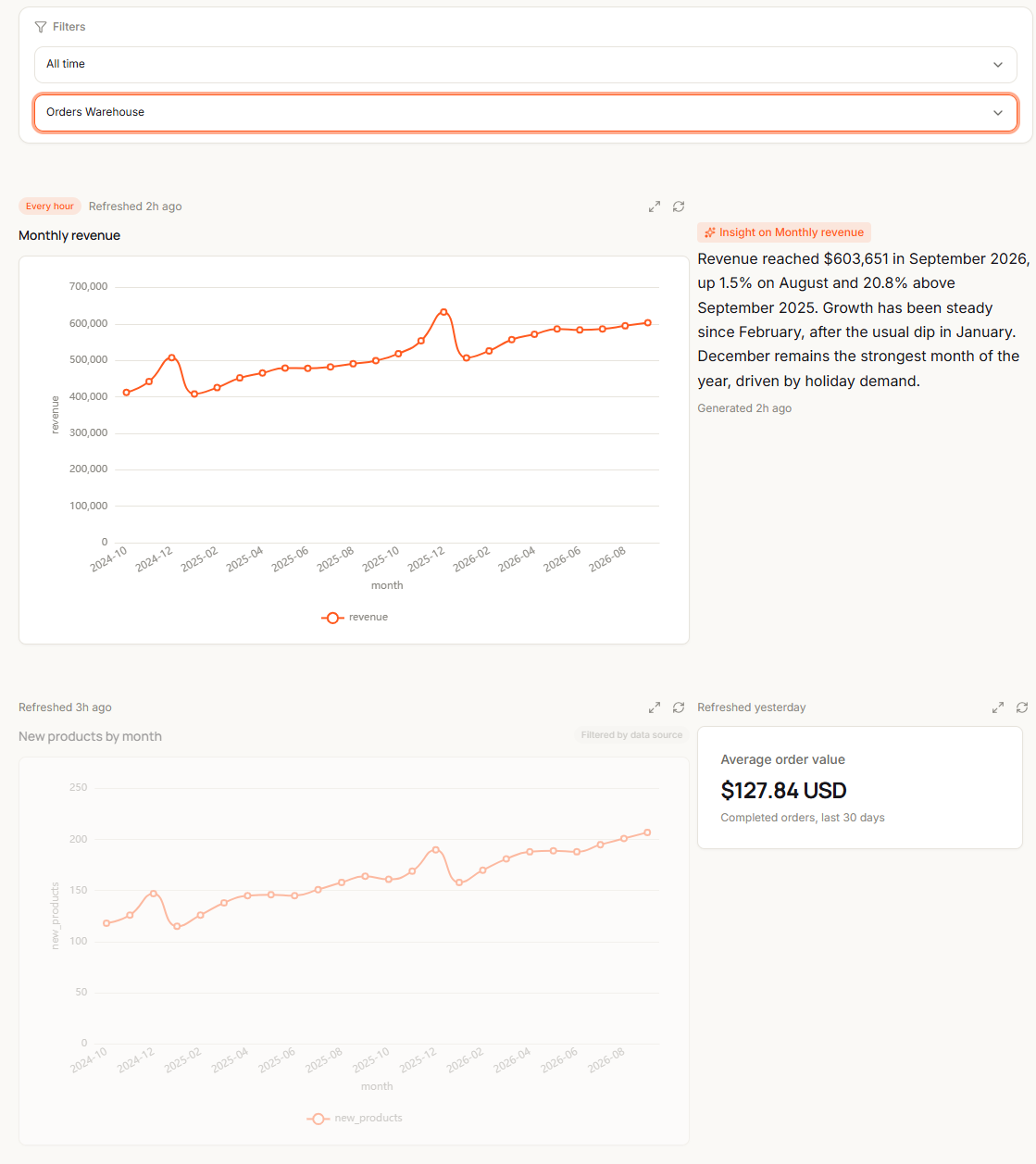
Filters save with the report shortly after you change them. Saving filters… shows while they save.
Auto-refresh
Each chart, big number, table and pivot block can refresh its data on a schedule.
-
In edit mode, select the refresh icon (Refresh settings) on the block.
The Auto-refresh panel opens.

-
Pick an interval: Off, Every 15 minutes, Every hour, Every 6 hours or Every 24 hours.
You see a message such as Auto-refresh set to Every hour, or Auto-refresh turned off.
-
To refresh straight away, select Refresh now.
InfiniStack checks every minute for blocks that are due. While a report is open, blocks with auto-refresh on check for new data every 60 seconds. Blocks set to Off don't. In preview, each block shows its interval and when it was last refreshed.
If something fails while you build, see Troubleshooting → Reports.