Find & view reports
Find a report in the Library or in My Favorites, keep the ones you use in your own folders, and open them.
Before you begin
- Any role can open Reports. See Roles at a glance.
- As a Member, you only see published reports shared with your team or with a Common Space your team belongs to. If you aren't in a team, ask an Admin to add you. See Teams & Common Spaces.
- Your organization needs at least one connector. See Connectors.
Browse the Library
-
Open Reports.
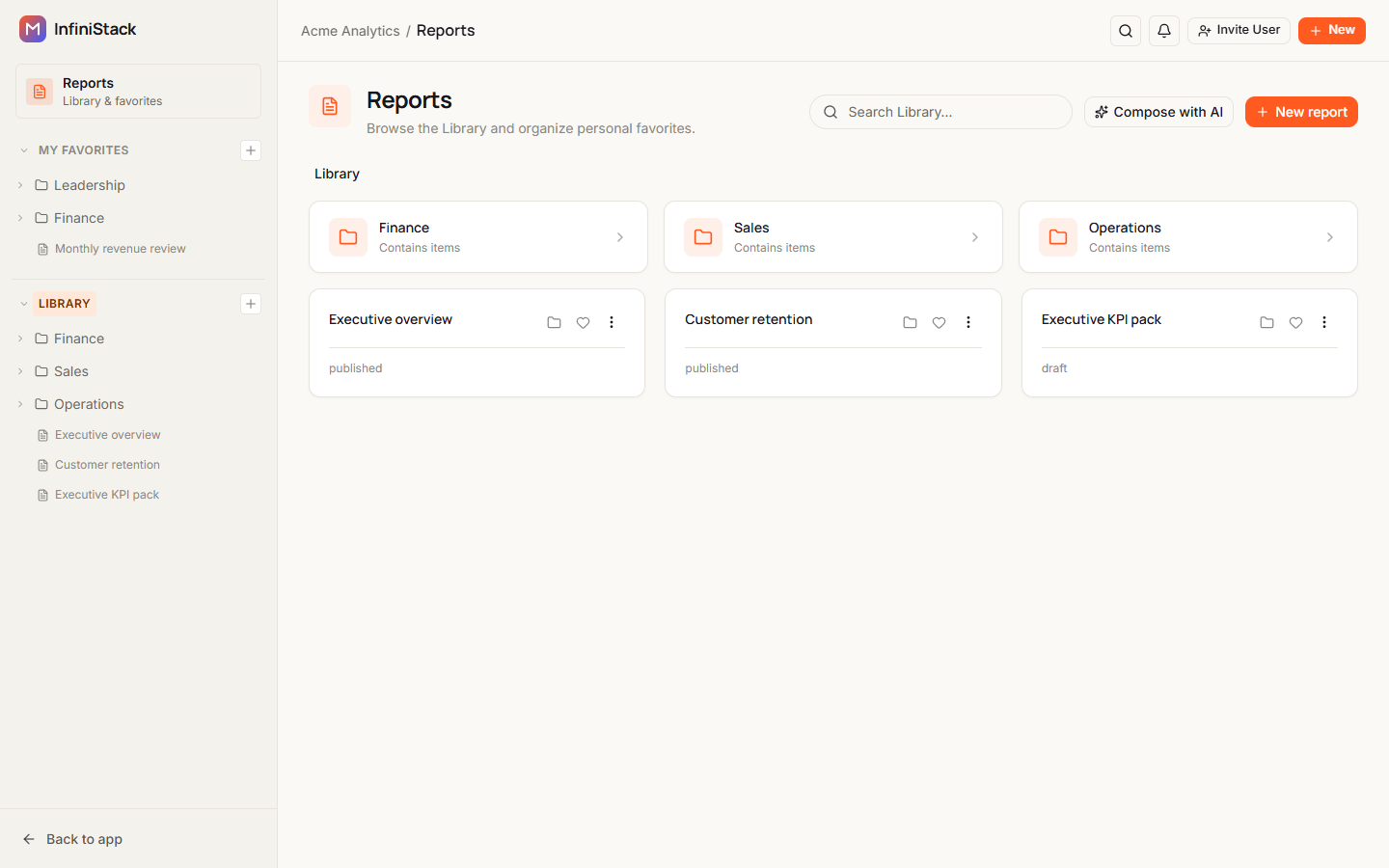
The page opens at the top of the Library. The breadcrumb at the top reads Library.
-
Select a folder in the left rail or in the page to open it.
The breadcrumb shows where you are. Select Library in the breadcrumb to go back to the top.
-
To search, type in Search Library….
Results update as you type. The search covers the whole tree, not just the folder you're in. Each result shows its folder path, or Root for reports at the top. If nothing matches, you see No matches in this folder/tree.
-
Select a report card to open the report.
Each card shows the report's title, its size or status, and when it was last edited, such as Edited 2 hours ago.
If a folder has nothing in it, you see This folder is empty. As a member, you don't see empty Library folders at all.
As a member, if the Library shows No reports visible yet. Ask an admin if you expected to see shared reports., nothing has been published and shared with your team yet.
Use My Favorites
My Favorites is your own set of folders. Nobody else sees it, and it doesn't change the Library. You can favorite any report you can open.
Add a report to My Favorites
-
On a report card or in the report's header, select the heart (Add to favorites).
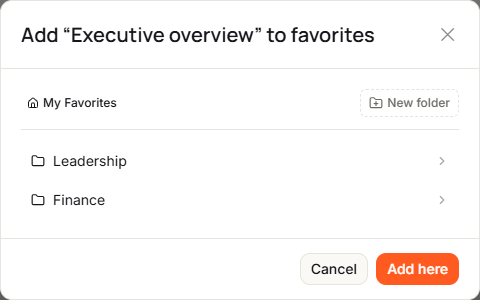
The Add “…” to favorites dialog opens, with the report title in place of the dots, at the top of My Favorites.
-
Select a folder to open it. Use the path at the top to go back up.
-
Optional: to put the report in a new folder, select New folder, type a name, and press Enter or select Create. Press Escape to cancel.
The name can be up to 255 characters. Two folders in the same place can't have the same name.
-
Select Add here.
You see a message such as Added “Executive overview” to Finance. The heart is now filled.
Move or remove a favorite
-
Select the filled heart (Organize favorites).
The Organize “…” dialog opens, with the report title in place of the dots.
-
Do one of these:
- To move it, open the folder you want and select Move here. The button reads Already here while you're in the folder it's in now.
- To remove it, select Remove from favorites.
You see a message such as Moved “Executive overview” to Finance, or Removed from favorites.
Organize your favorite folders
In the left rail, select + next to My Favorites to add a folder (New Favorites folder). Each folder has a menu with Rename, New subfolder, Move to…, Move up, Move down and Delete. Each favorite in the rail has a menu with Move to folder… and Remove favorite.
If you haven't favorited anything yet, My Favorites shows No favorites yet — tap the heart on a report.
Pin a report to Home
MemberMembers can pin reports to their Home page for one-click access. Integrators and Admins don't have this option.
-
On a report card or in the report's header, select the pin (Pin to Home).
The report appears in the Pinned reports panel on Home.

-
To remove it, select the pin again (Unpin from Home).
You can pin up to 10 reports. If a pinned report is no longer shared with you, it drops off the list.
If you haven't pinned anything, the panel shows No pinned reports yet. Open a report and choose Pin to Home. Select Browse reports to open Reports.
View a shared report
-
Open the report from Reports, My Favorites or Home.
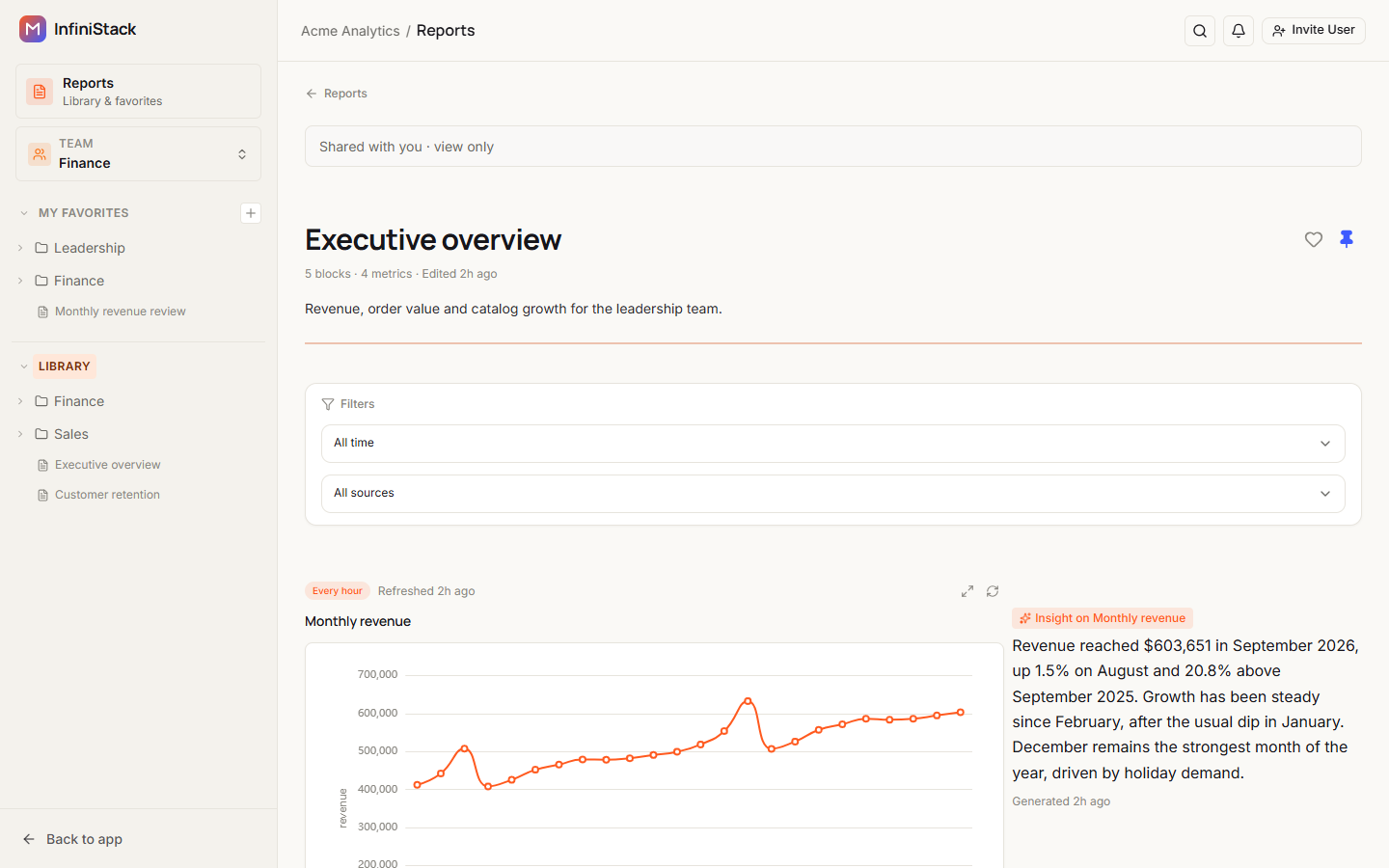
As a member, you see Shared with you · view only under the top bar. There are no editing, publishing or sharing controls.
Under the title you see how many blocks and metrics the report has and when it was last edited, such as 6 blocks · 4 metrics · Edited 2 hours ago.
-
If the report has more than one section, select a section header to expand or collapse it.
-
Under a metric block, check when it was last refreshed: Refreshed and a time, Never refreshed or Refreshing…. If the block refreshes on a schedule, its interval shows next to it.
-
To get the latest data, select Refresh now on the block.
-
To see a block bigger, select Expand preview. Press Esc to close it.
If the report has filters, they appear in the Filters bar at the top. Change them to narrow what you see. If you can't edit the report, your choice isn't saved: it lasts only while the report is open, and you may see an error message when you change a filter.
A report with no blocks shows This report is empty.
If a report or the list doesn't load, see Troubleshooting → Reports.