Publish & share a report
Publish a report, share it with teams and Common Spaces, and place it in the organization's Library.
Before you begin
- You need the Integrator or Admin role. See Roles at a glance.
- To share with members, the teams or Common Spaces must exist. See Teams & Common Spaces.
- Members see a report only when it's both published and shared with their team, or with a Common Space their team belongs to. See Who can see a report.
Publish a report
-
Open the report from Reports.
The top bar shows the Draft badge.
-
Select Publish. If the report was published before, the button reads Republish.
The badge changes to Published, and the report switches to Preview.
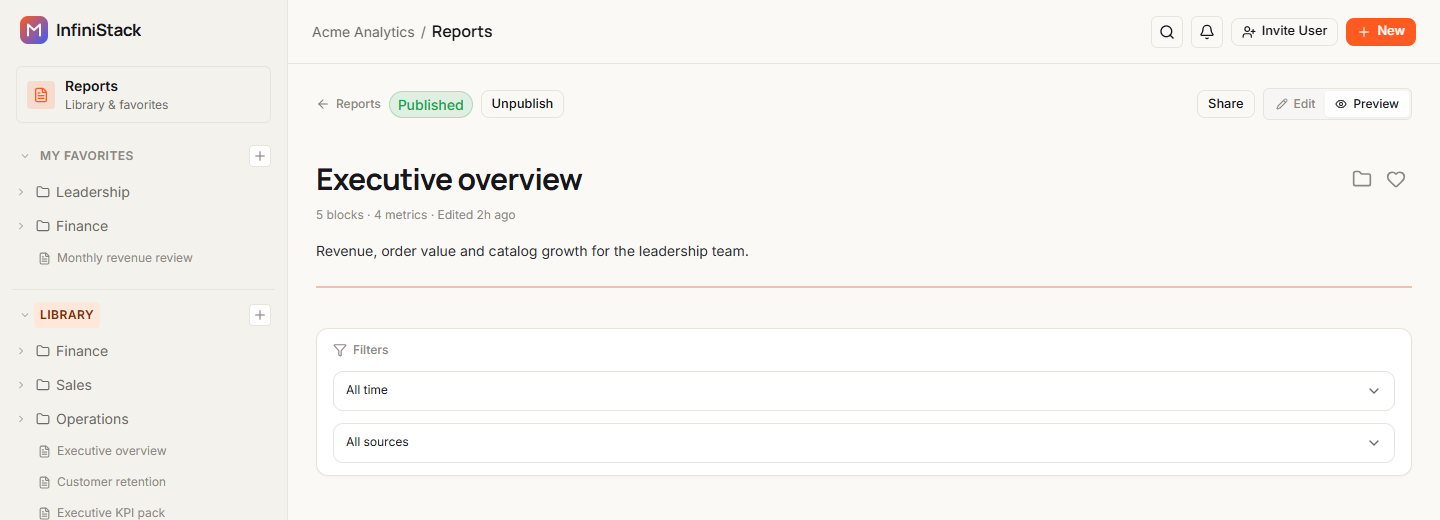
Editing the report (select Edit, then Edit & move to draft) moves it back to draft, and members lose access until you select Republish. Changing the filters in preview doesn't. See Drafts and published reports.
Unpublish a report
-
Select Unpublish in the top bar.
Unpublish report? tells you members will lose access until you publish again. Existing shares are kept.
-
Select Unpublish.
You see Report unpublished, and the badge changes to Draft.
Share with teams and Common Spaces
You can share a report while it's still a draft. Members see it once you publish.
-
Open the report and select Share in the top bar.
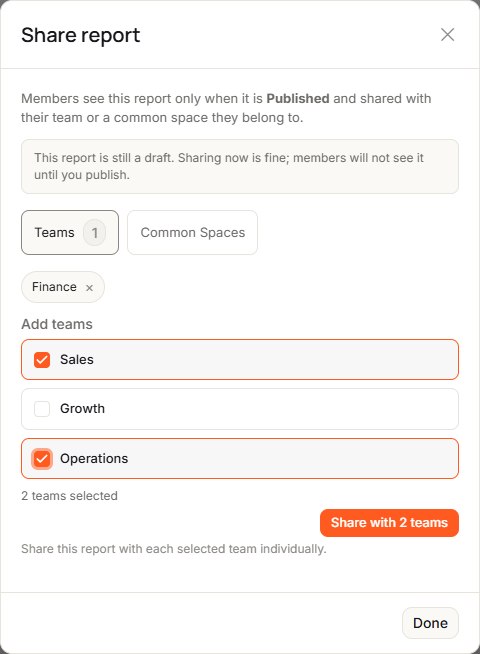
The Share report dialog opens. If the report is a draft, it says This report is still a draft. Sharing now is fine; members will not see it until you publish.
-
On the Teams tab, under Add teams, select one or more teams.
-
Select Share. With more than one team selected, the button reads Share with 2 teams, and so on.
The teams appear as chips at the top of the tab, and the tab shows how many teams have the report.
If the report is still a draft, Publish now? (or Republish now?) asks whether to publish it. Select Publish to let members see it, or Not now to keep it a draft.
-
To share with a Common Space instead, select the Common Spaces tab, select spaces under Add common spaces, and select Share.
-
Select Done to close the dialog.
To stop sharing with a team or space, select × on its chip.
Create a Common Space while sharing
If several teams need the report, you can create a Common Space for them from the dialog.
-
On the Common Spaces tab, select Create common space.
-
Enter a Name. It's required.
-
Optional: enter a Slug and a Description.
-
Under Teams, select at least one team.
-
Select Create & share.
The space is created and the report is shared with it.
Organize the Library
The Library is the organization's shared set of folders. Only Integrators and Admins can organize it. Moving a report in the Library doesn't change what members can see, and never changes anyone's My Favorites.
Place a report in a folder
-
On a report card or in the report's header, select the folder button (Move in Library).
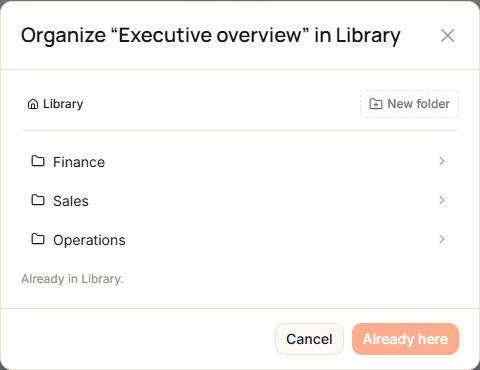
The Organize “…” in Library dialog opens, with the report title in place of the dots, at the top of the Library.
-
Select a folder to open it. Use the path at the top to go back up.
-
Optional: select New folder, type a name, and press Enter or select Create.
-
Select Move here. The button reads Already here while you're in the folder the report is in now.
You see a message such as Moved “Executive overview” to Finance.
Manage folders
-
In the left rail, select + next to Library (New Library folder) to add a folder.
The New folder dialog opens.
-
Enter a Folder name, such as
Finance, and select Create folder.The name is required and can be up to 255 characters. Two folders in the same place can't have the same name.
Each folder's menu has Rename, New subfolder, Move to…, Move up, Move down and Delete. Each report in the rail has Move to folder…. You can't move a folder into itself or into one of its own subfolders.
Delete a folder
-
In the folder's menu, select Delete.
Delete folder “…”?, with the folder name in place of the dots, asks what should happen to its contents.
-
Pick one:
- Move contents to parent folder (the default) keeps its subfolders and reports one level up.
- Delete folder tree and send reports to root removes the folder and its subfolders, and moves their reports to the top of the Library.
-
Select Delete folder.
Deleting a folder never deletes reports.
Delete a report
-
On the report's card, open the ⋮ menu and select Delete.
-
In Delete “…”?, with the report title in place of the dots, select Delete report.
The report and its layout are removed. The metrics on it stay in Metrics.
If something fails, see Troubleshooting → Reports.