Review & correct the schema map
Check how InfiniStack joined and classified your tables, confirm links between connectors, fix a table's purpose or layer, and rebuild the map when it's out of date.
Before you begin
- To review the map, you need the Integrator or Admin role. To confirm links, edit tables, rebuild or clear, you need the Admin role. See Roles at a glance.
- You need at least one connector. To confirm links between connectors, you need at least two. See Connectors.
Review relationships
-
Open Schema Intelligence and select the Relationships tab.
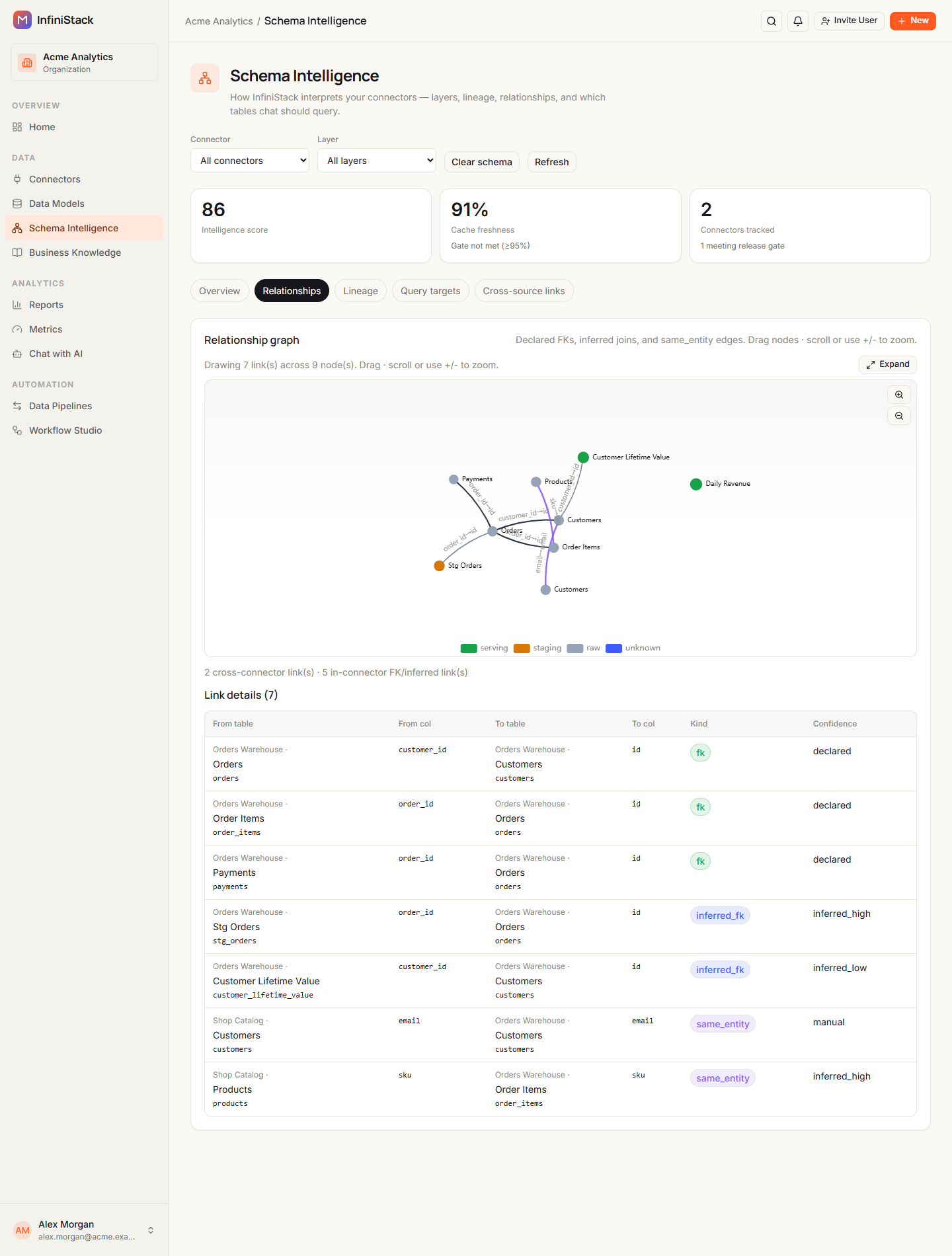
The Relationship graph shows your tables and the links between them.
-
Select a connector in Connector, and a layer in Layer, to narrow the graph.
Below the graph, a line counts the links: cross-connector links, then links inside a connector.
-
Hover a table in Link details to see its purpose.
Each table shows a readable name, with its technical name underneath.
-
Check the Kind and Confidence of each link.
inferred_low links are the ones most worth checking. See Layers, relationships and lineage.
If the graph is empty, ask an Admin to rebuild the connector. See Rebuild or clear.
Confirm cross-source links
When the same entity, such as a customer, appears in two connectors, InfiniStack suggests a link between them. Confirm the ones that are right so they stay.
-
Select the Cross-source links tab.
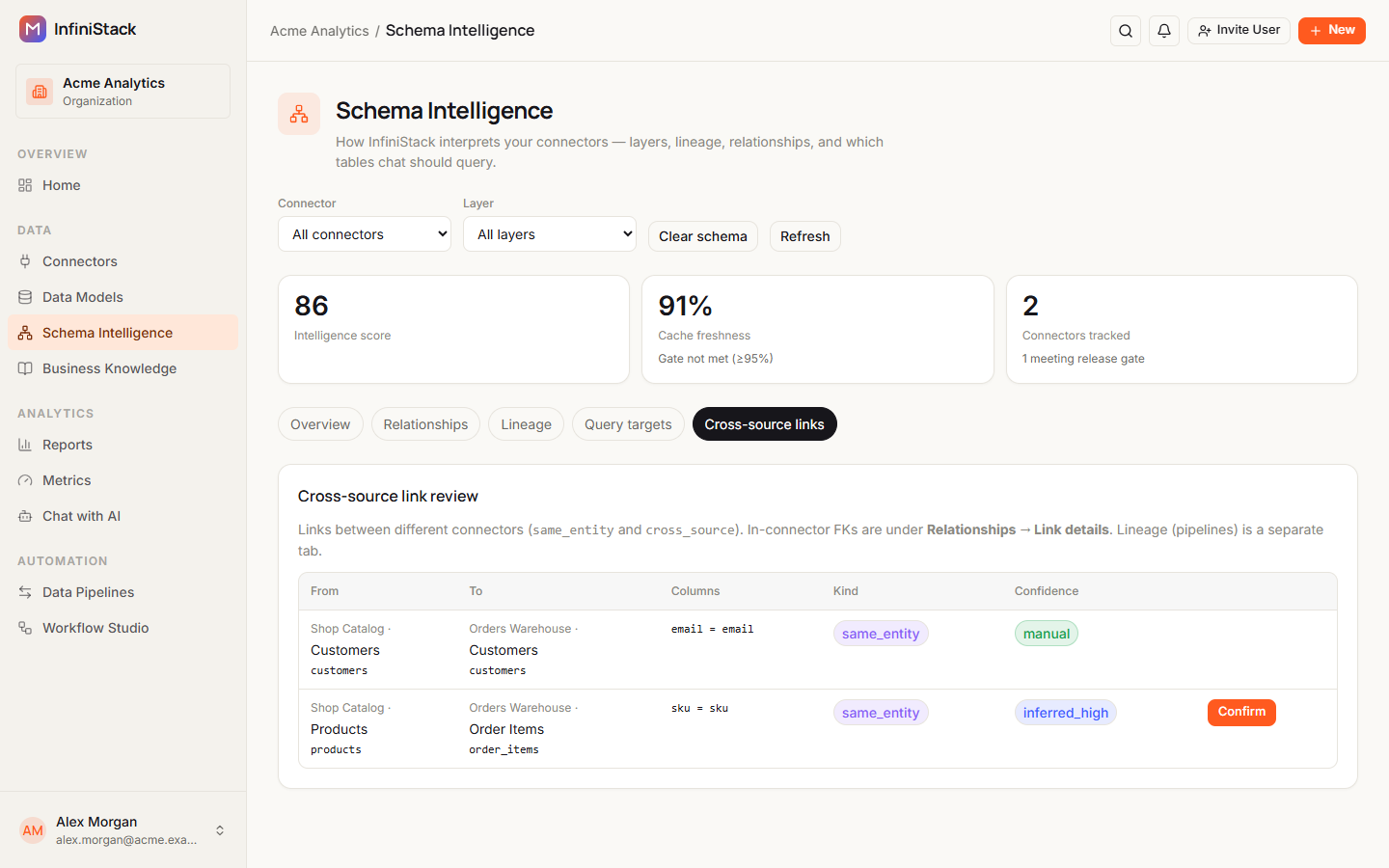
Cross-source link review lists links between different connectors, with From, To, Columns, Kind and Confidence. Links inside one connector are under Relationships → Link details.
-
Check the Columns of a link. They read
column = column. -
Select Confirm on a link that's right.
Link confirmed as manual appears, and the link's Confidence changes to manual. Rebuilds don't change manual links.
Confirm only appears on links of kind same_entity that aren't confirmed yet.
Override a table’s purpose or layer
-
Select the Query targets tab.
-
Select Edit on the table's row.
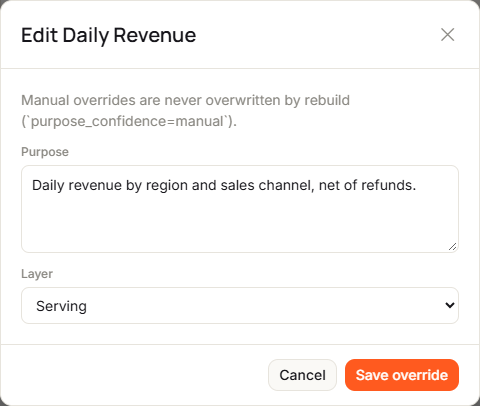
A window titled Edit and the table's name opens.
-
Enter the Purpose: a short sentence about what the table holds.
-
Select the table's Layer: Serving, Staging, Raw or Unknown.
-
Select Save override.
Table schema intelligence updated appears. The table's rank resets to the starting rank of its new layer. See Query targets.
Rebuilds never overwrite a manual purpose or layer.
Rebuild or clear
Rebuild a connector when its tables have changed or its schema map is empty. A rebuild runs all 9 stages and finishes before the page updates.
-
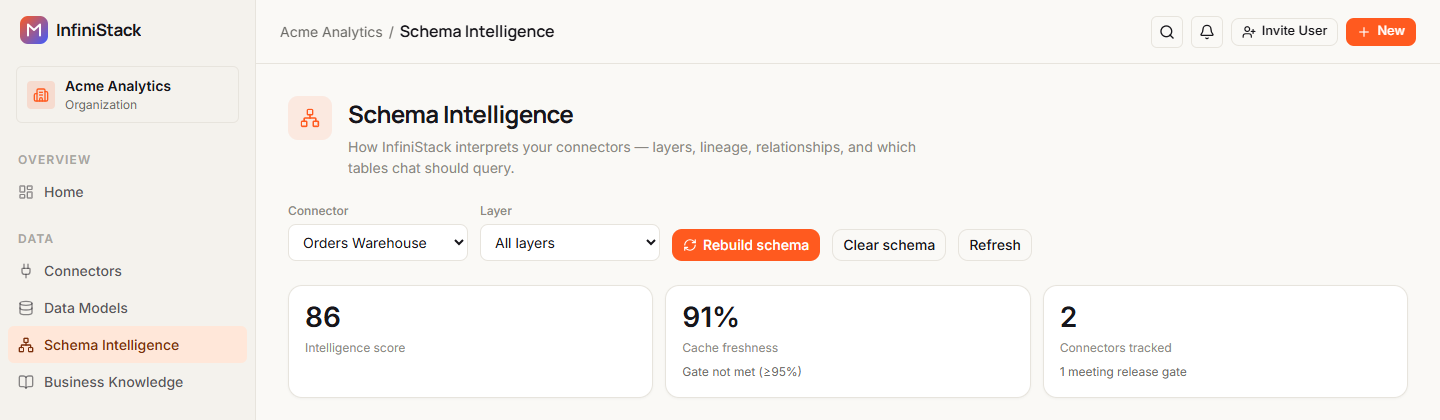
Select a connector in Connector.
Rebuild schema appears in the toolbar.
-
Select Rebuild schema.
The button reads Rebuilding… while it runs. When it's done, Semantic rebuild finished appears.
You can also select Rebuild on a connector's row in Connector coverage, on the Overview tab.
To start again from nothing, clear the map first:
-
Select a connector in Connector, or leave All connectors to clear every connector.
-
Select Clear schema.
-
Select OK to confirm.
Schema intelligence cleared for selected connector. or Schema intelligence cleared for organization. appears.
-
Rebuild each connector you cleared.
Clear removes relationships, lineage, layers, column profiles, scores and the purpose of every table. That includes links you confirmed and purposes and layers you set by hand. The list of tables stays.
Clearing one connector also removes lineage for every connector in your organization. Rebuild your other connectors afterwards to restore it.
If something goes wrong, see Troubleshooting → Schema Intelligence.