Build a workflow
Before you begin
- You need the Integrator or Admin role. See Roles at a glance.
- Your organization needs at least one connector. See Add a connector.
If a step shows an error, see Troubleshooting → Workflows.
Create a workflow
-
Open Workflow Studio and select Add workflow.
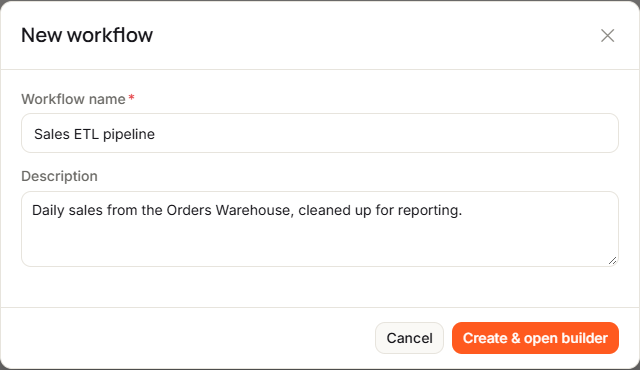
The New workflow dialog opens.
-
Enter a Workflow name, up to 255 characters, such as
Sales ETL pipeline. -
Optionally, enter a Description.
-
Select Create & open builder.
You see Workflow created. and the builder opens with an empty notebook: This notebook is empty.
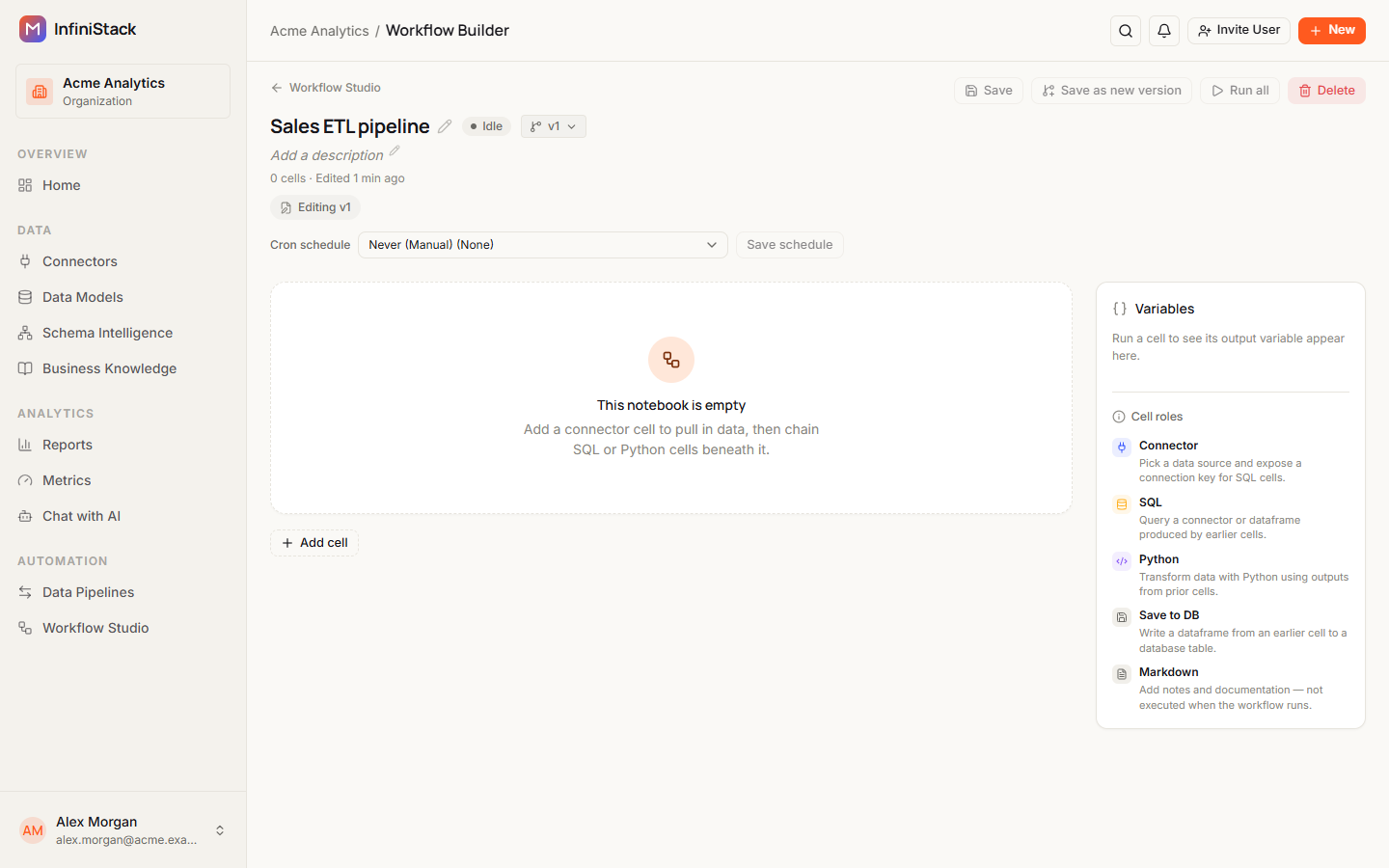
New workflows are Active. InfiniStack saves the new workflow as version 1 and makes that version active. See Versions.
In the builder:
- To rename the workflow, select its name, type, and press Enter. Press Escape to cancel. A blank name becomes Untitled workflow.
- To add or change the description, select Add a description under the name.
- Under the name, you see how many cells the workflow has and when it was last edited.
- Select Workflow Studio at the top to go back to the list.
Save your changes
The builder saves your cells automatically about 1 second after you stop typing. To save right away, select Save or press Ctrl+S (Cmd+S on a Mac).
You see Workflow saved. You can't save a workflow with no cells.
Delete a workflow
-
In the builder, select Delete.
-
Select Delete workflow.
You see Workflow deleted. Every cell, output and variable in the notebook is removed. This can't be undone.
You can also delete a workflow from the menu at the end of its row in the list.
Add a connector cell
Every workflow starts with a Connector cell. It picks the data source the SQL cells below it query.
-
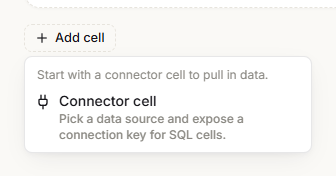
Select Add cell, then Connector cell.
With no cells yet, Connector cell is the only choice.
-
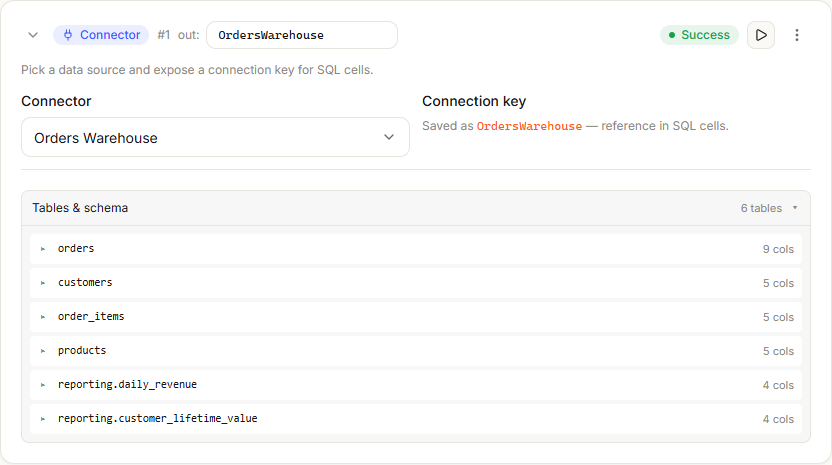
In Connector, select one of your organization's connectors.
The out: field at the top of the cell fills in from the connector's name, and the connector's tables appear below. Connection key shows the name the key is saved as.
-
Optionally, change the key in the out: field at the top of the cell. It must start with a letter or underscore, then use only letters, numbers or underscores.
SQL cells refer to the connector by this key.
-
Select the play button (Run cell) on the cell.
The cell's status changes to Success.
You can't run a connector cell until you pick a connector.
SQL, Python and Save to DB cells
Once the first cell is in place, Add cell offers every cell type. To put a cell between two others, select + (Insert cell here) between them, then + Connector, + SQL, + Python, + Save to DB or + Markdown.
SQL cell
-
Add a SQL cell.
-
In Connection, select the connection key of a connector cell you've already run.
-
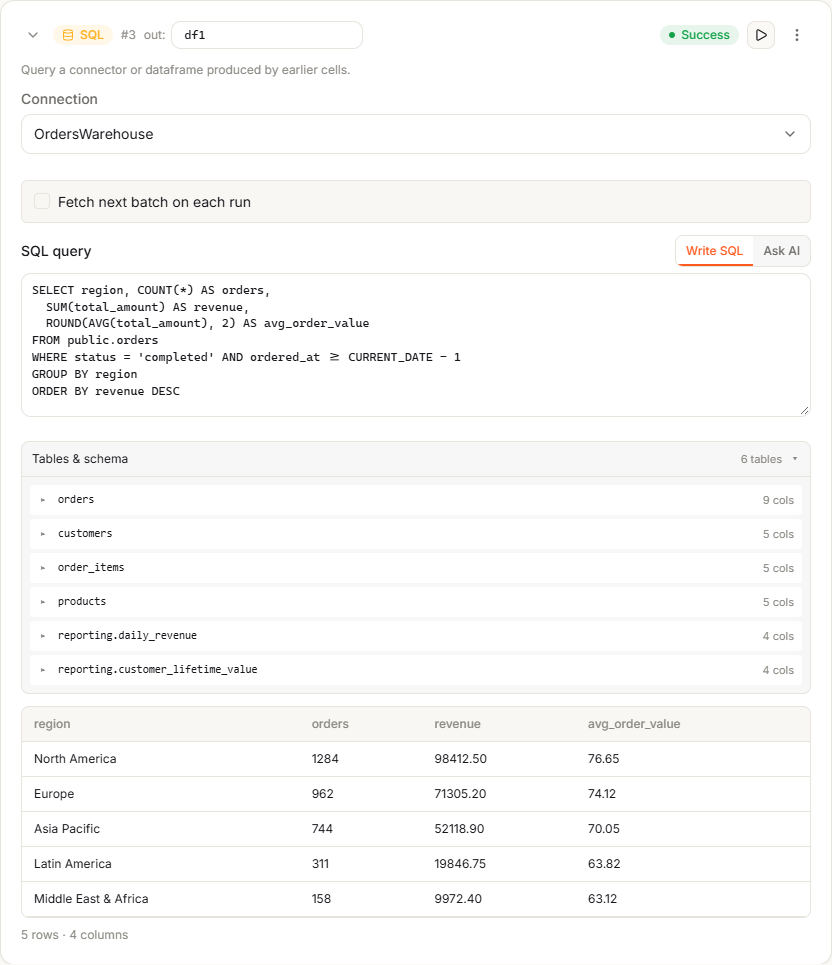
Type your query in SQL query, under Write SQL.
Only read-only queries run: the query must start with
SELECT,WITH,SHOW,DESCRIBEorEXPLAIN. -
Select Run cell.
The cell shows the result and its size, such as 120 rows · 4 columns.
A SQL cell returns at most 10,000 rows. If your query returns more, the cell warns that the result is
capped. Add LIMIT, or use GROUP BY to return fewer rows. To read more rows than that, use
Incremental fetch.
Python cell
- Add a Python cell.
- Write your code in Python code. Use the output variables of cells above it, such as
df1. - Select Run cell.
Save to DB cell
-
Add a Save to DB cell.
-
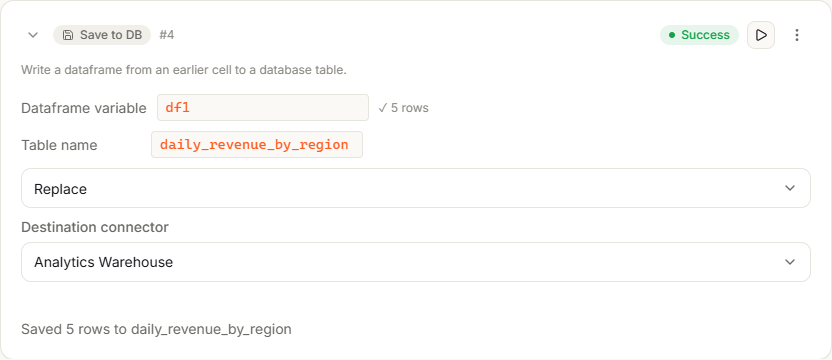
In Dataframe variable, enter the output variable of a cell above, such as
df1.The field shows ✓ and the number of rows when that cell has run, or ⚠ run upstream cells first.
-
In Table name, enter the table to write to.
-
Choose what happens if the table already exists:
Option What happens Replace (default) The existing table is dropped and created again with the new rows. Append The new rows are added to the table. Fail if exists The cell fails with an error and doesn't write to the table. -
In Destination connector, select the connector to write to.
-
Select Run cell.
The cell shows Saved N rows to and the table name.
Markdown cell
Use a Markdown cell for notes. Select it to edit the text. When you select another cell, it shows the formatted text. Markdown cells don't run.
Work with cells
Each cell shows its type, its number (such as #2), and a status: Idle, Running, Success or Error. When a cell fails, you see Cell failed with the error.
The menu at the end of each cell has Run, Duplicate, Move up, Move down and Delete. SQL cells with incremental fetch on also have Reset checkpoint.
To delete a cell:
-
In the cell's menu, select Delete.
-
Select Delete cell.
The cell and its output are removed. Cells below it that use its output variable lose that input. This can't be undone.
Pass data between cells
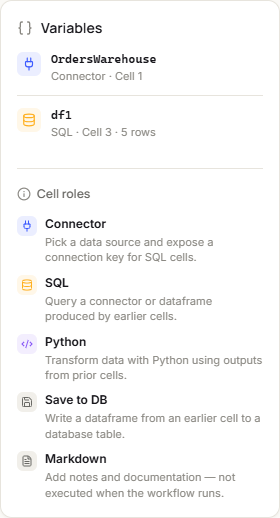
Connector, SQL and Python cells each have an output variable, in the out: field at the top of the cell.
By default, connector cells are named conn1, conn2 and so on, and SQL and Python cells df1, df2 and
so on. Rename them to something that makes sense to you.
Cells below use that name:
- A SQL cell picks a connector cell's key in Connection.
- A Python cell uses dataframe names, such as
df1, in its code. - A Save to DB cell names the dataframe in Dataframe variable.
A cell only runs once the cells it depends on have run in your current session. Until then, its play button is unavailable and the cell tells you which cell to run first, for example Run the Connector cell ("conn1") first. When you reopen a workflow, earlier results show Output is from a previous session. Run upstream cells, then run this cell again. Select Run all to run every cell in order. See Run all or one cell.
The Variables panel on the right lists each output that ran successfully, with its cell type, cell number and row count. Until a cell runs, it shows Run a cell to see its output variable appear here.
A dataframe keeps at most 10,000 rows in your session. A result marked (preview capped) has more rows than are shown.
Incremental fetch
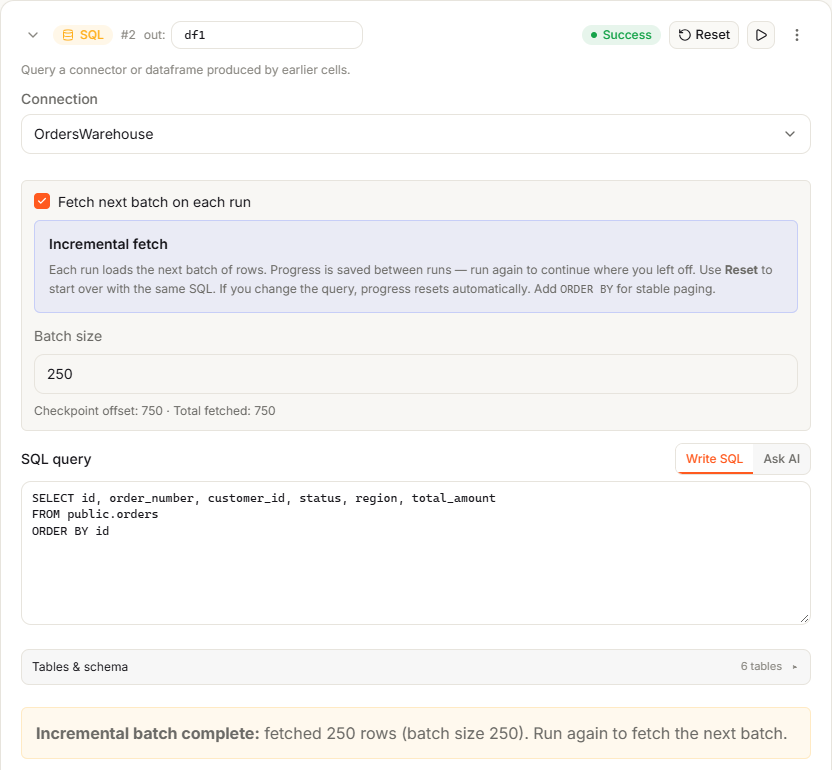
Incremental fetch reads a large table in batches. Each run of the SQL cell loads the next batch, and the progress is saved between runs.
-
Save the workflow.
Until it's saved, the cell shows Save the workflow to enable incremental checkpoints.
-
On a SQL cell, select Fetch next batch on each run.
-
In Batch size, enter how many rows each run fetches, from 1 to 10,000. The default is 1000.
-
Add
ORDER BYto your query, so each batch picks up where the last one ended. -
Select Run cell.
You see Incremental batch complete: fetched N rows (batch size B). Run again to fetch the next batch. Under Batch size, Checkpoint offset and Total fetched show how far you've got.
-
Run the cell again to fetch the next batch.
To start again from the first batch, select Reset on the cell, or Reset checkpoint in its menu. If you change the query, the progress resets on its own.
Get help from Workflow assist
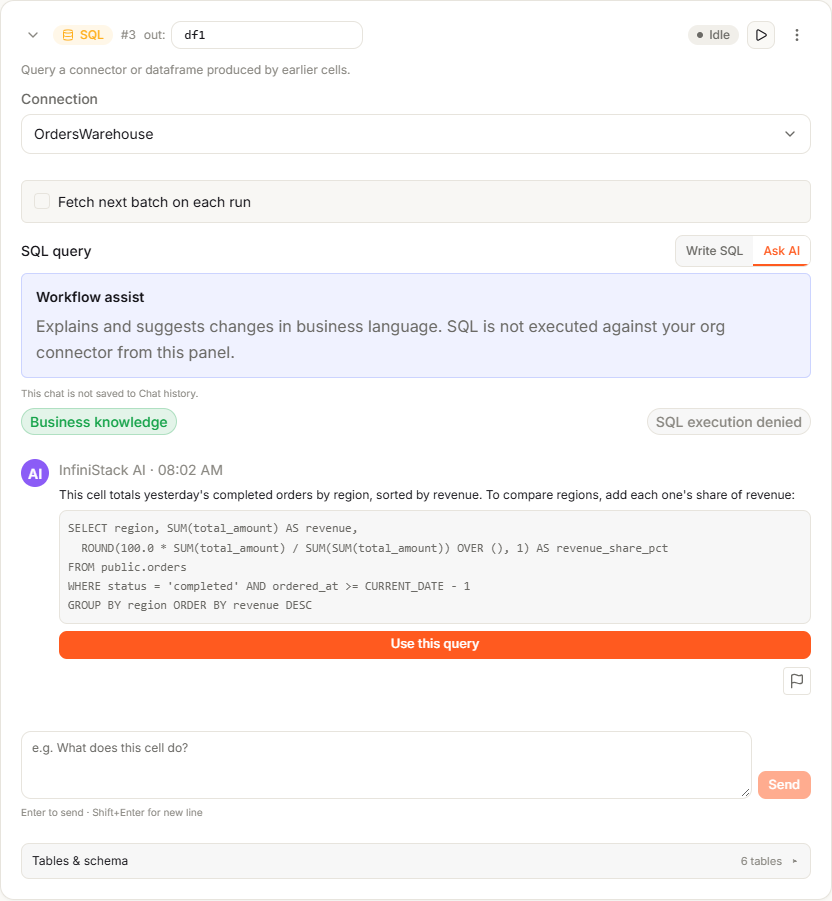
AIWorkflow assist explains a SQL cell and suggests changes in business language. It doesn't run SQL against your connectors. It's only available when AI features are on for your organization. See AI controls.
-
On a SQL cell, select Ask AI.
An empty SQL cell opens on Ask AI already.
-
Type a question, such as
What does this cell do?, up to 4,096 characters. -
Select Send, or press Enter. Press Shift+Enter for a new line.
The answer appears in the panel.
-
If the answer suggests a query, select Use this query.
The query goes into SQL query, and the cell switches to Write SQL.
-
Select Run cell to try it.
This chat isn't saved to your Chat history. If AI is off for your organization, SQL cells don't show Ask AI.