Run & schedule a workflow
Before you begin
- You need the Integrator or Admin role. See Roles at a glance.
- You need a workflow with at least one cell. See Build a workflow.
If a step shows an error, see Troubleshooting → Workflows.
Run all or one cell
Run one cell
While you build, run one cell at a time:
-
On the cell, select the play button (Run cell), or select Run in the cell's menu.
The cell's status changes to Running, then Success or Error.
The button is unavailable until the cells it depends on have run. See Pass data between cells. Each single-cell run is recorded in the workflow's run history as a manual run.
Run every cell
-
In the builder, select Run all.
The builder saves the workflow, then runs the cells from top to bottom. The button shows Running… until it finishes.
When it's done, you see Run completed — open Runs to view history.
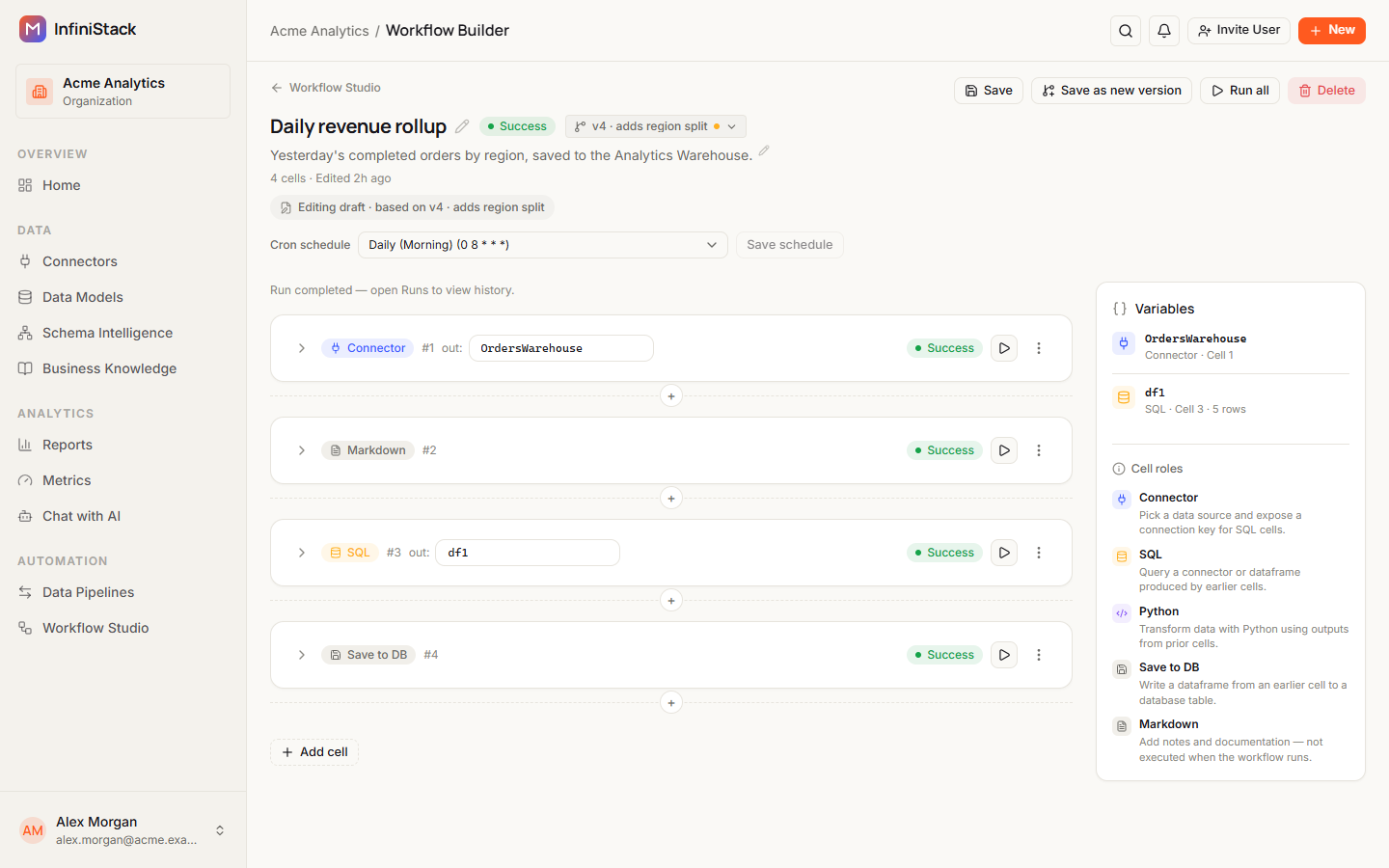
Run all stops at the first cell that fails, and you see Run finished with errors — open Runs for details.
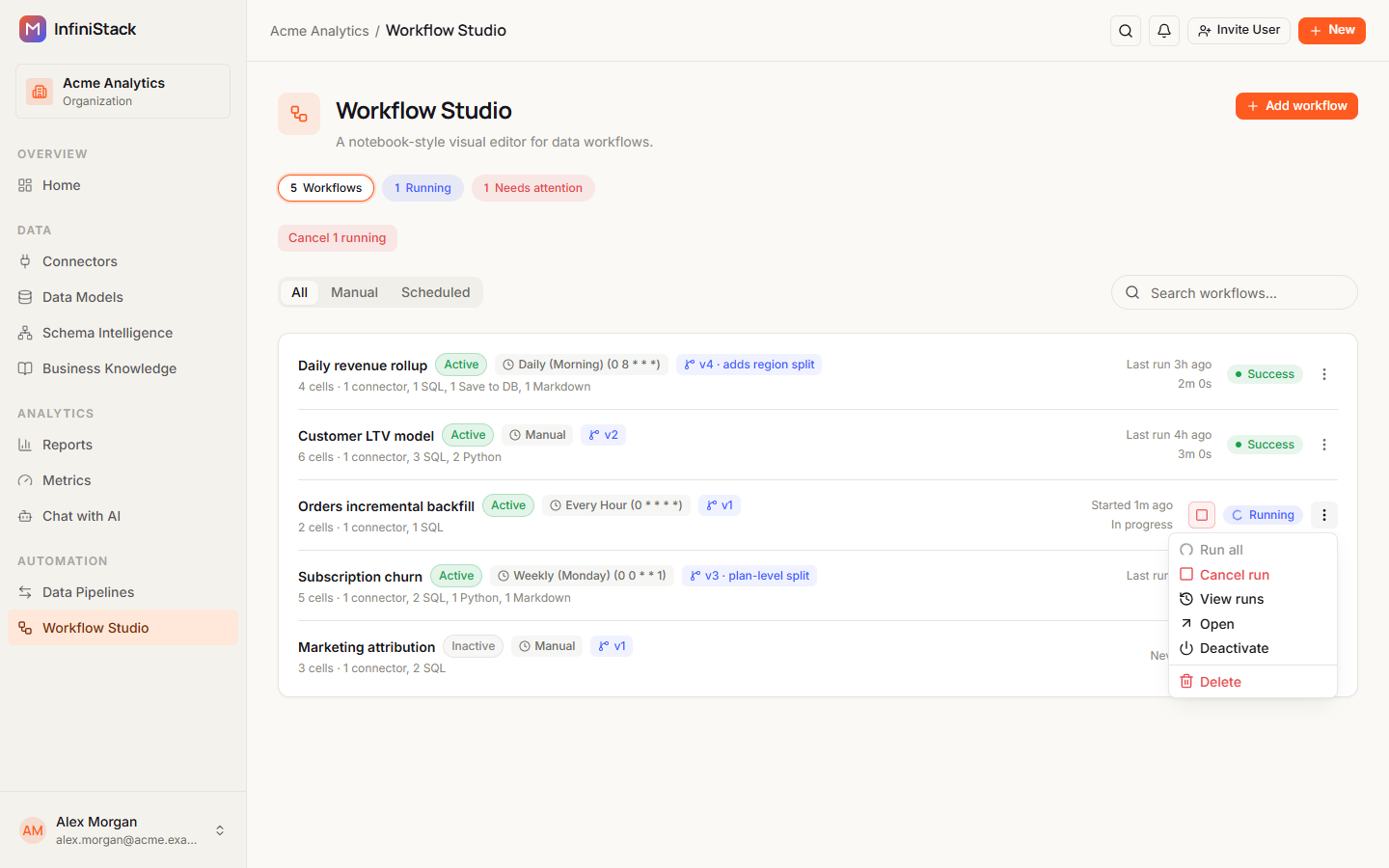
You can also run a workflow from the list: in the menu at the end of its row, select Run all. Only Active workflows run, and a workflow runs one at a time.
Stop a run
-
To stop one workflow, select Cancel run in its row menu.
-
To stop everything that's running, select Cancel N running above the list. It appears only while runs are in progress.
You see Stopped N run(s).
Turn a workflow on or off
In the row menu, select Deactivate or Activate. You see Workflow deactivated or Workflow activated, and the row's badge changes to Inactive or Active. An inactive workflow can't be run from the list, and its schedule doesn't start runs.
Find a workflow in the list
Each row shows the workflow's status: Never run, Queued, Running, Success, Failed or Cancelled.
Above the list, the chips count your Workflows and, when there are any, the ones Queued, Running and Needs attention (inactive). Select a chip to show only those workflows. Use the All, Manual and Scheduled tabs, or type in Search workflows… to find a workflow by its name or description.
The row menu also has View runs, Open and Delete.
Schedule with cron
-
In the builder, open Cron schedule and pick a schedule.
Each option shows its name and its cron expression, such as
Every Hour (0 * * * *).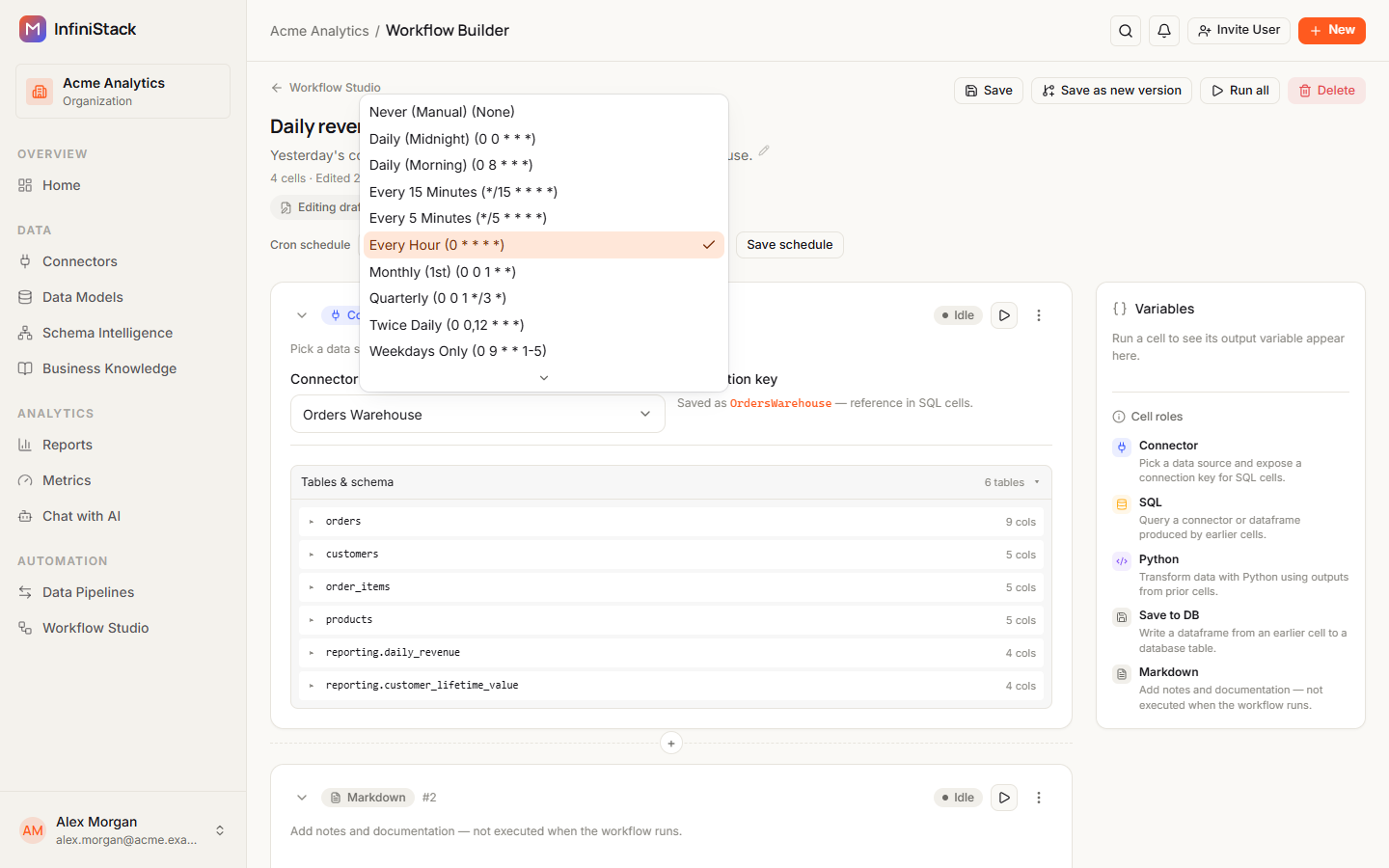
-
Select Save schedule.
You see Schedule saved.
The schedules you can pick are:
| Schedule | Cron expression |
|---|---|
| Every 5 Minutes | */5 * * * * |
| Every 15 Minutes | */15 * * * * |
| Every Hour | 0 * * * * |
| Twice Daily | 0 0,12 * * * |
| Daily (Midnight) | 0 0 * * * |
| Daily (Morning) | 0 8 * * * |
| Weekdays Only | 0 9 * * 1-5 |
| Weekly (Sunday) | 0 0 * * 0 |
| Weekly (Monday) | 0 0 * * 1 |
| Monthly (1st) | 0 0 1 * * |
| Quarterly | 0 0 1 */3 * |
| Never (Manual) | None |
Times are in UTC. To stop scheduled runs, pick Never (Manual) and save.
A scheduled run starts only when the workflow is Active. If the workflow is still queued or running when its next time comes, that scheduled run is skipped. A scheduled run waits in Queued until it's picked up, usually within about a minute.
Versions
Runs, by hand or on a schedule, use the workflow's active version: a saved snapshot of its cells. Your edits in the builder are a draft. They don't change what runs until you save them as a version and make it active.
The badge in the builder shows what you're editing, such as Editing v2 or Editing draft · based on v2. In the list, each row shows the version it runs, such as v2.
Save the draft as a version
-
In the builder, select Save as new version.
The button is unavailable when the draft matches the active version. Edit a cell first.
-
Optionally, enter a Version label, up to 255 characters, such as
adds revenue split.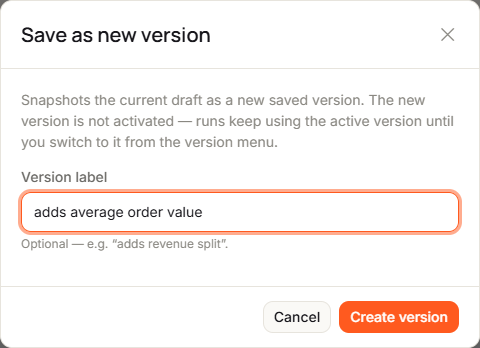
-
Select Create version.
You see Version N created — switch to it from the version menu to make it active. The new version isn't active yet.
Make a version active
-
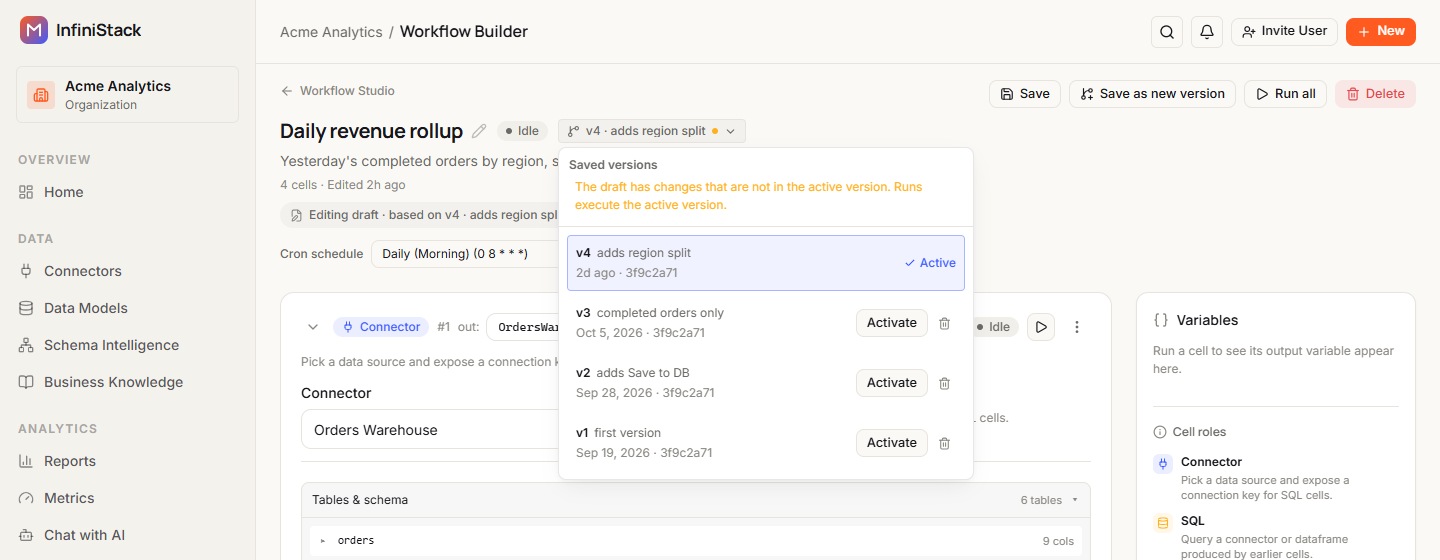
In the builder, open the version menu. It shows the active version, such as v2 · adds revenue split.
Saved versions lists every version. The one in use is tagged Active.
-
Next to the version you want, select Activate.
You see Version N is now active — runs will execute this snapshot.
Delete a version
- In the version menu, select the delete icon next to the version.
- Next to Delete?, select Delete.
You can't delete the active version. Activate another version first.
Run history and cell logs
-
In Workflow Studio, open the menu at the end of the workflow's row and select View runs.
The run history opens beside the list, with the number of runs recorded. A workflow that hasn't run yet shows This workflow hasn't run yet. Trigger Run all to see history and logs here.
-
Optionally, filter by All runs, Manual, Scheduled, Success, Queued, Failed or Running.
Each row shows whether the run was Manual or Scheduled, when it started, the version it ran, how long it took, and its status: Queued, Running, Success, Failed or Cancelled.
-
Select a run to expand it.
You see its cells in the order they ran.
-
Select ▶ Logs on a cell to see its output and errors.
A cell with nothing to show says No log output for this cell.
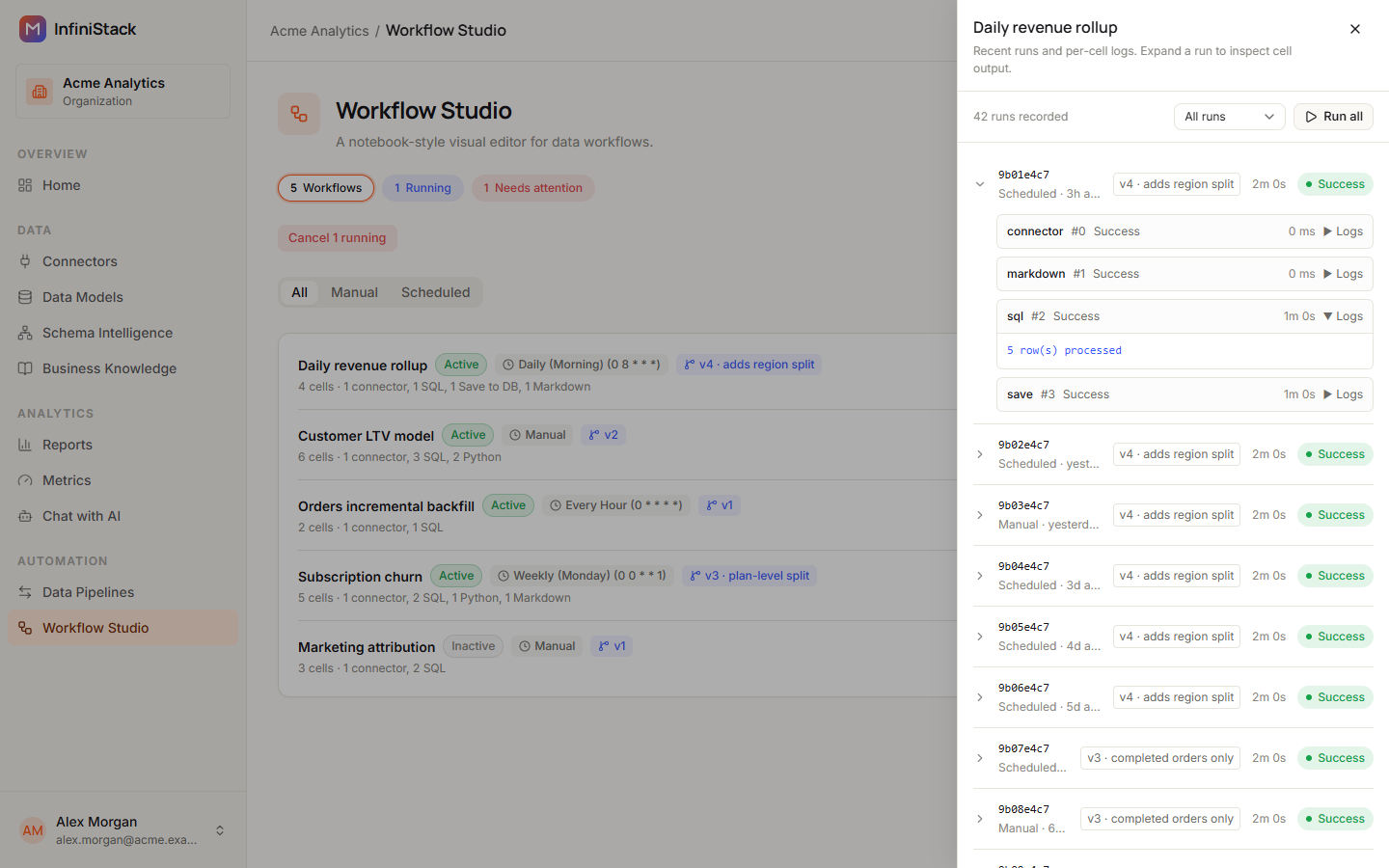
The history shows 15 runs at a time. Use Prev and Next to page through older runs. It refreshes on its own while you watch, so you can follow a run in progress. You can also start a new run from here with Run all.